Tag Archives: tutorial

How to set SQL Server file autogrowth settings to recommended sizes across all databases on an instance

As part of a Microsoft RAP analysis you might encounter some of the following:

  • Databases identified with auto-growth set to percentage growth
  • Databases identified with auto-growth set to 1MB growth
  • Database files have been identified that have the next Auto Growth increment of 1GB or above
  • Databases have been identified with one or more Transaction Log files where expected next Auto Growth increment is 1GB or above

Brent Ozar suggests that the data file and log file autogrowth setting should be 256MB and 128MB respectively, and he makes a good argument here.

Broadly I agree with his position but I also acknowledge, as he does, that every database is different and has its own considerations. (Keep that in mind while reviewing the following script)

I’ve created the script below, which programmatically creates the SQL commands, to apply these recommended values to the autogrowth settings of each database on an instance.

The script gets every database name, and associated data file and log file names and using dynamic SQL writes a script to update autogrowth settings for each database.

You can then adjust the setting values manually for each database before executing.

Or if you’re really brave/crazy execute the dynamic script automatically by changing PRINT @sql to EXEC(@sql).

USE Master;
GO

SET NOCOUNT ON

DECLARE @database AS NVARCHAR(256)
	,@dataFileName AS NVARCHAR(256)
	,@logFileName AS NVARCHAR(256)
	,@sql AS VARCHAR(MAX)
	,@loop AS INT
	,@end AS INT

IF OBJECT_ID('tempdb..#DatabaseList') IS NOT NULL
	DROP TABLE #DatabaseList

CREATE TABLE #DatabaseList (
	[#DatabaseListId] INT IDENTITY(1, 1) PRIMARY KEY
	,[DatabaseName] [sysname] NOT NULL
	,[DataFileName] [sysname] NOT NULL
	,[LogFileName] [sysname] NOT NULL
	)

INSERT INTO #DatabaseList
SELECT d.DatabaseName
	,d.FileName AS DataFileName
	,l.FileName AS LogFileName
FROM (
	SELECT d.NAME AS DatabaseName
		,mf.NAME AS FileName
	FROM sys.master_files mf(NOLOCK)
	JOIN sys.databases d(NOLOCK) ON mf.database_id = d.database_id
	WHERE type_desc = 'ROWS'
	) AS d
LEFT JOIN (
	SELECT d.NAME AS DatabaseName
		,mf.NAME AS FileName
	FROM sys.master_files mf(NOLOCK)
	JOIN sys.databases d(NOLOCK) ON mf.database_id = d.database_id
	WHERE mf.type_desc = 'LOG'
	) AS l ON l.DatabaseName = d.DatabaseName

SET @end = (
		SELECT MAX(#DatabaseListId)
		FROM #DatabaseList
		)
SET @loop = 1

WHILE @loop <= @end
BEGIN
	SELECT @database = DatabaseName
		,@dataFileName = DataFileName
		,@logFileName = LogFileName
	FROM #DatabaseList
	WHERE #DatabaseListId = @loop

	--PRINT @database
	SET @sql = 'USE [' + @database + '];
		GO
		ALTER DATABASE [' + @database + '] MODIFY FILE (NAME=''' + @dataFileName + ''',MAXSIZE = UNLIMITED, FILEGROWTH = 256MB);
		ALTER DATABASE [' + @database + '] MODIFY FILE (NAME=''' + @logFileName + ''',MAXSIZE = UNLIMITED, FILEGROWTH = 128MB);
		GO'

	PRINT @sql

	SET @loop = @loop + 1
END
		/*
Change PRINT @sql to:
EXEC (@sql)
To Update the file sizes automatically
*/


As part of this process I’d also run the script below before and after you’ve made the changes to have a record for change management purposes.

SELECT GETDATE() AS DateOfObservation
	,d.NAME AS database_name
	,mf.NAME AS file_name
	,mf.type_desc AS file_type
	,mf.growth AS current_percent_growth
FROM sys.master_files mf(NOLOCK)
JOIN sys.databases d(NOLOCK) ON mf.database_id = d.database_id

How to turn a month name and year into a date field in SQL

When would I use this?

Say you have an SSRS report which provides users with the parameter options month and year and the report returns data for that month and year. You will likely need that month name (varchar) and year (int) to be converted into a date fields representing the first and last day of that month/year. Once you have those two dates they can then be used in the WHERE clause of your SQL query to return data within that range. The logic below will allow the conversion of month name and year into start and end dates described above. You can now take this logic and input it into a stored procedure or user defined function.

There will only ever be 12 months going forward but to create an ever updating parameter option for years please see this tutorial.

DECLARE @year AS INT
DECLARE @month AS VARCHAR(9)
DECLARE @monthNumber AS CHAR(2)
DECLARE @startDate AS DATE
DECLARE @endDate AS DATE;

SET @year = 2016
SET @month = 'February'

IF @year IS NOT NULL
BEGIN
	WITH monthPicker
	AS (
		SELECT CASE 
				WHEN @month = 'January'
					THEN '01'
				WHEN @month = 'February'
					THEN '02'
				WHEN @month = 'March'
					THEN '03'
				WHEN @month = 'April'
					THEN '04'
				WHEN @month = 'May'
					THEN '05'
				WHEN @month = 'June'
					THEN '06'
				WHEN @month = 'July'
					THEN '07'
				WHEN @month = 'August'
					THEN '08'
				WHEN @month = 'September'
					THEN '09'
				WHEN @month = 'October'
					THEN '10'
				WHEN @month = 'November'
					THEN '11'
				WHEN @month = 'December'
					THEN '12'
				ELSE NULL
				END AS monthPicked
		)
	SELECT @monthNumber = (
			SELECT monthPicked
			FROM monthPicker
			)

	SET @startDate = (
			SELECT CAST(CAST(@year AS VARCHAR(4)) + @monthNumber + '01' AS DATETIME)
			)
	SET @endDate = (
			SELECT DATEADD(s, - 1, DATEADD(MM, DATEDIFF(M, 0, @startDate) + 1, 0))
			)
END
ELSE
BEGIN
	SET @startDate = (
			SELECT DATEADD(m, DATEDIFF(m, 0, GETDATE()), 0)
			)
	SET @endDate = (DATEADD(MONTH, 1 + DATEDIFF(MONTH, 0, GETDATE()), - 1))
END

PRINT @startDate
PRINT @endDate

How to create a running total in SQL

Below is a simple example of how to create a running total in T-SQL using a self-join.

The total is created by summing the preceding values, the precedence of which is determined by, in this instance, the sale date field.

A date field, or another unique order field, is required for this technique to work otherwise all the values would be summed at once, based on grouping, and the summed value would be displayed for each relevant record.

CREATE TABLE #Product (
Product_ID INT
,Product VARCHAR(10)
)

CREATE TABLE #Sale (
    Product_ID INT
    ,SaleAmount MONEY
    ,SaleDate DATETIME
    )

INSERT INTO #Product
VALUES (
    1
    ,'Bike'
    )
    ,(
    2
    ,'Car'
    )
    ,(
    3
    ,'Truck'
    )


INSERT INTO #Sale
VALUES (
    1
    ,10
    ,'20150101 12:00:00.000'
    )
    ,(
    1
    ,10
    ,'20150102 13:00:00.000'
    )
    ,(
    2
    ,20
    ,'20150101 13:00:00.000'
    )
    ,(
    2
    ,30
    ,'20150101 14:00:00.000'
    )
    ,(
    3
    ,30
    ,'20150101 12:00:00.000'
    )

SELECT a.Product_ID
    ,p.Product
    ,a.SaleAmount
    ,SUM(b.SaleAmount) AS RunningTotal
    ,a.SaleDate
FROM #Sale AS a
INNER JOIN #Product AS p ON a.Product_ID = p.Product_ID   
LEFT JOIN #Sale AS b ON a.Product_ID = b.Product_ID
    AND b.SaleDate <= a.SaleDate
GROUP BY a.Product_ID
    ,p.Product
    ,a.SaleAmount
    ,a.SaleDate


DROP TABLE #Sale
DROP TABLE #Product
	
An icon symbolising data moving to different tables via ssis

How to use Temp tables in an SSIS package

If you have been using a query which utilizes temp tables but now you want that query to run as an SSIS package it’s going to need a bit of reworking.

Just adding the query as an Execute SQL Task in Visual Studio won’t work unfortunately if you are using, for example, SELECT * INTO to create the temp tables.

The First step to reworking the query will be to dedicate an Execute SQL Task to creating the temp tables your query uses, defining columns and data types etc. and then populating those tables with INSERT INTO rather than SELECT INTO.

For the following we will assume only one output temp table is required for the process which will be as follows:

  • A temp table to store data will be created.
  • A query will be used to populate this table.
  • This populated temp table will then become the source from which data will be pulled.

STEP 1.

In SSMS connect to what will be the source server and enter the statement to create the required temp table as a global temp table i.e. prefixing the table name with ##. Creating the table as a global temp table at this stage avoids errors when configuring the OLE DB Source in Visual Studio as it allows the table to be visible to the SSIS package.

STEP 2.

In Visual Studios drag a new Execute SQL Task into the control flow and name it, Create Temp Table.

Image showing Execute SQL Task Create Temp Table

Double click on the task to bring up the Execute SQL Task Editor window.

Image showing the Execute SQL Task Editor Window

Step through the process for creating a connection in the connection option and enter the following for the SQL statement option replacing yourTempTable with the name of your temp table.

IF OBJECT_ID('tempdb..##yourTempTable') IS NOT NULL
   DROP TABLE ##yourTempTable


Below this statement enter the same statement to create the global temp table as you used in SSMS.

STEP 3.

Next in the Create Temp Tables Properties, the window to the bottom right, for the section Execution under the option DelayValidation set the value to True. In STEP 1 the temp table is created and visible to Visual Studio, but when the SSIS package is run in the future the table won’t be there to be validated prior to the package running. Without setting this property to true the package would seek to confirm the existence of the temp table and would error when it determined the temp table does not exist stopping the package from running.

Image of Create Temp Table Task Properties showing DelayingValidation option set to True

STEP 4.

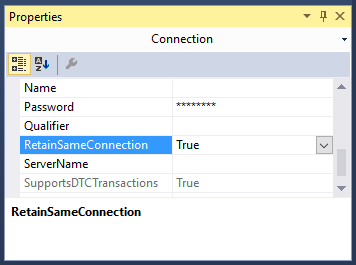
Next at the bottom of the design view window in Visual Studio the current source connection should be displayed. Left click on the source connection and the properties window should change focus to connection properties. Set the RetainSameConnection option to True, this allows the global temp table to remain visible to SSIS package during the package’s execution by maintaining the session.

Image showing the Connection Properties window with the RetainSameConnection option set to true

STEP 5.

Drag a Data Flow Task onto the Control Flow workspace and rename it Query and drag the precedence constraint between the Create Temp Table and Query.

Image showing OLE DB Source creation process

Double left click on the Query Task.

From Other Sources drag an OLE DB Source into the Data Flow workspace.

Double left click on the OLE DB Source and set the OLE DB Connection Manager to your source server and Data Access Mode to SQL Command.

Image of the OLE DB Source Editor Window

Enter your SQL Command in the box provided e.g.

SELECT * FROM ##yourTempTable


Hit OK on the OLE DB Source.

STEP 6.

Set up the destination as you would with any other typical SSIS package.

From Other Destinations drag an OLE DB Destination into the Data Flow workspace.

Then drag the precedence constraint between OLE DB Source to the OLE DB Destination.

Double left click on the OLE DB Destination and choose your destination and set “Table or View – fast load” from the data access mode dropdown. For the “Name of table or view option” enter your intended destination.

Hit OK on the OLE DB Destination.

Finally I would suggest adding another task that will drop the temp tables at the end of the package. For example, DROP TABLE ##yourTempTable.

Conclusion.

At this point you should now be able to run the package successfully and make your own adaptions to this process to fit your future needs.

How to play Quake 3 on your android TV stick using a PS3/4 controllerler.

The following is a tutorial on how to get this awesome FPS (which has aged beautifully and looks fantastic on a big Full HD Screen) onto your android TV stick (ATS), in my case a Tronsmart CX919, but this tutorial will also work for any android device.

Prerequisites:

Firstly in order to use a PS3/4 controller wirelessly your device will need to be rooted. If you do not have your device rooted please see this tutorial written for a CX919 device. (It will likely work for other devices too) Although you can use a keyboard and mouse if you’re old school or the touch controls on the screen if your device is mobile.

Secondly you will need the sixaxis controller app installed and setup on your device. If you do not have it installed please see this tutorial.

Steps to install Quake 3:

Running Quake 3 on an android device is achieved with the use of the Qiii4A app available on google play.

Step 1. Install this app.

QIII4A is a port of ioquake3 (which is a free software first person shooter engine based on Quake 3) to Android. So installing the app provides you with the engine for Quake 3 but not the game.

Therefore THIS APP DOES NOT CONTAIN OR DOWNLOAD ANY OF QUAKE 3 DATA FILES.

(IF YOU JUST WANT SOME FPS MULTIPLAYER ACTION: You have the option to install the game data for OpenArena also. OpenArena is a community-produced deathmatch FPS based on GPL idTech3 technology. There are many game types supported including Free For All, Capture The Flag, Domination, Overload, Harvester, and more.

Just press the button in the launcher app to download and install it.

Happy with just OpenArena?

Job done, you can stop reading now.

Enjoy!

You want more, keep reading.

Step 2. Get a copy of the Quake 3 baseq3 folder.

In order to install the Quake 3 game data you need the “baseq3” folder from the Quake 3 game which you can buy on steam http://store.steampowered.com/app/2200. In order to complete these steps it’s probably best to swap over to using a PC. You can download the game and pull the baseq3 folder from it.

(If you only have an android device at your disposal, you just need the baseq3 folder, oh I wonder where you could find that, wink wink nudge nudge.)

Step 3. Once you have the baseq3 folder.

Create a folder named qiii4a and paste baseq3 into it.

Step 4. Copy and paste the qiii4a folder to the folder specified in QIII4A launcher app

(example of correct path to “baseq3” folder: “/sdcard/qiii4a” directory in launcher). Note: you can also transfer the qiii4a folder to the external SD card of your android device and point the launch app to that location, example “/external_sd/qiii4a” However I would recommend that you have an external sd that is a class 10 micro sd card for the best performance.

Step 5. Launch the qiii4a app.

On  the controls screen check the following:

  • Smooth joystick
  • Hide onscreen buttons and enable mouse
  • Autodetect mouse
  • Mouse cursor position: Top left

On the graphics screen check the following:

  • 32 bit color
  • Screen resolution: Custom, then set the custom to whatever you have your ATS display set to. In my case it’s 1280 X 720
  • MSAA 16x

Step 6. Start the game and change the following settings

Use the right analogue stick to move the cross hair and R1 to select. (Or navigate with the keyboard)

Go to setup:

System > Graphics:

Basically you can just max out all the settings. Take a moment to appreciate how far technology has come that a little matchstick box sized computer that cost around 30 bucks can take all this classic has to throw at it.

Just be sure to set the video mode close to the custom display setting in the  Qiii4A app so aiming syncs up.

System > Controls:

You’ll have to play around with mouse speed until you find something you’re comfortable with. Chances are straight off the bat the controls won’t feel right.

Set smooth mouse on, free look on and map the right analogue stick button press as zoom view.

That’s pretty much it, you’re ready to go.

My advice is that you step through the single player game until you get your eye in and the controls set up comfortably. Once you’re settled you can move onto the multiplayer and play online. Stay away from excessive though, you’ll be eaten alive.

And now for my final thoughts.

In my opinion quake 3 is the best FPS experience on android. Even the latest Call of Duty games are based on the Quake engine in some shape or form so the value of the gameplay cannot be called into question.

In terms of visuals, no it’s not as pretty as Star Wars Battlefront but five minutes into a match and you’ll be too engrossed in taking revenge on the guy that just fragged you to really critique the less than epic visuals.

It’s a game all about blisteringly fast gameplay and android, with it’s still limited hardware, provides the perfect platform on which to appreciate an old classic again.

Android really needs a great FPS to make it a proper gaming platform, and what better FPS than the greatest FPS ever?


report cartoon

How to keep an SSRS Report on one page

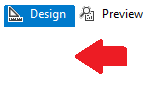
Using visual studio left click just under design to focus on the report.

Image showing where to click

Now the report properties window should be visible in the bottom right of the screen.

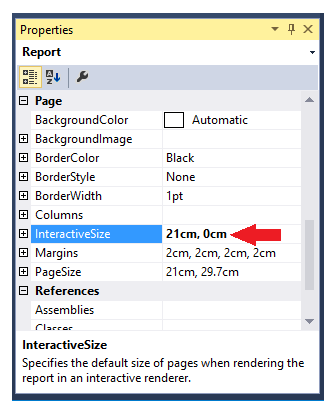
Set the interactive height to 0 as shown below.

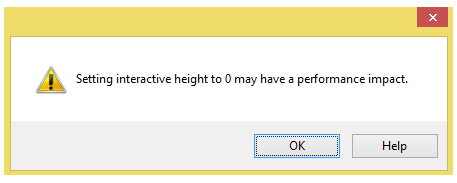
Properties windowYou will get the following warning sign below. Limiting the report to one page, by setting the interactive height to zero, means everything needs to be loaded all at once. This will create lag when a user loads the report and interacts with it.

warning message stating can cause performance issuesIf you are basically using SSRS as a means for end users to pull a data dump via excel, heed this warning. If you just have a few aggregated tables and you want them all on the same page you should be fine.

How to connect your android device to a Playstation 3 or 4 controller wirelessly

A list of directly compatible games is at the bottom of this post.

Prerequisites:

Firstly you will need your device rooted. Rooting the device just means you have administrative privileges on the device, but unlike windows it’s not as simple as just changing a setting. Please see this tutorial on checking if an android device is rooted and this tutorial if you need instruction on rooting your device.

Connecting your PS3/4 controller to your android device:

As with all things android you might have guessed you need an app to connect your device to your Playstation controller. In this case you need the sixaxis controller. Unfortunately the app isn’t free but it is cheap!

However before you go handing over your dosh the guys at dancing pixel studios (strange choice of names considering they don’t seem to make any games) were nice enough to create the sixaxis compatibility checker so you can try before you buy.

Step 1.

Install the compatibility checker from the play store here.

Step 2.

Once installed, open the app and click Start. If you get a connection failed your device is not supported.

Sorry dude.

If not, Yay!

Continue!

Step 3.

Connect your controller to your device with a mini usb cable.

Step 4.

Click pair. This will write your android’s Bluetooth address to the controller. (Don’t worry about the pad not working on the playstation anymore, they’re a terrible console anyway. JK, to reconnect your controller to your playstation just connect the controller via the usb cable and it will write the playstation address back onto the controller.)

Step 5.

Once paired click start on the app. The device is now listening for controllers. If the controller is not turned on press the power button in the center. Now when you press buttons on the controller you should see them appearing on screen.

Congratulations, your device is compatible you now have the honour of buying the app here.

Some setup advice:

When you first use the app you’ll be asked to tick the box recognising Sixaxis Controller as a Keyboard & Input Method. Do so. It asks because this is a security feature as such devices could be potential recording key strokes etc.

In general settings I always have the box Auto Start ticked, this means the app launches whenever the device is turned. For the idle timeout option I set the timeout for 300, which means if the controller is not interacted with for five minutes the app turns the controller off saving the battery. On the subject of battery you can use your device to charge the controller which is nice.

Not all games are compatible even more so if you’re using an Android box or stick:

Native compatible of a game means that it was programmed to accept inputs from controllers some great examples being BombSquad, Asphalt 8, Dead Trigger however, sadly, a lot of games do not support native compatibility.

This could be for a number of reasons, like the developer just never bothered to code compatibility into the app or the app might compete with a console version of the game and the developer doesn’t want to cannibalize the market. Man I wished Fifa had controller support. . .

However the sixaxis controller app comes with a great feature to map button presses. This is especially useful to the PUBG mobile fans out there.

How to do this though is another post in itself so I suggest you google around, there’s plenty of great tutorials out there and the gentle souls of the internet have even created touch profiles for games available to download saving you the trouble of doing the mapping yourself.

Sadly though mapping on many Android boxes and sticks don’t seem to work to well if at all. This is down to these devices often shipping without the necessary touch drivers because they don’t have screens. Which makes sense, why ship a device with touch drivers that doesn’t have a screen? For PUBG mobile players who want to use a controller of course!

The following is a list of games that you can play using the android sixaxis controller app.

Remapping of keys maybe necessary, the correct mapping is as follows.

  • Cross: A
  • Circle: B
  • Square: X
  • Triangle: Y

Games:

I’ll be adding to this list over time so if I’ve missed a game you’ve tested and know to work please comment below.

  1. Dead Trigger (free)
  2. Dead Trigger 2 (free)
  3. Evac
  4. Asphalt 8 (free)
  5. Dead Effect (free)
  6. Beach Buggy Blitz (free)
  7. Beach Buggy Racing (free)
  8. Dream League Soccer (free)
  9. BombSquad (free)
  10. Horizon Chase (free)
  11. PewPew (free)
  12. PewPew 2
  13. Skyriders (free)
  14. ShadowGun
  15. SoulCraft (free)
  16. Real Boxing (free)
  17. Skate Party 2 (free)
  18. GT Racing 2
  19. Manuganu 2 (free)
  20. Shooty Skies (free)
  21. Reckless Racing
  22. Rail Racing
  23. Jet Car Stunts 2
  24. Aces of the Luftwaffe (free)
  25. Tank Riders (free)
  26. Raging Thunder 2 (free)
  27. Annelids (free)
  28. Warlings: Armageddon (free)
  29. Table Top Racing (free)
  30. Sine Mora
  31. Pako – Car Chase Simulator (free)
  32. Sword Of Xolan (free)
  33. Nub’s Adventure (free)
  34. Super Dangerous Dungeons (free)
  35. Only One (free)
  36. Turbo Dismount (free)
  37. Particle Arcade Shooter
  38. Luminescence (free)
  39. Leo’s Fortune
  40. Does Not Commute
  41. Pac-Man (free)
  42. Redline Rush (free)
  43. Radiant (free)
  44. Zenonia
  45. Voxel Rush (free)
  46. Winter Fugitives *
  47. Hopeless *
  48. Tiny Thief *
  49. Smash Hit * (free)

Any other suggestions please feel free to add a comment below.

How to create Clustered and Nonclustered Indexes on a Temp Table

One of the best features of temp tables is that an index can be applied to them.

To clarify temp tables start with #, exist within the tempdb and are accessible within child batches (nested triggers, procedure, exec calls) of the query.

The execution plan can also determine the relevant statistics regarding their operation and suggest means of optimisation and will often suggest applying an index to the table.
Below is a simple example of applying both clustered and nonclustered indexes to the temporary table #Apostle created from a CTE (Common Table Expression).


IF OBJECT_ID('tempdb..#Apostle') IS NOT NULL
	DROP TABLE #Apostle;

WITH CTE
AS (
	SELECT 1 AS ID
		,'Simon Peter' AS NAME
	
	UNION
	
	SELECT 2
		,'James'
	
	UNION
	
	SELECT 3
		,'John'
	
	UNION
	
	SELECT 4
		,'Andrew'
	
	UNION
	
	SELECT 5
		,'Philip'
	
	UNION
	
	SELECT 6
		,'Thomas'
	
	UNION
	
	SELECT 7
		,'Bartholomew'
	
	UNION
	
	SELECT 8
		,'Matthew'
	
	UNION
	
	SELECT 9
		,'James'
	
	UNION
	
	SELECT 10
		,'Simon'
	
	UNION
	
	SELECT 11
		,'Thaddaeus'
	
	UNION
	
	SELECT 12
		,'Judas'
	)
SELECT *
INTO #Apostle
FROM CTE

-- CREATE INDEXES
CREATE CLUSTERED INDEX IDX_CLUSTERED_ID ON #Apostle (ID)

CREATE NONCLUSTERED INDEX IDX_NONCLUSTERED_ID ON #Apostle (ID)


Microsoft defines clustered and nonclustered indexes as the following:

Clustered

  • Clustered indexes sort and store the data rows in the table or view based on their key values. These are the columns included in the index definition. There can be only one clustered index per table, because the data rows themselves can be sorted in only one order.
  • The only time the data rows in a table are stored in sorted order is when the table contains a clustered index. When a table has a clustered index, the table is called a clustered table. If a table has no clustered index, its data rows are stored in an unordered structure called a heap.

Nonclustered

  • Nonclustered indexes have a structure separate from the data rows. A nonclustered index contains the nonclustered index key values and each key value entry has a pointer to the data row that contains the key value.
  • The pointer from an index row in a nonclustered index to a data row is called a row locator. The structure of the row locator depends on whether the data pages are stored in a heap or a clustered table. For a heap, a row locator is a pointer to the row. For a clustered table, the row locator is the clustered index key.
  • You can add nonkey columns to the leaf level of the nonclustered index to by-pass existing index key limits, 900 bytes and 16 key columns, and execute fully covered, indexed, queries.

Source

To learn more about indexes this is a good video on the topic.

How to write text to a file with SQL Server

The following is a tutorial on creating a stored procedure that will allow you to create a file in any directory and insert text into this newly created file.

In order for this to work you will need to authorise the running of system stored procedures with Object Linking and Embedding functionality (See OLE).

Authorisation is needed as the stored procedure we will create rely on the system SPs sp_OACreate and sp_OAMethod.

sp_OACreate: Creates an instance of an OLE object.

sp_OAMethod: Calls a method of an OLE object.

NOTE: By default, SQL Server blocks access to OLE Automation stored procedures by turning the components off as part of the security configuration for the server.

Run the script below to grant authorisation.

--AUTHORIZE SYSTEM STORED PROCEDURES
sp_configure 'show advanced options'
	,1;
GO

RECONFIGURE;
GO

sp_configure 'Ole Automation Procedures'
	,1;
GO

RECONFIGURE;
GO

--AUTHORIZED

 
Next we will create the stored procedure WriteToFile. Substitute the DatabaseName with the database you will be using.

--CREATE STORED PROCEDURE
/*
CHANGE:
DATABASE NAME: DatabaseName 
 */
USE "DatabaseName";
GO

SET ANSI_NULLS ON
GO

SET QUOTED_IDENTIFIER ON
GO

IF OBJECT_ID('[dbo].[WriteToFile]', 'P') IS NOT NULL
	DROP PROCEDURE [WriteToFile];
GO

CREATE PROCEDURE [dbo].[WriteToFile] @File VARCHAR(255)
	,@Text VARCHAR(MAX)
	WITH EXECUTE AS CALLER
AS
BEGIN
	DECLARE @OLE INT
	DECLARE @FileID INT

	EXECUTE sp_OACreate 'Scripting.FileSystemObject'
		,@OLE OUT

	EXECUTE sp_OAMethod @OLE
		,'OpenTextFile'
		,@FileID OUT
		,@File
		,8
		,1

	EXECUTE sp_OAMethod @FileID
		,'WriteLine'
		,NULL
		,@Text

	EXECUTE sp_OADestroy @FileID

	EXECUTE sp_OADestroy @OLE
END;

 
Below is an example using the WriteToFile stored procedure.

--WRITE TO FILE EXAMPLE
/*
CHANGE:
DATABASE NAME: DatabaseName 
 */
USE "DatabaseName";
GO

DECLARE @Path VARCHAR(255)
DECLARE @Txt VARCHAR(MAX)

--NOTE: THE LOG FILE WILL BE CREATED IF IT DOES NOT ALREADY EXIST
SET @PATH = 'C:\temp\WriteToFileExampleLog.txt'
SET @Txt = 'Hello World'

EXEC [DatabaseName].[dbo].[WriteToFile] @Path
	,@Txt;


Using the same stored procedure here’s an example writing a table to the file using concatenation and a loop. This process works by taking the table row by row and writing the concatenated value to the file. There are easier ways to achieve this however, i.e. utilising the export functionality built into SSMS and saving this as a package to be run as a job.

--STORED PROCEDURE CREATED
--WRITE TABLE TO FILE EXAMPLE
DECLARE @Path VARCHAR(255)
DECLARE @Txt VARCHAR(MAX)
DECLARE @loopId AS INT
DECLARE @maxId AS INT
DECLARE @TempCustomer TABLE (
	ID_column INT IDENTITY PRIMARY KEY
	,FirstName NVARCHAR(100)
	);

--NOTE: THE LOG FILE WILL BE CREATED IF IT DOES NOT ALREADY EXIST
SET @PATH = 'C:\temp\WriteToFileExampleLog.txt'

INSERT INTO @tempCustomer (FirstName)
VALUES ('Paul')
	,('Jim')
	,('John')

SET @loopId = 1
SET @maxId = (
		SELECT MAX(ID_column)
		FROM @TempCustomer
		)

WHILE @loopId <= @maxId
BEGIN
	SELECT @Txt = CONVERT(VARCHAR(10), ID_column) + ', ' + FirstName
	FROM @TempCustomer
	WHERE ID_column = @loopId

	PRINT @Txt

	EXEC [TEST_DB].[dbo].[WriteToFile] @Path
		,@Txt;

	SET @loopId = @loopId + 1
END


How to remove NaN and Infinity from a SSRS table

Typically this occurs when a field uses an expression in a report table were the expression tries to divide a number by zero (Or the field can populate with #Error when there is a NULL involved). The best solution to resolve this problem is to create a custom function.

Right click on the background of your report (i.e. just below where it says Design) and go to Report Properties as shown:

picture showing user where to click in the reportThen you can left click on Code and add enter the custom code below in the window provided:

Public Function Divide(ByVal dividend As Double, ByVal divisor As Double) As Double
   If IsNothing(divisor) Or divisor = 0 Or IsNothing(dividend) Or dividend = 0 Then
      Return 0
   Else
      Return dividend / divisor
   End If
End Function

IsNothing() is used to avoid #Error and check whether the divisor or the dividend are 0 to avoid NaN and Infinity.

Now change the field expression from, for example:

SUM(Fields!A.Value)/SUM(Fields!B.Value)

To the expression below using the newly defined function Divide:

= Code.Divide(Sum(Fields!A.Value), Sum(Fields!B.Value))

Next you can update the fields textbox properties to make the number display as a percentage.

NOTE: Inserting a user defined function into a table will mean that that table will no longer be able to be copied and pasted as this throws an error. To copy and past the table you will need to look at the code of the report by right clicking on the report and choosing View Code. Search for “Code.Divide” and comment it out with an apostrophe ( ‘ ). You will now be able to copy the table.