Category Archives: Reporting

How to capture command prompt output and write it to text file

Say you have a batch script that you run that throws back information you want to keep. Well maybe the best way to do that is to have the output written to a text file. This technique can then be combined with a task scheduler so you have an  automated task that creates a log file.

The below batch script below has two main parts. The first part creates a file to capture the command output. The second part is the command prompt command to run.

Creating the file takes the following 2 parameters:

  • filePath: Where you want the file written, defaulted to your desktop
  • baseName: What the file will be called exclusive of a time stamp, defaulted to Output

The script will then take these parameters to create the parameter fileName, which combines the directory location, with what you want the file to be called along with a time stamp, e.g. User\Desktop\Output20170213111157

The command prompt command goes between the parenthesis (). The results of this command will be written to the file.

@ECHO off
REM SET FILE OUTPUT DIRECTORY
SET "filePath=%USERPROFILE%\Desktop\"
REM SET THE BASE OF THE NAME FOR THE OUTPUT FILE 
SET "baseName=Output"
REM CREATE TIMESTAMP
SET timeStamp=%date:~6,8%%date:~3,2%%date:~0,2%%time:~0,2%%time:~3,2%%time:~6,2%
REM CREATE VARIABLE TO HOLD FILENAME WITH A TIMESTAMP
SET "fileNameStamp=%baseName%%Timestamp%"
SET "fileName=%filePath%%fileNameStamp%"
REM CAPTURE COMMAND OUTPUT TO TEXT FILE
> %fileName%.txt (
REM This is where the commands go!
ECHO Text Captured
)

The following working example captures your computer network information and writes it to the file NetworkInfo(time stamp) on your desktop.

@ECHO off
REM SET FILE OUTPUT DIRECTORY
SET "filePath=%USERPROFILE%\Desktop\"
REM SET THE BASE OF THE NAME FOR THE OUTPUT FILE 
SET "baseName=NetworkInfo"
REM CREATE TIMESTAMP
SET timeStamp=%date:~6,8%%date:~3,2%%date:~0,2%%time:~0,2%%time:~3,2%%time:~6,2%
REM CREATE VARIABLE TO HOLD FILENAME WITH A TIMESTAMP
SET "fileNameStamp=%baseName%%Timestamp%"
SET "fileName=%filePath%%fileNameStamp%"
REM CAPTURE COMMAND OUTPUT TO TEXT FILE
> %fileName%.txt (
REM This is where the commands go!
echo Checking your network information, Please wait...

systeminfo | findstr /c:"Host Name" 
systeminfo | findstr /c:"Domain"

ipconfig /all | find "Physical Address" 

ipconfig | find "IPv4" 
ipconfig | find "Default Gateway"
)

How to get tableau data to refresh automatically within the internet browser

This tutorial describes how to embed a Tableau view, i.e. a published sheet or dashboard etc., into your web page and set the view to refresh every 30 seconds.

Step 1. Open note pad and save the code below into it calling the file template.html

Step 2. Copy the URL

  • Publish the Tableau view and copy the URL from the share button

Or

  • Copy the URL if you have already published the report

Note: If a hash symbol (#) and number, or a “:iid=<n>” appear at the end of the URL, do not include those characters. For example, in the following URL, you would not copy the #3 characters:

http://server-name.com/views/AutoRefreshExample/AutoRefreshExample#3

Step 3. Replace the following in the template file with your URL and change the title to something more appropriate than Auto Refresh Example.

http://server-name.com/views/AutoRefreshExample/AutoRefreshExample

Note: You can change the rate of refresh by changing the content=”30″ value to however many seconds you need. Also you probably don’t want purple as your background color unless you’re Prince so go ahead and change that too. background-color: #452775

<!--Template-->
<!DOCTYPE html PUBLIC "-//W3C//DTDXHTML 1.0 Transitional//EN" <html lang="en-US" xml:lang="en-US"> 
<head> 
<title>Auto Refresh Example</title> 
<meta http-equiv="refresh" content="30">
</head> 
<style>
body {background-color: #452775}
</style>
<body> 
 src="http://server-name.com/views/AutoRefreshExample/AutoRefreshExample?:embed=yes&:refresh=yes" 
width="100%" 
height="100%"
align="middle"
frameborder="0"  
marginwidth="0" 
marginheight="0"
scrolling="no"
> 


Your browser does not support iframes.


</body> 
</html>

How to lookup SQL Server Jobs and get the job history with a query

Sometimes job history just won’t load in SQL Server Management Studio for one reason or another. One of the main reasons is that there are too many entries in the sysjobhistory table. The article here will help you resolve that problem. For a more immediate answer to the data you are looking for, like most things with SSMS, you can query the tables that contain this data directly.

For a permanent solution to bypassing SSMS I recommend using this stored procedure. If you just want a quick query see below.

If you want to get a job history for everything that has run over the last 7 days you can run the query below. Simply change the 7 to another number to go further back in time by days.

-- Variable Declarations 
DECLARE @PreviousDate DATETIME
DECLARE @Year VARCHAR(4)
DECLARE @Month VARCHAR(2)
DECLARE @MonthPre VARCHAR(2)
DECLARE @Day VARCHAR(2)
DECLARE @DayPre VARCHAR(2)
DECLARE @FinalDate INT


-- Initialize Variables 
SET @PreviousDate = DATEADD(dd, - 7, GETDATE()) -- Last 7 days  
SET @Year = DATEPART(yyyy, @PreviousDate)

SELECT @MonthPre = CONVERT(VARCHAR(2), DATEPART(mm, @PreviousDate))

SELECT @Month = RIGHT(CONVERT(VARCHAR, (@MonthPre + 1000000000)), 2)

SELECT @DayPre = CONVERT(VARCHAR(2), DATEPART(dd, @PreviousDate))

SELECT @Day = RIGHT(CONVERT(VARCHAR, (@DayPre + 1000000000)), 2)

SET @FinalDate = CAST(@Year + @Month + @Day AS INT)

-- Pull Job History 
SELECT j.[name]
	,s.step_name
	,h.step_id
	,MSDB.DBO.AGENT_DATETIME(h.run_date, h.run_time) AS run_time
	,STUFF(STUFF(STUFF(RIGHT(REPLICATE('0', 8) + CAST(h.run_duration AS VARCHAR(8)), 8), 3, 0, ':'), 6, 0, ':'), 9, 0, ':') 'run_duration (DD:HH:MM:SS)  '
	,h.run_status
	,h.sql_severity
	,h.message
	,h.SERVER
FROM msdb.dbo.sysjobhistory h
INNER JOIN msdb.dbo.sysjobs j ON h.job_id = j.job_id
INNER JOIN msdb.dbo.sysjobsteps s ON j.job_id = s.job_id
	AND h.step_id = s.step_id
WHERE h.run_date > @FinalDate
ORDER BY h.instance_id DESC


To get a job history for everything that has succeeded or failed over the last 7 days run the query below. Simply change the @RunStatus variable to either 0 (failed) or 1 (succeeded).

-- Variable Declarations 
DECLARE @RunStatus AS BIT
DECLARE @PreviousDate DATETIME
DECLARE @Year VARCHAR(4)
DECLARE @Month VARCHAR(2)
DECLARE @MonthPre VARCHAR(2)
DECLARE @Day VARCHAR(2)
DECLARE @DayPre VARCHAR(2)
DECLARE @FinalDate INT

/*Succeeded Jobs*/
--SET @RunStatus = 1
/*Failed Jobs*/
SET @RunStatus = 0

-- Initialize Variables 
SET @PreviousDate = DATEADD(dd, - 7, GETDATE()) -- Last 7 days  
SET @Year = DATEPART(yyyy, @PreviousDate)

SELECT @MonthPre = CONVERT(VARCHAR(2), DATEPART(mm, @PreviousDate))

SELECT @Month = RIGHT(CONVERT(VARCHAR, (@MonthPre + 1000000000)), 2)

SELECT @DayPre = CONVERT(VARCHAR(2), DATEPART(dd, @PreviousDate))

SELECT @Day = RIGHT(CONVERT(VARCHAR, (@DayPre + 1000000000)), 2)

SET @FinalDate = CAST(@Year + @Month + @Day AS INT)

-- Pull Job History 
SELECT j.[name]
	,s.step_name
	,h.step_id
	,MSDB.DBO.AGENT_DATETIME(h.run_date, h.run_time) AS run_time
	,STUFF(STUFF(STUFF(RIGHT(REPLICATE('0', 8) + CAST(h.run_duration AS VARCHAR(8)), 8), 3, 0, ':'), 6, 0, ':'), 9, 0, ':') 'run_duration (DD:HH:MM:SS)  '
	,h.run_status
	,h.sql_severity
	,h.message
	,h.SERVER
FROM msdb.dbo.sysjobhistory h
INNER JOIN msdb.dbo.sysjobs j ON h.job_id = j.job_id
INNER JOIN msdb.dbo.sysjobsteps s ON j.job_id = s.job_id
	AND h.step_id = s.step_id
WHERE h.run_status = @RunStatus
	AND h.run_date > @FinalDate
ORDER BY h.instance_id DESC


If you want to generate a list of all the:

  1. jobs and their owners
  2. SSIS packages and their owners

you can do so by running the queries below. (If you don’t already know the precise name or ID of a job)

--Jobs
select s.name,l.name
 from  msdb..sysjobs s 
 left join master.sys.syslogins l on s.owner_sid = l.sid

--Packages
select s.name,l.name 
from msdb..sysssispackages s 
 left join master.sys.syslogins l on s.ownersid = l.sid


Once you have retrieved either the name (command) or the ID of the job you are looking for you can plug that info into either one of the queries below also.

use msdb

select *
from dbo.sysjobsteps with (nolock)
where command like '%YourJobName%'

select *
from dbo.sysjobs sj with (nolock)
where sj.job_id = '1234-1234-1234-1234-1234'
Image with the text 3000 years later in giant letters

How to provide a dynamic parameter drop-down of year options in SSRS

Say you’ve developed a report which returns data based on a inputted year parameter value, e.g. “give me all the sales in 2014”.

How do you provide the year options for the SSRS report?

Well there’s three ways that come to mind.

Select distinct from a date field, e.g. SELECT DISTINCT YEAR(SalesDate) FROM Sales

This would certainly provide you with all the available years but the database could have millions of sales. So it’s not too efficient.

You could manually populate years in the parameter settings in the SSRS report, kind of primitive but it would work.

But for me the robust and efficient way is the solution provided below.

The following SQL query dynamically populates an integer field in a temporary table with years. The query uses a base year variable, which can be set to as far back as when the required data fields and values existed in the database. A loop then provides the years up to and including the current year. This query can be used to generate a dataset for an SSRS report and then this dataset can then be used to provide parameter values for the report. The report will then always create a list of years between the base year and the current year. Meaning the years parameter will never need to be adjusted again.

(For a tutorial on how to turn a month name and year into dates for the first and last day of the month see this tutorial)

/*Create temp table populated with the years from a base year to the present year*/
IF OBJECT_ID('tempdb..#availableYear') IS NOT NULL
    DROP TABLE #availableYear

CREATE TABLE #availableYear ([Year] INT)

DECLARE @baseYear AS INT
DECLARE @i AS INT

/*Change the base year to the earliest year the database has the required data available*/
SET @baseYear = 2013
SET @i = 0

WHILE @i <= YEAR(GETDATE()) - @baseYear
BEGIN
    INSERT INTO #availableYear
    SELECT @baseYear + @i

    SET @i = @i + 1
END

SELECT * FROM #availableYear

Within the Stored Procedure that populates the report you can then do something like below to make sure the date range matches the year chosen.

DECLARE @yearChosen AS INT

SET @yearChosen = 2013

DECLARE @startDate date
DECLARE @endDate date

SET @startDate = CONVERT(CHAR(4), @yearChosen) + '0101'
SET @endDate = CONVERT(CHAR(4), @yearChosen) + '1231'

PRINT @startDate
PRINT @endDate    

--OR For example

YEAR(SaleDate) = @yearChosen

How to pass a multi-value parameter to a stored procedure from a SSRS Report

When you allow for multiple field values to be selected in a SSRS report there needs to be additional logic added to the back end to deal with this.

This is best explained with an example scenario.

I have a table called Ireland with two columns, ID_Column and County. You can use the script below to create and populate this table. Run the query below to follow the working example.

CREATE DATABASE [TEST_DB];

USE [TEST_DB];
GO

/****** Object:  Table [dbo].[Ireland]    Script Date: 07/15/2015 10:49:49 ******/
SET ANSI_NULLS ON
GO

SET QUOTED_IDENTIFIER ON
GO

SET ANSI_PADDING ON
GO

CREATE TABLE [dbo].[Ireland] (
	[ID_Column] [int] IDENTITY(1, 1) NOT NULL
	,[County] [varchar](9) NULL
	,PRIMARY KEY CLUSTERED ([ID_Column] ASC) WITH (
		PAD_INDEX = OFF
		,STATISTICS_NORECOMPUTE = OFF
		,IGNORE_DUP_KEY = OFF
		,ALLOW_ROW_LOCKS = ON
		,ALLOW_PAGE_LOCKS = ON
		) ON [PRIMARY]
	) ON [PRIMARY]
GO

SET ANSI_PADDING OFF
GO

SET IDENTITY_INSERT [dbo].[Ireland] ON

INSERT [dbo].[Ireland] ([ID_Column], [County]) VALUES (1, N'Antrim')
INSERT [dbo].[Ireland] ([ID_Column], [County]) VALUES (2, N'Armagh')
INSERT [dbo].[Ireland] ([ID_Column], [County]) VALUES (3, N'Carlow')
INSERT [dbo].[Ireland] ([ID_Column], [County]) VALUES (4, N'Cavan')
INSERT [dbo].[Ireland] ([ID_Column], [County]) VALUES (5, N'Clare')
INSERT [dbo].[Ireland] ([ID_Column], [County]) VALUES (6, N'Cork')
INSERT [dbo].[Ireland] ([ID_Column], [County]) VALUES (7, N'Derry')
INSERT [dbo].[Ireland] ([ID_Column], [County]) VALUES (8, N'Donegal')
INSERT [dbo].[Ireland] ([ID_Column], [County]) VALUES (9, N'Down')
INSERT [dbo].[Ireland] ([ID_Column], [County]) VALUES (10, N'Dublin')
INSERT [dbo].[Ireland] ([ID_Column], [County]) VALUES (11, N'Fermanagh')
INSERT [dbo].[Ireland] ([ID_Column], [County]) VALUES (12, N'Galway')
INSERT [dbo].[Ireland] ([ID_Column], [County]) VALUES (13, N'Kerry')
INSERT [dbo].[Ireland] ([ID_Column], [County]) VALUES (14, N'Kildare')
INSERT [dbo].[Ireland] ([ID_Column], [County]) VALUES (15, N'Kilkenny')
INSERT [dbo].[Ireland] ([ID_Column], [County]) VALUES (16, N'Laois')
INSERT [dbo].[Ireland] ([ID_Column], [County]) VALUES (17, N'Leitrim')
INSERT [dbo].[Ireland] ([ID_Column], [County]) VALUES (18, N'Limerick')
INSERT [dbo].[Ireland] ([ID_Column], [County]) VALUES (19, N'Longford')
INSERT [dbo].[Ireland] ([ID_Column], [County]) VALUES (20, N'Louth')
INSERT [dbo].[Ireland] ([ID_Column], [County]) VALUES (21, N'Mayo')
INSERT [dbo].[Ireland] ([ID_Column], [County]) VALUES (22, N'Meath')
INSERT [dbo].[Ireland] ([ID_Column], [County]) VALUES (23, N'Monaghan')
INSERT [dbo].[Ireland] ([ID_Column], [County]) VALUES (24, N'Offaly')
INSERT [dbo].[Ireland] ([ID_Column], [County]) VALUES (25, N'Roscommon')
INSERT [dbo].[Ireland] ([ID_Column], [County]) VALUES (26, N'Sligo')
INSERT [dbo].[Ireland] ([ID_Column], [County]) VALUES (27, N'Tipperary')
INSERT [dbo].[Ireland] ([ID_Column], [County]) VALUES (28, N'Tyrone')
INSERT [dbo].[Ireland] ([ID_Column], [County]) VALUES (29, N'Waterford')
INSERT [dbo].[Ireland] ([ID_Column], [County]) VALUES (30, N'Westmeath')
INSERT [dbo].[Ireland] ([ID_Column], [County]) VALUES (31, N'Wexford')
INSERT [dbo].[Ireland] ([ID_Column], [County]) VALUES (32, N'Wicklow')
SET IDENTITY_INSERT [dbo].[Ireland] OFF


If I wanted to allow a user to select every county from the Ireland table in an SSRS report I would create a stored procedure that simply executes the following query.

SELECT * FROM Ireland


However an SSRS report which allows users to choose counties in Ireland like below means that a WHERE clause needs to be introduced and be able to respond to the field values selected.
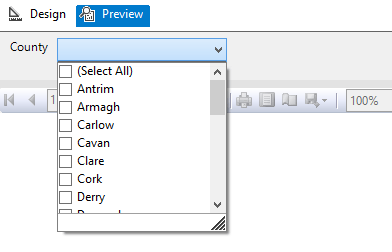
Image showing an SSRS report parameter options

But the issue is that the SSRS report will pass the multi-valued parameter as a string with the values separated by a comma.

So instead of receiving the required: ‘Antrim’, ‘Armagh’, ‘Carlow’, ‘Cavan’ etc. for use in the WHERE clause.

SQL Server is passed: ‘Antrim, Armagh, Carlow, Cavan’ etc. which cannot be used.

So the first additional logic and code to be added to the back end to deal with the multi-value parameter is a User Defined Function (UDF) which splits the parameter. The following function and quotations are taken from the 4guysfromrolla website.

Function Scope:

“There are generally two parameters to a split function: the list to split and the character(s) to split on, the delimiter. In the following function we begin by declaring our input variables – @List, the list to split, and @SplitOn, the delimiter(s) to split on. The return value of this UDF is a table with two fields: Id, an identity column, and Value, an nvarchar(100) column.”

Function Logic:

“The main body of the function simply loops through the string finding the first occurrence of the delimiter on each pass. Once the delimiter has been found, the string is broken into two pieces. The first piece is inserted into the result table while the second piece replaces the original list. The loop continues until no more occurrences of the delimiter are found. Lastly, the remainder of the list is added to the result table. Return the table and you have a split function.”

Run the query below to follow the working example.

USE [TEST_DB];
GO

CREATE FUNCTION [dbo].[Split] (
	@List NVARCHAR(2000)
	,@SplitOn NVARCHAR(5)
	)
RETURNS @RtnValue TABLE (
	Id INT identity(1, 1)
	,Value NVARCHAR(100)
	)
AS
BEGIN
	WHILE (Charindex(@SplitOn, @List) > 0)
	BEGIN
		INSERT INTO @RtnValue (value)
		SELECT Value = ltrim(rtrim(Substring(@List, 1, Charindex(@SplitOn, @List) - 1)))

		SET @List = Substring(@List, Charindex(@SplitOn, @List) + len(@SplitOn), len(@List))
	END

	INSERT INTO @RtnValue (Value)
	SELECT Value = ltrim(rtrim(@List))

	RETURN
END


(For a line by line break down of the function please see the webpage.)

Now that the split function exits within the database it is now possible to use a Stored Procedure to SELECT from the Ireland table pulling back specific counties by way of a WHERE clause.

Run the query below to follow the working example.

USE Test_DB;
GO

IF OBJECT_ID('[GetCounties]') IS NULL
	EXEC ('CREATE PROCEDURE dbo.[GetCounties] AS SELECT 1')
GO

ALTER PROCEDURE [dbo].[GetCounties] @County VARCHAR(MAX)
AS
	/*

NAME OF SP: GetCounties
Author:		Bloggins86
Date:		15/07/2015
Purpose:	Test multi-parameter select

*/
	------------------------------------------------------
	------------------------------------------------------
	--INSERT STORED PROCEDURE LOGIC HERE
	SELECT *
	FROM Ireland
	WHERE County IN (SELECT Value FROM dbo.Split(@County, ','))

	------------------------------------------------------
	------------------------------------------------------


Now that the populated table, split function and county select SP exists run the query below passing a string with multiple counties to return Dublin, Meath and Cork from the Ireland Table.

EXEC dbo.[GetCounties] 'Dublin, Meath, Cork'


You should now have returned the table with Dublin, Meath and Cork as separate row entries.

And that’s it, thanks for reading.

Combine and then split tsql insert statement files into batches of one thousand.

Recently I was given the task of executing hundreds of prepared sql files some containing multi-row insert statements numbering in the tens of thousands.

So I encountered two problems with this:

  • MSSQL Multi-row insert statements  actually have some limits i.e. a maximum of 1000 rows can be inserted.
  • I didn’t know which files had more or less than a thousand insert statements.

Luckily all the new rows were going into the same table and I knew that each file had the same flat/unformatted tsql structure.

This meant I could write a batch script to combine the files and then split the tsql insert statements into batches of 1000.

The batch script below is a little long winded so here are the main sections.

  • Combine Files
  • Remove unwanted lines of text  i.e. blank lines or insert statement sections.
  • Ensure every parentheses is followed by a comma
  • Inject the “insert into table” statement and GO every 1000 lines.
  • Remove double quotes

This was a somewhat specific case but hopefully you’ll be able to pick the batch script below apart for yourself and get some use out of it. But if there’s one little snippet of code I’d like to draw your attention to it is this little gem.

TYPE *.sql > CombinedScript.sql


Type that into a text file and save it as combine.bat, place the file in the folder with all your sql scripts and the OS will combine them all for you as CombinedScript.sql.

Here’s the rest of the script followed by some sample data showing the shape and structure of the original sql files.

(I’d like to thank the hilite.me website for creating this awesome online utility for creating HTML highlighted code that can just be dropped into a blog, as shown below. No more gist for me!)

@ECHO OFF

::VARIABLES
SET FileToUse="CombinedScript.sql"
SET FileToDelete="Query.sql"
SET FirstLine="Insert into [LoadProfiles] (Profile,Type,ProfileDate,ProfileValue,Active,Created,CreatedBy) Values"
SET BatchSplit="GO "
SET TextLineToAdd=%BatchSplit%%FirstLine%
::SET "TextLineToAdd=%TextLineToAdd:"=%"
::Combine SQL FILES

ECHO Combining Files . . . 
ECHO Please Wait
ECHO.
TYPE *.sql > %FileToUse%
ECHO Files Combined
ECHO.

ECHO Removing unwanted lines of text . . . 
ECHO Please Wait
ECHO.
::REF 1
::REMOVE THE LINES WITH INSERT AND VALUES FROM FILE
findstr /v "Insert Values" %FileToUse% > Temp.sql
::REF 2
::REMOVE BLANK ROWS FROM Temp.sql
findstr /v /r /c:"^$" /c:"^\ *$" Temp.sql >> CleanedFile.sql
::DELETE Temp.sql
IF EXIST Temp.sql del /F Temp.sql
ECHO Lines Removed
ECHO.


::REF 3
::REPLACE ) WITH ), TO ENSURE EVERY PARENTHESES IS FOLLOWED BY A COMMA
ECHO Adding Comma to each Parentheses missing a Comma . . .
ECHO Please Wait
ECHO.
    setlocal enableextensions disabledelayedexpansion

    set "search=)"
    set "replace=),"

    set "textFile=CleanedFile.sql"

    for /f "delims=" %%i in ('type "%textFile%" ^& break ^> "%textFile%" ') do (
        set "line=%%i"
        setlocal enabledelayedexpansion
        set "line=!line:%search%=%replace%!"
        >>PreparedFile.sql echo(!line!
        endlocal
    )
::DELETE CleanedFile.sql
IF EXIST CleanedFile.sql del /F CleanedFile.sql
::REF 3
::REPLACE ),, WITH ), TO ENSURE EVERY PARENTHESES IS FOLLOWED BY ONLY ONE COMMA
	    setlocal enableextensions disabledelayedexpansion

    set "search=),,"
    set "replace=),"

    set "textFile=PreparedFile.sql"

    for /f "delims=" %%i in ('type "%textFile%" ^& break ^> "%textFile%" ') do (
        set "line=%%i"
        setlocal enabledelayedexpansion
        set "line=!line:%search%=%replace%!"
        >>CleanedFile.sql echo(!line!
        endlocal
    )
ECHO Commas Added
ECHO.

ECHO Creating Query file . . .
ECHO Please Wait
ECHO.
::DELETE PreparedFile.sql
IF EXIST PreparedFile.sql del /F PreparedFile.sql
 
::Try to delete the file only if it exists
IF EXIST %FileToDelete% del /F %FileToDelete%
 
::REM If the file wasn't deleted for some reason, stop and error
IF EXIST %FileToDelete% exit 1

TYPE NUL > %FileToDelete% 

::REF 4
SETLOCAL
SET count=0
SET injectevery=1000
FOR /f "delims=" %%Z IN ('type CleanedFile.sql^|findstr /n "^"') DO (
SET /a count+=1
SET line=%%Z
SETLOCAL ENABLEDELAYEDEXPANSION
ECHO(!line:*:=! >> Query.sql
IF !count!==%injectevery% ECHO.%TextLineToAdd% >> Query.sql
ENDLOCAL
SET /a count=count %% %injectevery% 
) 

::REF 3
::REPLACE " WITH NOTHING 
ECHO Adding Comma to each Parentheses missing a Comma . . .
ECHO Please Wait
ECHO.
    setlocal enableextensions disabledelayedexpansion

    set "search=""
    set "replace= "

    set "textFile=Query.sql"

    for /f "delims=" %%i in ('type "%textFile%" ^& break ^> "%textFile%" ') do (
        set "line=%%i"
        setlocal enabledelayedexpansion
        set "line=!line:%search%=%replace%!"
        >>Script.sql echo(!line!
        endlocal
    )
::DELETE CleanedFile.sql
IF EXIST CleanedFile.sql del /F CleanedFile.sql

PAUSE

::REF 1: http://stackoverflow.com/questions/418916/delete-certain-lines-in-a-txt-file-via-a-batch-file
::CREDIT GOES TO: http://stackoverflow.com/users/14138/rick

::REF 2: http://www.computing.net/answers/programming/delete-blank-line-from-a-txt-file-using-batch/25575.html
::CREDIT GOES TO: http://www.computing.net/userinfo/150780

::REF 3: http://stackoverflow.com/questions/23075953/batch-script-to-find-and-replace-a-string-in-text-file-without-creating-an-extra
::CREDIT GOES TO: http://stackoverflow.com/users/2861476/mc-nd

::REF 4: FOR INSERT NEW TEXT LINE: http://stackoverflow.com/questions/15859128/looking-for-batch-file-to-insert-new-lines-into-text-file
::CREDIT GOES TO: http://stackoverflow.com/users/2128947/magoo

/*CHANGE DATABASE_NAME*/

USE [DATABASE_NAME]
GO

/****** Object:  Table [dbo].[LoadProfiles]    Script Date: 06/12/2015 15:34:43 ******/
SET ANSI_NULLS ON
GO

SET QUOTED_IDENTIFIER ON
GO

SET ANSI_PADDING ON
GO

CREATE TABLE [dbo].[LoadProfiles](
	[ProfileID] [int] IDENTITY(1,1) NOT NULL,
	[Profile] [int] NULL,
	[Type] [varchar](8) NULL,
	[ProfileDate] [date] NULL,
	[ProfileValue] [decimal](12, 10) NULL,
	[Active] [bit] NULL,
	[Created] [datetime] NULL,
	[CreatedBy] [int] NULL,
PRIMARY KEY CLUSTERED 
(
	[LoadProfileID] ASC
)WITH (PAD_INDEX  = OFF, STATISTICS_NORECOMPUTE  = OFF, IGNORE_DUP_KEY = OFF, ALLOW_ROW_LOCKS  = ON, ALLOW_PAGE_LOCKS  = ON) ON [PRIMARY]
) ON [PRIMARY]

GO

SET ANSI_PADDING OFF
GO

 
Insert into [dbo].[LoadProfiles] (Profile,Type,ProfileDate,ProfileValue,Active,Created,CreatedBy)
 Values
(1,'24H','2012/01/01',0.003348,1,getutcdate(),333),
(1,'24H','2012/01/02',0.003392,1,getutcdate(),333),
(1,'24H','2012/01/03',0.003278,1,getutcdate(),333),
(1,'24H','2012/01/04',0.003252,1,getutcdate(),333),
(1,'24H','2012/01/05',0.003203,1,getutcdate(),333)

How to map the table structure of all Databases in a SQL Server Instance

Below is a T-SQL script that will return the following fields for each table from each database located in a SQL Server Instance:

  • ServerName
  • DatabaseName
  • SchemaName
  • TableName
  • ColumnName
  • KeyType

The output is provided in a table format with these additional formatted lines of text which can be used as queries or as part of queries.

  • A Select table query
  • A Select column query
  • Each column bracketed
  • Each table and column bracketed

This query is especially useful from a reporting perspective for a DBA or SQL developer unfamiliar with the structure of the database they are querying. The table returned by the query can be exported to excel. Using excels filter option applied to the columns of the table makes finding and selecting specific tables and columns very easy.

This process can be repeated for every database server used by the business to generate a single mapped servers master excel file allowing the user to find any table or column available to the organization quickly.

Applying some colour coding like below adds to the ease of use.

Image of excel file with mapped database server structure

How to use:

Simply open SQL Server management studio and from object explorer right click on the server name and select new query. This will open a window set to the master database of the server. Copy and paste the SQL below into this SQL Server window and execute. When the query is finished you will have created the table above.

/*
SCRIPT UPDATED
20180316
*/

USE [master]
GO

/*DROP TEMP TABLES IF THEY EXIST*/
IF OBJECT_ID('tempdb..#DatabaseList') IS NOT NULL
	DROP TABLE #DatabaseList;

IF OBJECT_ID('tempdb..#TableStructure') IS NOT NULL
	DROP TABLE #TableStructure;

IF OBJECT_ID('tempdb..#ErrorTable') IS NOT NULL
	DROP TABLE #ErrorTable;

IF OBJECT_ID('tempdb..#MappedServer') IS NOT NULL
	DROP TABLE #MappedServer;

DECLARE @ServerName AS SYSNAME

SET @ServerName = @@SERVERNAME

CREATE TABLE #DatabaseList (
	Id INT NOT NULL IDENTITY(1, 1) PRIMARY KEY
	,ServerName SYSNAME
	,DbName SYSNAME
	);

CREATE TABLE [#TableStructure] (
	[DbName] SYSNAME
	,[SchemaName] SYSNAME
	,[TableName] SYSNAME
	,[ColumnName] SYSNAME
	,[KeyType] CHAR(7)
	) ON [PRIMARY];

/*THE ERROR TABLE WILL STORE THE DYNAMIC SQL THAT DID NOT WORK*/
CREATE TABLE [#ErrorTable] ([SqlCommand] VARCHAR(MAX)) ON [PRIMARY];

/*
A LIST OF DISTINCT DATABASE NAMES IS CREATED
THESE TWO COLUMNS ARE STORED IN THE #DatabaseList TEMP TABLE
THIS TABLE IS USED IN A FOR LOOP TO GET EACH DATABASE NAME
*/
INSERT INTO #DatabaseList (
	ServerName
	,DbName
	)
SELECT @ServerName
	,NAME AS DbName
FROM master.dbo.sysdatabases WITH (NOLOCK)
WHERE NAME <> 'tempdb'
ORDER BY NAME ASC

/*VARIABLES ARE DECLARED FOR USE IN THE FOLLOWING FOR LOOP*/
DECLARE @sqlCommand AS VARCHAR(MAX)
DECLARE @DbName AS SYSNAME
DECLARE @i AS INT
DECLARE @z AS INT

SET @i = 1
SET @z = (
		SELECT COUNT(*) + 1
		FROM #DatabaseList
		)

/*WHILE 1 IS LESS THAN THE NUMBER OF DATABASE NAMES IN #DatabaseList*/
WHILE @i < @z
BEGIN
	/*GET NEW DATABASE NAME*/
	SET @DbName = (
			SELECT [DbName]
			FROM #DatabaseList
			WHERE Id = @i
			)
	/*CREATE DYNAMIC SQL TO GET EACH TABLE NAME AND COLUMN NAME FROM EACH DATABASE*/
	SET @sqlCommand = 'USE [' + @DbName + '];' + '

INSERT INTO [#TableStructure]
SELECT DISTINCT' + '''' + @DbName + '''' + ' AS DbName
	,SCHEMA_NAME(SCHEMA_ID) AS SchemaName
	,T.NAME AS TableName	
	,C.NAME AS ColumnName
	,CASE 
		WHEN OBJECTPROPERTY(OBJECT_ID(iskcu.CONSTRAINT_NAME), ''IsPrimaryKey'') = 1 
			THEN ''Primary'' 
		WHEN OBJECTPROPERTY(OBJECT_ID(iskcu.CONSTRAINT_NAME), ''IsForeignKey'') = 1 
			THEN ''Foreign''
		ELSE NULL 
		END AS ''KeyType''
FROM SYS.TABLES AS t WITH (NOLOCK)
INNER JOIN SYS.COLUMNS C ON T.OBJECT_ID = C.OBJECT_ID
LEFT JOIN INFORMATION_SCHEMA.KEY_COLUMN_USAGE AS iskcu WITH (NOLOCK) 
ON SCHEMA_NAME(SCHEMA_ID) = iskcu.TABLE_SCHEMA 
	AND T.NAME = iskcu.TABLE_NAME
	AND C.NAME = iskcu.COLUMN_NAME
ORDER BY SchemaName ASC
	,TableName ASC
	,ColumnName ASC;
';

	/*ERROR HANDLING*/
	BEGIN TRY
		EXEC (@sqlCommand)
	END TRY

	BEGIN CATCH
		INSERT INTO #ErrorTable
		SELECT (@sqlCommand)
	END CATCH

	SET @i = @i + 1
END

/*
JOIN THE TEMP TABLES TOGETHER TO CREATE A MAPPED STRUCTURE OF THE SERVER
ADDITIONAL FIELDS ARE ADDED TO MAKE SELECTING TABLES AND FIELDS EASIER
*/
SELECT DISTINCT @@SERVERNAME AS ServerName
	,DL.DbName
	,TS.SchemaName
	,TS.TableName
	,TS.ColumnName
	,TS.[KeyType]
	,',' + QUOTENAME(TS.ColumnName) AS BracketedColumn
	,',' + QUOTENAME(TS.TableName) + '.' + QUOTENAME(TS.ColumnName) AS BracketedTableAndColumn
	,'SELECT * FROM ' + QUOTENAME(DL.DbName) + '.' + QUOTENAME(TS.SchemaName) + '.' + QUOTENAME(TS.TableName) + '--WHERE --GROUP BY --HAVING --ORDER BY' AS [SelectTable]
	,'SELECT ' + QUOTENAME(TS.TableName) + '.' + QUOTENAME(TS.ColumnName) + ' FROM ' + QUOTENAME(DL.DbName) + '.' + QUOTENAME(TS.SchemaName) + '.' + QUOTENAME(TS.TableName) + '--WHERE --GROUP BY --HAVING --ORDER BY' AS [SelectColumn]
INTO #MappedServer
FROM [#DatabaseList] AS DL
INNER JOIN [#TableStructure] AS TS ON DL.DbName = TS.DbName
ORDER BY DL.DbName ASC
	,TS.SchemaName ASC
	,TS.TableName ASC
	,TS.ColumnName ASC

/*
HOUSE KEEPING
*/
IF OBJECT_ID('tempdb..#DatabaseList') IS NOT NULL
	DROP TABLE #DatabaseList;

IF OBJECT_ID('tempdb..#TableStructure') IS NOT NULL
	DROP TABLE #TableStructure;

SELECT *
FROM #ErrorTable;

IF OBJECT_ID('tempdb..#ErrorTable') IS NOT NULL
	DROP TABLE #ErrorTable;

/*
THE DATA RETURNED CAN NOW BE EXPORTED TO EXCEL
USING A FILTERED SEARCH WILL NOW MAKE FINDING FIELDS A VERY EASY PROCESS
*/
SELECT ServerName
	,DbName
	,SchemaName
	,TableName
	,ColumnName
	,KeyType
	,BracketedColumn
	,BracketedTableAndColumn
	,SelectColumn
	,SelectTable
FROM #MappedServer
ORDER BY DbName ASC
	,SchemaName ASC
	,TableName ASC
	,ColumnName ASC;


Universal Error Logging for Stored Procedures in SQL Server

Probably the best way to log whether your stored procedure ran correctly or threw an error during its run is to create another stored procedure to capture the events of the run.

This example although basic captures the primary data you would want to keep a record of regarding a procedures run.

  • The name of the stored procedure
  • The start time of the stored procedure
  • The time the stored procedure finished/errored
  • A user comment/error message
  • An assigned Log ID

Below is a pre-baked example requiring just a change to the DatabaseName, and if you wish SP_Name, text fields, as instructed in the comments of the SQL below, to test run the script.

This will create a SP_Log table and the stored procedure InsertRunIntoSpLog which can be reused over and over again when making stored procedures for other jobs to log the success/failure of these jobs.

Step 3 is an example stored procedure, which can be renamed as something other than SP_Name, which simply displays the date time.  Once created whenever the following is executed, EXEC dbo.SP_Name, the current date time will be returned and a record of the procedures run will be added to a row in the SP_Log table.

Although as stated above this is a basic example it is a very powerful foundation which can be built upon for very comprehensive event and transaction logging.


— CHANGE [DatabaseName] TO THE NAME OF THE DB REQUIRED
— CHANGE SP_NAME TO THE NAME OF THE SP REQUIRED
—————————————————
— STEP 1
— CREATE TABLE TO STORE ERRORS
—————————————————
USE [DatabaseName]
GO
— DROP LOG TABLE IF ALREADY EXISTS
IF OBJECT_ID('dbo.SP_Log', 'U') IS NOT NULL
DROP TABLE dbo.SP_Log
GO
SET ANSI_NULLS ON
GO
SET QUOTED_IDENTIFIER ON
GO
SET ANSI_PADDING ON
GO
— CREATE LOG TABLE
CREATE TABLE [dbo].[SP_Log] (
[LogID] [int] IDENTITY(1, 1) NOT FOR REPLICATION NOT NULL
,[NameOfSp] [nvarchar](100) NOT NULL
,[StepCode] [varchar](1) NOT NULL
,[RunDate] [datetime] NOT NULL
,[Comment] [nvarchar](200) NULL
,PRIMARY KEY CLUSTERED ([LogID] ASC) WITH (
PAD_INDEX = OFF
,STATISTICS_NORECOMPUTE = OFF
,IGNORE_DUP_KEY = OFF
,ALLOW_ROW_LOCKS = ON
,ALLOW_PAGE_LOCKS = ON
) ON [PRIMARY]
) ON [PRIMARY]
GO
SET ANSI_PADDING OFF
GO
—————————————————
— STEP 2
— CREATE STORED PROCEDURE TO WRITE ERRORS TO ERROR TABLE
—————————————————
USE [DatabaseName]
GO
IF OBJECT_ID('dbo.InsertRunIntoSpLog', 'p') IS NOT NULL
DROP PROCEDURE [dbo].[InsertRunIntoSpLog]
GO
SET ANSI_NULLS ON
GO
SET QUOTED_IDENTIFIER ON
GO
— CREATE STORED PROCEDURE
CREATE PROCEDURE [dbo].[InsertRunIntoSpLog] @SpVariableName NVARCHAR(100)
,@StepCode VARCHAR(1)
,@Comment NVARCHAR(400)
AS
BEGIN
INSERT INTO SP_Log (
NameOfSp
,StepCode
,RunDate
,Comment
)
VALUES (
@SpVariableName
,@StepCode
,getutcdate()
,@Comment
)
END
GO
—————————————————
— STEP 3
— STORED PROCEDURE RUN / ERROR CATCH EXAMPLE
—————————————————
IF OBJECT_ID('dbo.SP_Name', 'p') IS NOT NULL
DROP PROCEDURE [dbo].[SP_Name]
GO
CREATE PROCEDURE [dbo].[SP_Name]
AS
BEGIN
BEGIN TRY
— INSERT SP RUN LOG FOR SP START
EXEC InsertRunIntoSpLog 'SP_NAME' — SP_NAME
,'S' — S, F OR E (START, FINNISH OR ERROR)
,'' — USER COMMENT
— QUERY HERE
— FOR EXAMPLE
SELECT GETDATE() AS CurrentDateTime
— INSERT SP RUN LOG FOR SP END
EXEC InsertRunIntoSpLog 'SP_NAME'
,'F'
,''
END TRY
BEGIN CATCH
PRINT 'error!'
— INSERT SP RUN LOG FOR SP ERROR
DECLARE @error_number AS INTEGER
DECLARE @error_message AS VARCHAR(400)
SET @error_number = error_number()
SET @error_message = left(error_message(), 400)
PRINT 'error_message: ' + @error_message
EXEC InsertRunIntoSpLog 'SP_NAME'
,'E'
,@error_message
END CATCH
END

Report Requirements Template

When a developer is asked to create a business report it always involves a meeting of two disciplines.

The developer has the technical knowledge of pulling raw data, manipulating it and presenting interpreted data as information to be consumed by an end user. They may also know the location and source of the data to be used and how regularly this source is refreshed or updated with new data.

The Requester of the report will usually be the person with business domain knowledge. They understand the business rules which need to be applied to the data to transform it into information.

An obvious example for this is the relationship between a SQL developer working in an accounting environment. The developer is not an account and the account is not a developer but the two need to be able to collaborate and communicate to ensure that a report eventually outputs the correct information at the require period reliably.

Failure in achieving this goal can have disastrous consequences. For example projecting further revenue based on faulty data.

A good start for creating a foundation for effective communication and collaboration is for the developer and requester to step through a requirements template. This gives the report a structure and focus while also serving as a means of documenting the creation of the report from a business perspective and a future resource from a development perspective, i.e. the requirement of a future developer new to the report updating and modifying the report.

Attached is an example Template.

The Requirements sheet deals with questions like:

Who is the requester?

Why is the report needed?

What information will the report return?

This sheet will primarily be filled in by the requester.

The Report Fields sheet tries to plug the gap in knowledge between the requester and the developer by exploring what is the information required and what fields, calculations correspond to this information. The developer and requester may need to step through this sheet together to ensure their intended outcomes align.
