Tag Archives: lesson

How to use a while loop to iterate through Databases

Say you have code you want executed against every database on a SQL Server instance, you could use SQL Server’s inbuilt sp_MSForEachDB. I’m not a big fan of it though because it is undocumented, so I’d always be concerned Microsoft might decide to kill it with any given patch or service pack update. (I know the likelihood of that is extremely low but I’m a risk adverse kinda guy)

I prefer to use the example below. It may not be the most efficient snippet of code available on the net but it’s good and simple and it’s not going anywhere unless I drop it.

(To execute code against every table in an instance see this post)

SET NOCOUNT ON;

DECLARE @Database TABLE (DbName SYSNAME);
DECLARE @DbName AS SYSNAME;

SET @DbName = '';

INSERT INTO @Database (DbName)
SELECT NAME
FROM sys.databases
WHERE NAME NOT IN (
		'tempdb'
		,'msdb'
		,'model'
		)
	AND state_desc = 'ONLINE'
ORDER BY NAME ASC;

WHILE @DbName IS NOT NULL
BEGIN
	SET @DbName = (
			SELECT MIN(DbName)
			FROM @Database
			WHERE DbName > @DbName
			);

	/*
	PUT CODE HERE
	EXAMPLE PRINT Database Name
	*/
	PRINT @DbName;
END

How to clear SQL Server backup and job history

SQL Server makes a record of each backup and restore it performs. This information is recorded across the following tables:

msdb.dbo.backupfile
msdb.dbo.backupfilegroup
msdb.dbo.backupmediafamily
msdb.dbo.backupmediaset
msdb.dbo.backupset
msdb.dbo.restorefile
msdb.dbo.restorefilegroup
msdb.dbo.restorehistory

There is no cleanup process that automatically clears these records down so as you can imagine over time it could grow to be substantial.

Before you upgrade a SQL Server instance if any of these tables exceeds 10,000 rows this can cause an upgrade to hang so it is recommended the older records be deleted.

To reduce rows in all of these tables, you can run the sp_delete_backuphistory stored procedure. This procedure deletes the entries in all of the backup and restore history tables for backup sets older than a specified date. An example is shown below:

EXEC msdb..sp_delete_backuphistory ‘20161201 12:00:00.000’

Similarly to remove records from msdb.dbo.sysjobhistory you can run the following example as shown below:

EXEC msdb..sp_purge_jobhistory @oldest_date = ‘20161201 12:00:00.000’

It is recommended you set up a job to clear these tables however how often you clear them requires some thought. For instance you may want to keep, or archive, the job history for performance comparisons over time or as a record of job failures.

Another example is I use a stored procedure that automatically generates TSQL to perform restores. This stored procedure uses the records in the backup history tables to generate the TSQL. Therefore I need to be careful I do not delete records that are within our backup file retention time period otherwise I would not be able to generate a restore script for those backup files using the stored procedure.

You might be reliant on these tables as well in some way so keep this in mind.

How to set up SQL Server System Alerts

In this article I will be sharing the TSQL Script I use to set up SQL Server System Alerts. Prerequisites for this script to work are you have database mail set up and working and have defined an operator to use.

This script sets up alerts of severity 16 and up. These are errors you want to alert on because they either represent a resource issue, an integrity issue, or a hardware issue. Severity 15 and down tends to refer to the database and deals with issues that are tied to syntax errors, violations of foreign keys, etc. These issues do not typically require an alert and can be viewed in the error log.

Alert meaning:

016 Miscellaneous User Error
017 Insufficient Resources
018 Nonfatal Internal Error Detected
019 SQL Server Error in Resource
020 SQL Server Fatal Error in Current Process
021 SQL Server Fatal Error in Database (dbid) Process
022 SQL Server Fatal Error Table Integrity Suspect
023 SQL Server Fatal Error: Database Integrity Suspect
024 Hardware Error
025 (no description)
823 I/O Failure
824 I/O Failure
825 I/O Subsystem Failing (Not completely failed)

Just do a globale find and replace of PLACE_HOLDER with the operator you have defined for the alert and run the script.

USE msdb;
GO

/*
CHANGE OPERATOR NAME: PLACE_HOLDER
(TIP: LOOK AT OPERATORS IN SSMS FOR LIST OF AVAILABLE OPERATORS)
*/
/*
[1] DELETE ALERTS IF THEY ALREADY EXIST
*/
IF EXISTS (
		SELECT *
		FROM dbo.sysalerts
		WHERE NAME = 'Severity 016'
		)
BEGIN
	EXEC dbo.sp_delete_alert @name = N'Severity 016';
END
GO

IF EXISTS (
		SELECT *
		FROM dbo.sysalerts
		WHERE NAME = 'Severity 017'
		)
BEGIN
	EXEC dbo.sp_delete_alert @name = N'Severity 017';
END
GO

IF EXISTS (
		SELECT *
		FROM dbo.sysalerts
		WHERE NAME = 'Severity 018'
		)
BEGIN
	EXEC dbo.sp_delete_alert @name = N'Severity 018';
END
GO

IF EXISTS (
		SELECT *
		FROM dbo.sysalerts
		WHERE NAME = 'Severity 019'
		)
BEGIN
	EXEC dbo.sp_delete_alert @name = N'Severity 019';
END
GO

IF EXISTS (
		SELECT *
		FROM dbo.sysalerts
		WHERE NAME = 'Severity 020'
		)
BEGIN
	EXEC dbo.sp_delete_alert @name = N'Severity 020';
END
GO

IF EXISTS (
		SELECT *
		FROM dbo.sysalerts
		WHERE NAME = 'Severity 021'
		)
BEGIN
	EXEC dbo.sp_delete_alert @name = N'Severity 021';
END
GO

IF EXISTS (
		SELECT *
		FROM dbo.sysalerts
		WHERE NAME = 'Severity 022'
		)
BEGIN
	EXEC dbo.sp_delete_alert @name = N'Severity 022';
END
GO

IF EXISTS (
		SELECT *
		FROM dbo.sysalerts
		WHERE NAME = 'Severity 023'
		)
BEGIN
	EXEC dbo.sp_delete_alert @name = N'Severity 023';
END
GO

IF EXISTS (
		SELECT *
		FROM dbo.sysalerts
		WHERE NAME = 'Severity 024'
		)
BEGIN
	EXEC dbo.sp_delete_alert @name = N'Severity 024';
END
GO

IF EXISTS (
		SELECT *
		FROM dbo.sysalerts
		WHERE NAME = 'Severity 025'
		)
BEGIN
	EXEC dbo.sp_delete_alert @name = N'Severity 025';
END
GO

IF EXISTS (
		SELECT *
		FROM dbo.sysalerts
		WHERE NAME = 'Error Number 823'
		)
BEGIN
	EXEC dbo.sp_delete_alert @name = N'Error Number 823';
END
GO

IF EXISTS (
		SELECT *
		FROM dbo.sysalerts
		WHERE NAME = 'Error Number 824'
		)
BEGIN
	EXEC dbo.sp_delete_alert @name = N'Error Number 824';
END
GO

IF EXISTS (
		SELECT *
		FROM dbo.sysalerts
		WHERE NAME = 'Error Number 825'
		)
BEGIN
	EXEC dbo.sp_delete_alert @name = N'Error Number 825';
END
GO

/*
[2] CREATE ALERTS AND SET UP NOTIFICATIONS
*/
EXEC msdb.dbo.sp_add_alert @name = N'Severity 016'
	,@message_id = 0
	,@severity = 16
	,@enabled = 1
	,@delay_between_responses = 60
	,@include_event_description_in = 1
	,@job_id = N'00000000-0000-0000-0000-000000000000';
GO

EXEC msdb.dbo.sp_add_notification @alert_name = N'Severity 016'
	,@operator_name = N'PLACE_HOLDER'
	,@notification_method = 7;
GO

EXEC msdb.dbo.sp_add_alert @name = N'Severity 017'
	,@message_id = 0
	,@severity = 17
	,@enabled = 1
	,@delay_between_responses = 60
	,@include_event_description_in = 1
	,@job_id = N'00000000-0000-0000-0000-000000000000';
GO

EXEC msdb.dbo.sp_add_notification @alert_name = N'Severity 017'
	,@operator_name = N'PLACE_HOLDER'
	,@notification_method = 7;
GO

EXEC msdb.dbo.sp_add_alert @name = N'Severity 018'
	,@message_id = 0
	,@severity = 18
	,@enabled = 1
	,@delay_between_responses = 60
	,@include_event_description_in = 1
	,@job_id = N'00000000-0000-0000-0000-000000000000';
GO

EXEC msdb.dbo.sp_add_notification @alert_name = N'Severity 018'
	,@operator_name = N'PLACE_HOLDER'
	,@notification_method = 7;
GO

EXEC msdb.dbo.sp_add_alert @name = N'Severity 019'
	,@message_id = 0
	,@severity = 19
	,@enabled = 1
	,@delay_between_responses = 60
	,@include_event_description_in = 1
	,@job_id = N'00000000-0000-0000-0000-000000000000';
GO

EXEC msdb.dbo.sp_add_notification @alert_name = N'Severity 019'
	,@operator_name = N'PLACE_HOLDER'
	,@notification_method = 7;
GO

EXEC msdb.dbo.sp_add_alert @name = N'Severity 020'
	,@message_id = 0
	,@severity = 20
	,@enabled = 1
	,@delay_between_responses = 60
	,@include_event_description_in = 1
	,@job_id = N'00000000-0000-0000-0000-000000000000';
GO

EXEC msdb.dbo.sp_add_notification @alert_name = N'Severity 020'
	,@operator_name = N'PLACE_HOLDER'
	,@notification_method = 7;
GO

EXEC msdb.dbo.sp_add_alert @name = N'Severity 021'
	,@message_id = 0
	,@severity = 21
	,@enabled = 1
	,@delay_between_responses = 60
	,@include_event_description_in = 1
	,@job_id = N'00000000-0000-0000-0000-000000000000';
GO

EXEC msdb.dbo.sp_add_notification @alert_name = N'Severity 021'
	,@operator_name = N'PLACE_HOLDER'
	,@notification_method = 7;
GO

EXEC msdb.dbo.sp_add_alert @name = N'Severity 022'
	,@message_id = 0
	,@severity = 22
	,@enabled = 1
	,@delay_between_responses = 60
	,@include_event_description_in = 1
	,@job_id = N'00000000-0000-0000-0000-000000000000';
GO

EXEC msdb.dbo.sp_add_notification @alert_name = N'Severity 022'
	,@operator_name = N'PLACE_HOLDER'
	,@notification_method = 7;
GO

EXEC msdb.dbo.sp_add_alert @name = N'Severity 023'
	,@message_id = 0
	,@severity = 23
	,@enabled = 1
	,@delay_between_responses = 60
	,@include_event_description_in = 1
	,@job_id = N'00000000-0000-0000-0000-000000000000';
GO

EXEC msdb.dbo.sp_add_notification @alert_name = N'Severity 023'
	,@operator_name = N'PLACE_HOLDER'
	,@notification_method = 7;
GO

EXEC msdb.dbo.sp_add_alert @name = N'Severity 024'
	,@message_id = 0
	,@severity = 24
	,@enabled = 1
	,@delay_between_responses = 60
	,@include_event_description_in = 1
	,@job_id = N'00000000-0000-0000-0000-000000000000';
GO

EXEC msdb.dbo.sp_add_notification @alert_name = N'Severity 024'
	,@operator_name = N'PLACE_HOLDER'
	,@notification_method = 7;
GO

EXEC msdb.dbo.sp_add_alert @name = N'Severity 025'
	,@message_id = 0
	,@severity = 25
	,@enabled = 1
	,@delay_between_responses = 60
	,@include_event_description_in = 1
	,@job_id = N'00000000-0000-0000-0000-000000000000';
GO

EXEC msdb.dbo.sp_add_notification @alert_name = N'Severity 025'
	,@operator_name = N'PLACE_HOLDER'
	,@notification_method = 7;
GO

EXEC msdb.dbo.sp_add_alert @name = N'Error Number 823'
	,@message_id = 823
	,@severity = 0
	,@enabled = 1
	,@delay_between_responses = 60
	,@include_event_description_in = 1
	,@job_id = N'00000000-0000-0000-0000-000000000000';
GO

EXEC msdb.dbo.sp_add_notification @alert_name = N'Error Number 823'
	,@operator_name = N'PLACE_HOLDER'
	,@notification_method = 7;
GO

EXEC msdb.dbo.sp_add_alert @name = N'Error Number 824'
	,@message_id = 824
	,@severity = 0
	,@enabled = 1
	,@delay_between_responses = 60
	,@include_event_description_in = 1
	,@job_id = N'00000000-0000-0000-0000-000000000000';
GO

EXEC msdb.dbo.sp_add_notification @alert_name = N'Error Number 824'
	,@operator_name = N'PLACE_HOLDER'
	,@notification_method = 7;
GO

EXEC msdb.dbo.sp_add_alert @name = N'Error Number 825'
	,@message_id = 825
	,@severity = 0
	,@enabled = 1
	,@delay_between_responses = 60
	,@include_event_description_in = 1
	,@job_id = N'00000000-0000-0000-0000-000000000000';
GO

EXEC msdb.dbo.sp_add_notification @alert_name = N'Error Number 825'
	,@operator_name = N'PLACE_HOLDER'
	,@notification_method = 7;
GO

How to size transaction log files appropriately and reduce the number of virtual log files

Sizing transaction log files and resolving the issue of having too many virtual log files may or may not be caused by the same problem but both have similar solutions revolving around the same steps. As such the script provide below can resolve both but the application of the script differs slightly.

Appropriately sizing the Transaction Log (TLog) File

Ideally, TLog files should be created at their desired size at installation rather than being allowed to grow slowly over time.

Typically though the DBA will not know how large or frequent the transactions will be prior to the database becoming active in the production environment.

Or the DBA might be new to the organisation and may not be able to tell if the TLog file size is appropriate for the typical transactions the database handles or is the result of some abnormally large transactions or failed TLog backups.

All this can of course be investigated somewhat but if the database transactions are in the kilobytes and transaction frequency is low then you could also take the pragmatic approach outlined below:

  1. Backup the log until it gets truncated
  2. Shrink the log as much as possible
  3. Allow the file to grow
  4. Record the maximum size of the log
  5. Backup the log until it gets truncated
  6. Shrink the log as much as possible
  7. Manually expand the log to the maximum size recorded in step 4

Carrying out the steps above will also resolve any issues with excessive Virtual Log Files. This is dealt with in more detail below.

The script provided at the end of this article can be utilized to achieve the steps above, see the instructions “How to use the script” below.

Before proceeding with this approach however ensure the following points have been considered as these will minimize the impact of growing the files on the databases:

  • That the autogrowth increment for the transaction log is suitably large, @DefaultFileGrowth is set at 128 Mb. This value or higher is recommended.
  • Appropriate restriction settings for growth, preferably unrestricted
  • Instant file initialization is on.

Review the following article to set up instant file initialization.

https://www.brentozar.com/blitz/instant-file-initialization/

You may already know that the TLog file has been appropriately sized but there are too many VLFs in which case the following section outlines how to resolve VLFs as an issue.

Dealing with Virtual Log Files (VLFs)

Each Transaction Log (TLog) file is divided logically into smaller segments called VLFs. VLFs are the unit of truncation for the TLog. When a VLF no longer contains log records for active transactions, it can be truncated and the space becomes available to log new transactions.

SQL Server should not have an excessive number of VLFs inside the TLog. Having a large number of small VLFs can cause the following problems:

  • Slow down the recovery process on startup or after restoring a backup
  • Slow down TLog backups
  • Affect insert/update/delete performance

What constitutes too many VLFs as a problem is subjective however Microsoft flags 1000+ VLFs as an issue.

The number of VLFs can grow based on the autogrowth settings for the TLog file and how often active transactions are written to disk. The problem of too many VLFs is often the result of accepting the default settings for initial log file size and autogrowth increment when the database is created.

To check how many VLFs a database has run the below command against the database:

DBCC LOGINFO;

Each row returned represents a VLF.

To resolving too many VLFs unfortunately requires some downtime. The fix is to shrink and regrow the log file. This is a blocking operation and I would suggest once complete you run a full backup on the database\s as the shrink will break the continuity of the Full and TLog backup schedule which will cause the TLog backups to fail.

Taking the following steps will reduce the number of VLFs in the TLog of a database:

  1. Record the maximum size of the log
  2. Backup the log until it gets truncated
  3. Shrink the log as much as possible
  4. Manually expand the log to the maximum size recorded in the first step

The script provided at the end of this article can be utilized to achieve the steps above, see the instructions “How to use the script” below.

How to use the script:

The script below will output the TSQL to run against all the databases in your instance. If you want to address every database on the instance run the entire script during scheduled downtime. To run against a specific database simply run the snippet that relates to that database.

The role of Backups

The TLog needs to be backed up and truncated prior to the running the shrink to get the file as small as possible.

Backup Option 1:

The script will backup the TLog\s if you provide a value for the @BackupLocation variable. This is defaulted to ‘C:\SQL_Server\Backup\’.

Backup Option 2: 

Alternatively you can set  @BackupLocation = NULL and run your own TLog backup maintenance plan or maintenance script prior to running the script.

Future Proofing by adding a margin for growth:

The script variable @Margin will allow you to set a percentage of how much larger you want the new TLog file size base on the current size. So for a database with a current TLog file size of 100 Mb, running the script with @Margin = 10 will output TSQL to change the TLog file size to 110 Mb. This has increased the TLog File size by 10%, providing 10% additional disk space before the TLog would need to grow again.

Appropriate TLog File Size Instructions:

Once you have backups arranged using one the options above set the variable @LogSizeMb = ‘128’. And run the script. This will start the TLog file size at 128 Mb.

Take the TSQL Generated and run the snippets needed for particular databases or run the entire script.

Let the file grow over a period that is representative of repeated database transcation activity.

When the TLog file is no longer growing you have found the natural size of the TLog for that database.

Run the script again this time setting @LogSizeMb = 0 and if appropriate provide a value for @Margin. The TSQL generated will then use the current TLog file size as is, plus the optional margin.

Run the snippets for the required database\s.

Dealing with Virtual Log Files (VLFs) Instructions:

Once you have backups arranged using one the options above, ensure that the variable @LogSizeMb is set to zero and if appropriate provide a value for @Margin. Then the script can be run to generate the TSQL needed to shrink and resize the TLog file size reducing the number of VLFs.

Run the snippets for the required database\s.

USE master;
GO

SET QUOTED_IDENTIFIER ON
GO

SET ARITHABORT ON
GO

DECLARE @DbName NVARCHAR(255)
	,@LogicalFileName NVARCHAR(255)
	,@DBRecoveryDesc VARCHAR(200)
	,@LogSizeMb INT
	,@DefaultFileGrowth VARCHAR(10)
	,@BackupLocation VARCHAR(255)
	,@GetDate VARCHAR(23)
	,@Margin AS DECIMAL(5, 2)

SELECT @Margin = 0
	,@LogSizeMb = 0
	,@BackupLocation = 'C:\SQL_Server\Backup\'
	,@DefaultFileGrowth = '128'
	,@GetDate = CONVERT(VARCHAR(23), GETDATE(), 126)
	,@GetDate = REPLACE(REPLACE(REPLACE(REPLACE(@GetDate, '-', ''), ':', ''), 'T', '_'), '.', '')

DECLARE DatabaseList CURSOR
FOR
SELECT d.NAME
	,d.recovery_model_desc AS DBRecoveryDesc
	,CASE 
		WHEN @LogSizeMb > 0
			THEN @LogSizeMb
		ELSE CEILING((mf.size * 8.0) / 1024) + (CEILING(((mf.size * 8.0) / 1024) * (@Margin / 100)))
		END AS LogSizeMb
	,@BackupLocation AS BackupLocation
	,@DefaultFileGrowth AS DefaultFileGrowth
FROM sys.databases AS d
LEFT JOIN sys.master_files AS mf ON d.database_Id = mf.database_Id
WHERE d.state_desc = 'ONLINE'
	AND d.is_read_only = 0
	AND d.database_id > 4
	AND type_desc = 'LOG'
ORDER BY NAME

OPEN DatabaseList

FETCH NEXT
FROM DatabaseList
INTO @DbName
	,@DBRecoveryDesc
	,@LogSizeMb
	,@BackupLocation
	,@DefaultFileGrowth

WHILE @@FETCH_STATUS = 0
BEGIN
	SET @LogicalFileName = (
			SELECT TOP 1 NAME
			FROM sys.master_files AS mf
			WHERE DB_NAME(database_id) = @DbName
				AND type_desc = 'LOG'
			)

	IF @DBRecoveryDesc = 'Full'
		AND @BackupLocation IS NOT NULL
	BEGIN
		PRINT (
				'Use [' + @DbName + '] 
            GO  
			
			BACKUP LOG [' + @DbName + '] TO DISK=''' + @BackupLocation + @DbName + '_' + @GetDate + '_Log.trn' + ''';
			GO
			
            ALTER DATABASE [' + @DbName + '] SET RECOVERY SIMPLE WITH NO_WAIT
            GO   

            DBCC SHRINKFILE (''' + @LogicalFileName + ''',10)  
            GO  
            
            ALTER DATABASE [' + @DbName + '] MODIFY FILE (NAME=''' + @LogicalFileName + ''', SIZE=' + CONVERT(VARCHAR(10), @LogSizeMb) + 'MB, MAXSIZE=UNLIMITED, FILEGROWTH=' + @DefaultFileGrowth + 'MB);
            GO

            ALTER DATABASE [' + @DbName + '] SET RECOVERY FULL WITH NO_WAIT
            GO '
				)
		PRINT '----------------------------------------------------------- '
	END
	ELSE IF @DBRecoveryDesc = 'Full'
	BEGIN
		PRINT (
				'Use [' + @DbName + '] 
            GO  
					
            ALTER DATABASE [' + @DbName + '] SET RECOVERY SIMPLE WITH NO_WAIT
            GO   

            DBCC SHRINKFILE (''' + @LogicalFileName + ''',10)  
            GO  
            
            ALTER DATABASE [' + @DbName + '] MODIFY FILE (NAME=''' + @LogicalFileName + ''', SIZE=' + CONVERT(VARCHAR(10), @LogSizeMb) + 'MB, MAXSIZE=UNLIMITED, FILEGROWTH=' + @DefaultFileGrowth + 'MB);
            GO

            ALTER DATABASE [' + @DbName + '] SET RECOVERY FULL WITH NO_WAIT
            GO '
				)
		PRINT '----------------------------------------------------------- '
	END
	ELSE IF @DBRecoveryDesc = 'Simple'
	BEGIN
		PRINT (
				'Use [' + @DbName + ']  
            GO  

            DBCC SHRINKFILE (''' + @LogicalFileName + ''',10)    
            GO
            
            ALTER DATABASE [' + @DbName + '] MODIFY FILE (NAME=''' + @LogicalFileName + ''', SIZE=' + CONVERT(VARCHAR(10), @LogSizeMb) + 'MB, MAXSIZE=UNLIMITED, FILEGROWTH=' + @DefaultFileGrowth + 'MB);
            GO
            '
				)
		PRINT '----------------------------------------------------------- '
	END

	FETCH NEXT
	FROM DatabaseList
	INTO @DbName
		,@DBRecoveryDesc
		,@LogSizeMb
		,@BackupLocation
		,@DefaultFileGrowth
END

CLOSE DatabaseList

DEALLOCATE DatabaseList
How to capture command prompt output and write it to text file

Say you have a batch script that you run that throws back information you want to keep. Well maybe the best way to do that is to have the output written to a text file. This technique can then be combined with a task scheduler so you have an  automated task that creates a log file.

The below batch script below has two main parts. The first part creates a file to capture the command output. The second part is the command prompt command to run.

Creating the file takes the following 2 parameters:

  • filePath: Where you want the file written, defaulted to your desktop
  • baseName: What the file will be called exclusive of a time stamp, defaulted to Output

The script will then take these parameters to create the parameter fileName, which combines the directory location, with what you want the file to be called along with a time stamp, e.g. User\Desktop\Output20170213111157

The command prompt command goes between the parenthesis (). The results of this command will be written to the file.

@ECHO off
REM SET FILE OUTPUT DIRECTORY
SET "filePath=%USERPROFILE%\Desktop\"
REM SET THE BASE OF THE NAME FOR THE OUTPUT FILE 
SET "baseName=Output"
REM CREATE TIMESTAMP
SET timeStamp=%date:~6,8%%date:~3,2%%date:~0,2%%time:~0,2%%time:~3,2%%time:~6,2%
REM CREATE VARIABLE TO HOLD FILENAME WITH A TIMESTAMP
SET "fileNameStamp=%baseName%%Timestamp%"
SET "fileName=%filePath%%fileNameStamp%"
REM CAPTURE COMMAND OUTPUT TO TEXT FILE
> %fileName%.txt (
REM This is where the commands go!
ECHO Text Captured
)

The following working example captures your computer network information and writes it to the file NetworkInfo(time stamp) on your desktop.

@ECHO off
REM SET FILE OUTPUT DIRECTORY
SET "filePath=%USERPROFILE%\Desktop\"
REM SET THE BASE OF THE NAME FOR THE OUTPUT FILE 
SET "baseName=NetworkInfo"
REM CREATE TIMESTAMP
SET timeStamp=%date:~6,8%%date:~3,2%%date:~0,2%%time:~0,2%%time:~3,2%%time:~6,2%
REM CREATE VARIABLE TO HOLD FILENAME WITH A TIMESTAMP
SET "fileNameStamp=%baseName%%Timestamp%"
SET "fileName=%filePath%%fileNameStamp%"
REM CAPTURE COMMAND OUTPUT TO TEXT FILE
> %fileName%.txt (
REM This is where the commands go!
echo Checking your network information, Please wait...

systeminfo | findstr /c:"Host Name" 
systeminfo | findstr /c:"Domain"

ipconfig /all | find "Physical Address" 

ipconfig | find "IPv4" 
ipconfig | find "Default Gateway"
)
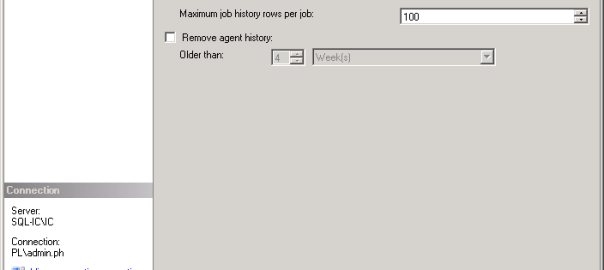
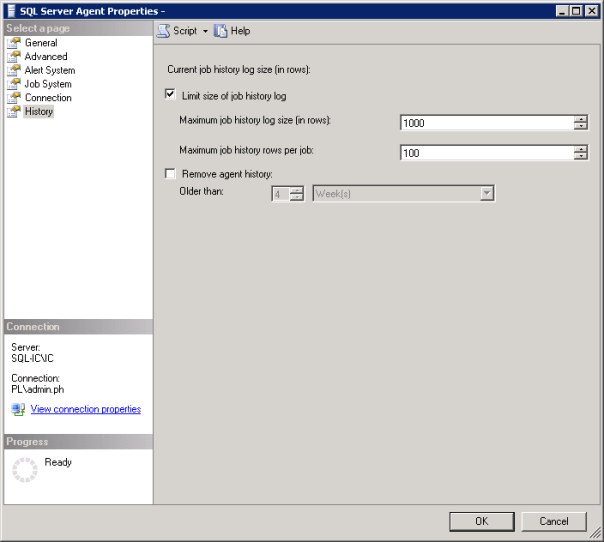
Picture showing SQL Server Agent Properties Window

How to setup how much Agent Job History is retained

I was asked to do a historic analysis of SQL Server jobs to determine their statistics, such as the number of runs, average run duration, successes/failures etc. As part of the daily checks I do on a server I’d only check the job runs for the past 24 hours. So I was surprised when I started the analysis and saw that averages for the same job across servers varied significantly.

When I looked at the msdb.dbo.sysjobhistory table of the server with the lowest averages I noted that there were only 999 rows and the history only went back a day or two.

So I had effectively no history on that server. When I looked at another the sysjobhistory table had almost 10 million entries, roughly 4 Gb of data! (The joys of taking over someone else’s environment)

This got me looking at the history settings for the SQL Agent. To open the SQL Server Agent Properties while in SQL Server Object Explorer right click on SQL Server Agent and then click on properties.

Picture showing SQL Server Agent Properties Window

For the first server the history settings were set to the default of 1000 lines for the log as a whole and 100 lines for the individual jobs. If you have a job that runs 4 steps that will use 5 lines, one line for the job and one line for each of the steps that are run. When I looked at the history settings on the second, server as you would expect, no settings had been applied.

Some sensible thresholds needed to be applied across the environment. I’m not going to dictate to you what your retention policy should be regarding job run history but I will say it can be as much as business decision as a server maintenance one so ask around if people need a record that something has run.

You may be in the position that you can be specific enough to enter row values but most organisations will have jobs that run weekly or monthly. In that case you may be better off using the “Older than” option and setting a retention period rather than using rows.

Always with logging, if you have the space, you’re better off having too much than having too little and missing data you need.  The size of each row in the sysjobhistory table is at most 4.5KB so keeping 10k rows is only around 45 Mb. If you don’t have 45 Mb to spare on your server then job history retention is the least of your worries. The worst thing that is likely to happen in storing more rows than you need is that it takes a bit longer to bring up the job history viewer. But here’s a link to some queries to help with that.

The moral of the story is just because it’s in the MSDB doesn’t mean Microsoft are taking care of it. Check your settings and make sure you’re retaining an appropriate amount of history now.

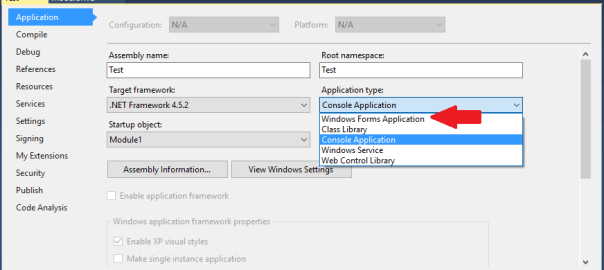
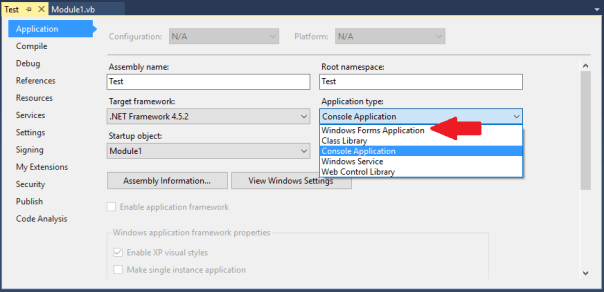
Picture showing the Application screen highlighting the Application type change from Console Application to Windows Forms Application

How to create a console application in Visual Studio that won’t open a command window when it runs

If you’ve written a small console application, say something that doesn’t require a UI e.g. a  batch script that you want to make into an exe, you’ve probably noticed that an unnecessary/unwanted command window pops up.

To stop the command window from opening you can simply make a change in the project properties by setting the Application Type from Console Application to Windows Forms Application.

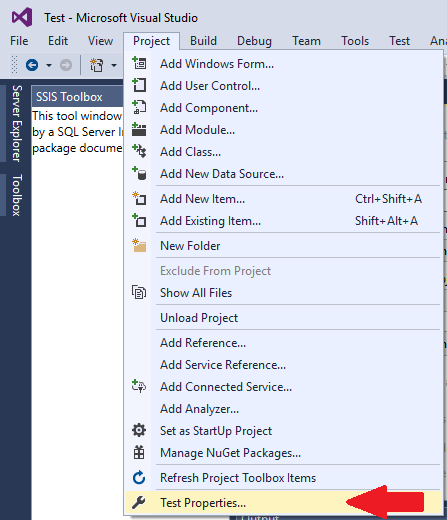
This can be done from within the project, click on Projects at the top of the screen and then click on Properties as show below.

Picture showing Project options highlighting Properties

Then change the application type from Console Application to Windows Forms Application as shown below.

Picture showing the Application screen highlighting the Application type change from Console Application to Windows Forms Application

How to identify databases with Guest user enabled

As best practice it is recommended to disable guest user in every user database, i.e. not master, msdb and tempdb, to improve the security of SQL Server. Guest user permits access to a database for any logins that are not mapped to a specific database user. The guest user cannot be dropped but it can be disabled by revoking the CONNECT permission.

Use the script below to identify which databases have guest user enabled. 

USE master;
GO

DECLARE @database_name SYSNAME
	,@sqlcmd NVARCHAR(4000)

DECLARE databases_cursor CURSOR
FOR
SELECT NAME
FROM sys.databases
WHERE STATE IN (0)
	AND database_id > 4
ORDER BY NAME

CREATE TABLE #guest_users_enabled (
	database_name SYSNAME
	,user_name SYSNAME
	,permission_name NVARCHAR(128)
	,state_desc NVARCHAR(6)
	)

OPEN databases_cursor;

FETCH NEXT
FROM databases_cursor
INTO @database_name;

WHILE @@FETCH_STATUS = 0
BEGIN
	SET @sqlcmd = N'use ' + @database_name + ';

        insert into #guest_users_enabled

        SELECT ''' + @database_name + ''' as database_name, name,

        permission_name, state_desc

        FROM sys.database_principals dpr

        INNER JOIN sys.database_permissions dpe

        ON dpr.principal_id = dpe.grantee_principal_id

        WHERE name = ''guest'' AND permission_name = ''CONNECT'''

	EXEC sp_executesql @sqlcmd

	FETCH NEXT
	FROM databases_cursor
	INTO @database_name;
END

SELECT database_name
	,user_name
	,permission_name
	,state_desc
FROM #guest_users_enabled
ORDER BY database_name ASC

DROP TABLE #guest_users_enabled

CLOSE databases_cursor;

DEALLOCATE databases_cursor;
GO
Use the script below, changing the placeholder database with the database identified in the script above, to revoke permission for the guest user to connect to that database.
USE [database name];

GO

REVOKE CONNECT FROM GUEST;

GO

How to resize TempDB in SQL Server

SQL Server Tempdb is used to store temporary objects. By default the initial size of the tempdb is too small for a production database engaged in any significant enterprise activities, therefore it should be sized accordingly on setup.

Failure to do so will have a negative performance impact when the database is first put into operation as it will need to grow to a more fitting size. Worse still, every time SQL Server is restarted the  tempdb will be recreated with its initial size. So SQL Server has to initiate autogrowth steps to grow the database file again and performance will be impacted negatively while it grows.

To compare the initial tempdb size to the current size run the script below.

USE master;
GO

SELECT mf.database_id
	,mf.NAME
	,mf.size * 8 / 1024 AS Initial_Size
	,df.size * 8 / 1024 AS Current_Size
FROM sys.master_files mf
/*adding info about current file size*/
INNER JOIN tempdb.sys.database_files df ON mf.NAME = df.NAME
/*filtering for tempdb only*/
WHERE mf.database_id = 2;
GO
You can set the tempdb initial size to the displayed current size if you think it will need to grow to this size again or take it as a simple guide and set the initial size less than its current size and allow it to grow as it needs.
To change the tempdb size run the script below replacing all the values in the placeholders with your specific values, use the example script further down as a guide. The files tempdev and templog are typically what the tempdb files are called in a default installation. (You can run the first script again to confirm success)

USE master;
GO

ALTER DATABASE TempDB MODIFY FILE (
	NAME = [logical file name of the tempdb data file]
	,SIZE = [value] MB
	);
GO

USE master;
GO

ALTER DATABASE TempDB MODIFY FILE (
	NAME = [tempdev]
	,SIZE = 4 MB
	);
GO


ALTER DATABASE TempDB MODIFY FILE (
	NAME = [templog]
	,SIZE = 3 MB
	);
GO

How to drop a user from a SQL Server database when you encounter the error message “The database principal owns a schema in the database, and cannot be dropped”

principalowner

So if you have encountered the error above “The database principal owns a schema in the database, and cannot be dropped” you will not be able to drop the user until ownership of the effected schema has been transferred to another user/role. In order to drop the user, you have to find the schema that is assigned first. You can do this by running the script below replacing myUser with the user name in question. 

SELECT name 
FROM  sys.schemas 
WHERE principal_id = USER_ID(myUser)
Then, use the schema found from the above query in place of the SchemaName below. This transfers ownership to dbo. You may need to alter authorization for multiple schema. Just run the statement for each returned schema replacing SchemaName. You can then drop your user.
ALTER AUTHORIZATION ON SCHEMA::SchemaName TO dbo;
 
GO

DROP USER myUser;