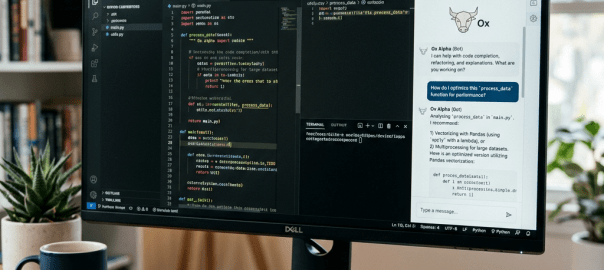
If you want a cloud-based coding environment where you can open a GitHub repository, ask an AI to inspect and edit the code, and avoid paying for a separate coding-agent subscription, there is a surprisingly simple setup:
GitHub Codespaces + VS Code + OpenRouter + Ox Alpha
At the time of writing, Ox Alpha (stealth/ox-alpha) is available through OpenRouter for free, with a 1-million-token context window. OpenRouter describes it as a reasoning model designed specifically for coding and sustained agentic work.
The key is that you don’t actually need OpenCode or another separate coding application. VS Code can connect to OpenRouter and use the model from its built-in AI tooling.
What you’ll need
- A GitHub account
- A GitHub repository containing your project
- GitHub Codespaces
- VS Code’s AI/agent features
- An OpenRouter account
- An OpenRouter API key
GitHub Codespaces provides a cloud-hosted development environment that can be opened directly in the browser or through VS Code.
1. Create an OpenRouter API key
Go to:
Create a new API key and copy it somewhere safe.
At present, OpenRouter lists Ox Alpha as:
- Model:
stealth/ox-alpha - Price: Free
- Context: 1,048,576 tokens
- Provider: Stealth
Important: “Free” is the current pricing for the model and can change. Check the OpenRouter model page before relying on it for a longer-term project.
2. Add the key to GitHub Codespaces
Don’t put your API key directly into your repository.
GitHub provides Codespaces secrets specifically for credentials such as API tokens.
Go to your GitHub account’s Codespaces settings:
Create a new secret:
Name:
OPENROUTER_API_KEY
Value:
Your OpenRouter API key.
Give the secret access to your repository
This part is easy to miss.
When creating the secret, make sure the repository containing your Codespace is included in the secret’s repository access.
Codespaces secrets can be assigned to repositories you have access to.
3. Open your Codespace
Open your repository and launch a Codespace.
Once VS Code has loaded, open Chat.
You don’t need to install OpenCode, Codex CLI, or an OpenRouter package.
4. Add OpenRouter to VS Code
In the VS Code Chat interface, click the current model selector.
For example, you may initially see:
Auto
Choose:
Manage Models
Then:
Add Models
Select:
OpenRouter
VS Code will ask for your OpenRouter API key.
Enter the key you created earlier.
VS Code will then retrieve the models available through OpenRouter.
5. Find Ox Alpha
In the model list, search for:
Ox Alpha
You should find:
stealth/ox-alpha
Select/add it.
You can subsequently return to Manage Models to see OpenRouter and the models you’ve added.
6. Use Ox Alpha as your coding agent
Now comes the useful part.
Select Ox Alpha as your model and use VS Code’s Agent mode.
Give it a simple read-only task first:
Inspect this repository and explain what the application does. Identify the main entry point and the most important files. Don’t modify anything yet.
If it successfully examines the project, you know the agent has access to your workspace.
Then you can give it an editing task:
Find the cause of the current bug. Explain what you found, then fix it and run the relevant tests.
The agent can then work with the files in your Codespace rather than simply answering questions about code pasted into a chat window.
7. A useful first prompt
When starting on an unfamiliar repository, I recommend:
First inspect the repository and understand its architecture. Don’t make any changes. Tell me what the application does, what framework it uses, where the main entry point is, and where I should look for the functionality I’m interested in.
Once you’ve established that it understands the project, you can give it permission to make changes.
For example:
Implement the change we discussed. You may edit the necessary files and run tests. Don’t modify unrelated parts of the project. At the end, summarize every file you changed and the tests you ran.
What this setup gives you
The final setup is:
GitHub Repository
       ↓
GitHub Codespace
       ↓
VS Code
       ↓
VS Code Agent
       ↓
OpenRouter
       ↓
Ox Alpha
You get a cloud development environment + AI coding agent + Ox Alpha without needing a separate OpenCode subscription.
One important privacy consideration
There’s a significant caveat with Ox Alpha.
OpenRouter currently states that Ox Alpha is operated by a third-party provider called Stealth, and that prompts and completions are retained by the provider, although they are not used for training.
So I’d avoid using this setup with:
- API keys
- passwords
- private customer information
- proprietary secrets
- sensitive production data
And make sure secrets aren’t sitting in your repository for the agent to accidentally read.
The result
The attractive part of this setup is that there are three separate pieces, each doing one job:
GitHub Codespaces gives you the actual cloud computer and repository.
VS Code Agent provides the interface that can understand and work on your codebase.
OpenRouter + Ox Alpha provides the AI model. OpenRouter currently lists Ox Alpha as free and specifically describes it as being designed for coding and sustained agentic work.
So you can essentially turn a GitHub repository into a free, browser-based AI coding workspace with Ox Alpha doing the coding.

