Tag Archives: lesson

Icon for Raspberry Pi

How to find a program’s directory in Raspbian OS

For Linux distros most programs are stored in the /usr directory. There is no “Programs Files” directory like for Windows. The executables are typically stored in /usr/bin with additional stuff in /usr/share and libraries in usr/lib etc.

There is also usr/local where stuff gets put when you do the compiling yourself. With /bin tending to be command line tools and /sbin being the directory for command utils only for root.

The quickest way to find the actual directory a program resides in is through terminal using the command “which”.

Here are some examples:

which nano

which gpicview

which chromium-browser

The programs referenced are the preinstalled text editor, image viewer and web browser. All of these examples will return the /usr/bin/ directory.

Note chromium is referred to as “chromium-browser” as typing “which chromium” will return no result as that is the incorrect name for the program. If you are unsure of a program name, run the program and then look for it in task manager to confirm.

An Icon of a keyboard

How to use an Android device as a keyboard and trackpad for a Raspberry Pi

Anyone who has set up a Raspberry Pi Zero W will know it is a bit limited by IO, such is the trade off for such a small form factor. I recently went through a set up that was especially awkward as there was no WiFi available. I tried to use an Android hotspot but unfortunately the Pi could not see the Android device at all. The only option I had was to tether the Pi to the Android via USB. This worked. The Pi had access to the mobile data of the Android device however it seems that the power draw from the Android device meant there was not enough power left to power the wireless USB receiver for the keyboard and mouse combo. So I was left with mutually exclusive options of either access to the internet or the ability to use a keyboard and mouse. Luckily there is always a plan C.

Prerequisites:

You will need a mouse that can connect to the Pi either by USB or Bluetooth. The OS used was Raspbian but this solution should work with other Distros.

Solution:

The Raspberry Pi Zero W also comes with Bluetooth built in so there was the option to make the Pi discoverable and connect a Bluetooth keyboard and mouse. I do not have a physical Bluetooth keyboard or mouse but thankfully there is an App for that, multiple ones actually.

The App I used was the “Serverless Bluetooth Keyboard & Mouse for PC/Phone” from Google Play, available here.

It is free (with ads) and very easy to set up. In terms of performance it provided me with a usable keyboard (like Gboard) with half of the device screen acting as a very responsive track pad. I certainly would not want to compose a thesis with this setup but for typing a few words and clicking a few links it is perfectly serviceable.

I experienced what maybe a slight bug during set up however but I resolved the problem in a minute or two.

Problem and Fix:

Firstly you will need to make the Pi discoverable via Bluetooth. This is the only time I needed to make use of a physical mouse. The option to turn on Bluetooth and make the device discoverable is to the top right of the Raspbian Home screen.

When I tried to connect the Android and Pi together through the App it would not work. The Pi was not discoverable by the App despite the functionality to discover devices being built in to the App.

To connect the devices I first had to connect the Android device and Pi together via their respective operating systems. This threw an error on the Pi but the Android device was visible to it. I then removed the Android Bluetooth connection from the Pi and again tried connecting the Pi via the App. This worked.

If you found this post helpful please like/share/subscribe.

Icon of computer with tick on screen

How to verifying your WordPress.com site with Google via HTML tag

Before starting: Note that according to WordPress.com “. . . verifying your site with these services (search engines) is not necessary in order for your site to be indexed by search engines.

Prerequisites:

This guide assumes you already have your WordPress.com site set up and you already have an account with Google Analytics / Google Search Console.

Steps:

Log into your WordPress.com site.

Go to Marketing and change the displayed options to “Traffic”.

Under “Marketing and Integrations” scroll down to “Site verification services”.

There you will see an option to provide a HTML google-site-verification code.

To retrieve this code you need to login to the sites associated Google Search Console account.

Login to Google Search Console and under the heading “Google Search Console” you will either see a drop down option to “Add Property” i.e. as in a site you own or the name of your site, or sites, that you previously registered.

If you have not registered your domain before then submit the site address now under the domains option. If you have submitted your site before click on your site name.

On the “Ownership verification” page you will see “Additional verification methods” at the bottom of the page.

Expand the HTML Tag option to reveal the HTML google-site-verification code.

Copy this code and return to the WordPress.com “Marketing and Integrations” page.

Paste the code into the HTML google-site-verification code section.

Save the settings in WordPress.com.

Return to the Google Search Console “Ownership verification” page and verify.

Your WordPress.com site has now been verified with Google.

An Icon of map

How to add your WordPress.com sitemap to Google Search Console

Prerequisites:

This guide assumes you already have your WordPress.com site set up and your site is verified with Google Analytics / Google Search Console.

Steps:

By default WordPress.com prepares a sitemap for you.

To see it simply copy and paste the mock url below (Option 1) into your browser search bar and edit it to reference your site. If you own a custom domain omit the reference to WordPress as demonstrated in (Option 2).

(Option 1)

yoursite.wordpress.com/sitemap.xml

(Option 2)

yoursite.com/sitemap.xml

Once you have verified the sitemap url is correct add this sitemap to Google Search Console.

Do this by logging into Google Search Console and clicking on Sitemaps on the left hand side of the main window.

In the sitemaps window there will be the option to paste the copied url under “Add a new sitemap” and Submit it.

Once the url is submitted your sitemap will be saved under “Submitted sitemaps”.

An icon of a jetpack

How to fix Jetpack for WordPress.com not pushing posts to Facebook or Twitter

If you have set up the connections for Facebook, Twitter, etc. through Jetpack but your posts are not being pushed to those platforms try the following.

Make sure you have given permission to editors and authors of your site to use the established Jetpack connections. To do that go back to the Jetpack connection settings.

In the “Publicize posts” section click the drop down arrow to the far right.

Click the check box allowing the social media platform to be used by more than just the administrators. (Obviously this will allow your authors to publish to the specified social media platform so only do this if you trust your authors having this access.)

Once this is done your next published post should also be pushed across your connected social media platforms.

NOTE:

If the post was already published “Updating” the post will not share the post across the social media platforms. You will need to save the post as a “Draft” and “Publish” it again. This should then push the post to the social media platforms.

How to fix “your model is not manifold” error in Cura

You just pulled a file from Thingiverse and now when you try to slice it in Cura it says “your model is not manifold”.  If you just want to make the error go away you can skip to the paragraph “The Fix”  if you don’t want to be “filled in” on why it’s happening in the first place. Little bit of 3D printing humour there for ya.

So what does the error mean?

For a model to be manifold you can think of it as having logically enclosed space in a manner that can exist in real life with an outer geometry that can actually be 3D printed.

So what does non-manifold mean?

There’s a couple of reasons why a model is not manifold and here they are:

  • Self-intersecting
  • Separate Object
  • Hole
  • Inner Faces
  • Overlapping Geometry

Self-intersecting: This is a bit of a weird analogy but imagine punching through yourself. You can’t do that in real life without making a big hole but in a virtual model of yourself you can have the objects of your fist and forearm pass through another body part of your choosing and that’s perfectly fine but in real life you can’t have two objects with mass occupy the same space at the same time so this cannot be printed.

Separate Object: Imagine a model of a figurine wearing sun glasses. If the sun glasses and the figurine were two separate objects and you shrank the figurine by rescaling it to 90% its original size the sun glasses might be left floating in midair. That’s fine for a virtual 3D model but in real life gravity might have something to say about that.

Hole: Pretty self explanatory, there’s a hole in the model and not like a window just a void that makes the model impossible to print successfully.

Inner Faces: Imagine trying to print a model within a model. The slicer reads the code and gets confused because there should only be one outer surface area not two.

Overlapping Geometry: Imagine you have created a 3D model of a house and you’ve accidentally copied the roof and then pasted it back on top of the model over the original roof. The model now has two roofs occupying the same space which cannot be printed.


The Fix:

Ideally you should open the file with some 3D modelling software and fix it manually but if you’re just pulling files from Thingiverse that’s a bit unrealistic. Luckily the following site allows you to upload files and it will try to fix them automatically.

https://3d-print.jomatik.de/en/index.php

If the process successfully fixes the file it will give you the option to download the file with a brief summary of what changes it made highlighting big changes in red.

Its a great solution especially for low risk models but the onus will always be on you to manually inspect the model to see if the problems have in fact been resolved. Also if you’re working on a super secret product design for a company probably best not to upload the model to be fixed online, but for files you’ve pulled from Thingiverse sure why not they’re already publicly available anyway.

The New Fix:

The website above no longer provides the functionality to automatically make objects manifold unfortunately.

As an alternative solution, download and Install Slic3r.

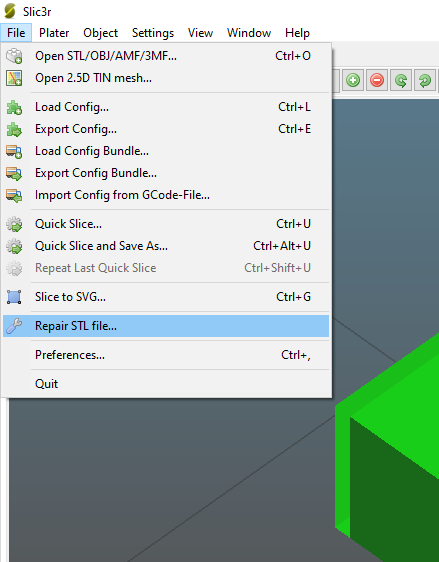
Start Slic3r, go to file and then “Repair STL file . . .” and load in the file you want to fix.

You will then be able to open the file with Cura and hopefully it should be fixed (note: the solution is a bit hit and miss).

Alternatively download Meshmixer, open the problem file, go to edit and then make solid. This is not a guaranteed fix either but may fix some minor gaps and errors.

How to use a generic PC controller with GTA 5

So you plugged in the cheap PC controller you bought off eBay or Amazon (say one that is coincidentally shaped like an Xbox controller) and found it doesn’t work with GTA 5?

This is probably because the controller is using the DirectInput standard as opposed to the newer XInput standard. You can read more about these standards from Microsoft by clinking on this link.

GTA 5 (or GTA V if you’re feeling fancy) was not optimised to use the DirectInput standard unfortunately. However if you’re playing the game on PC you should be using a keyboard and mouse like a grown-up anyway, it’s way better for shooters. Ah but GTA isn’t all about the shooting I hear you say and you’re right. I’ll admit I switch to a controller for flying vehciles because they are horrible to pilot with direction keys. Analogue sticks are much better suited to aircraft.

So the workaround for being able to use the cheap generic controller is quite simple but requires using an “Xbox 360 Controller Emulator”.

Download the file x360ce_x64 from the following site by clicking on the “download for 64 bit games” button at the top of the screen.

https://www.x360ce.com/

(Be sure to test the downloaded file with whatever antivirus software you have installed)

Once you are satisfied the software is safe extract the file to the root directory of where you installed GTA 5.

(If you do not know where that folder is try searching GTAV in your Windows search bar. Note a folder called GTA V is often created in the Documents folder but this is not the correct directory.  The correct directory will have application files with the GTAV logo in it. The game maybe in a Rockstar folder or perhaps a Steam or Epic folder, it all depends on who you bought it from.)

Right click on x360ce_x64 and run the file as administrator and you should be given an option button to “Create”.

Click this button and a Xbox controller calibration window will open.

At this point if your controller has a large circular button at its center press it and make sure it lights up otherwise it may not send the right signals when the controller is being mapped.

Click “Auto” and then “Save”.

I found the A, B, X and Y face buttons were not mapped correctly and needed to be mapped manually.

To do this, beside each face button on the emulator interface there is a drop down menu. Click on it for each button and choose the option to record. The interface will highlight which button to press on your controller to map it correctly. Once the buttons are mapped correctly click “Save” again.

After following these steps you should now be able to play GTA V with the controller.

How to secure Creality Ender 3 Pro TL-Smoothers once installed

This post will outline how to secure TL-Smoothers within the Creality Ender Pro circuit housing without blocking vents.

Prerequisites:

You will need insulation tape and double-sided sellotape to following the instructions.

What are TL-Smoothers?

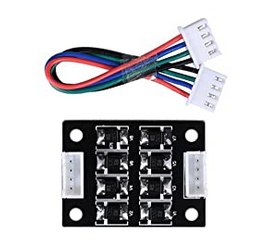
A TL-Smoother, as displayed below, is an add-on circuit module for 3D printer stepper motor drivers. They seek to lower vibration, lower noise and provide a smoother result by way of cleaning up electrical signals. Their use is intended to compensate for less than premium motor control circuits that are used in more budget 3D printers.

TL-Smoother

(Note: there is an ongoing debate as to whether TL-Smoothers have any benefit on print quality for the Ender 3 Pro. This post will not cover this topic or the installation process as a whole. This post simply puts forth advice regarding good placement and how to secure the circuits.)

Steps:

The four pin sockets of the TL-Smoothers protrude on the back side of the circuit.

Clip the ends off of these protrusion using the electrical wire cable cutters, provided with the printer, leaving the back of each circuit flat.

Cover the four pins on either end of each circuit with insulation tape, this will prevent shorts.

Cut a small square of double-sided tape and secure it to the back of each circuit as shown below.

DoubleSidedTapeSmall

Secure the circuits as demonstrated below using the double-sided tape. These locations will ensure everything will fit inside the housing while leaving enough space for the fan. The green square in the picture marks where the fan will be situated when the housing is closed back up.

Smoother Placement

Happy Printing. ☮

How to create a C# console application that will solve crosswords

This tutorial will cover the following tasks in C#:

  • How to count the characters in a string
  • How to assign a file’s directory location to a variable
  • How to create a list variable
  • How to pull/read a CSV file column into a list variable
  • How to clean strings using Regex to remove non alpha numeric characters as the strings are being read into a list
  • How to remove duplicate word entries from a list
  • How to order a list
  • How to write variables to the console, including a list’s elements

Assumptions:

You already know how to create projects in Visual Studio.

If you do not how to do this search online using the following term “how to create C# console applications in visual studio”.

Prerequisites:

First you will need to generate a CSV file with random words using this site:

https://onlinerandomtools.com/generate-random-csv

For the option “how many columns to generate” set the value to 1.

For testing purposes create 1000 rows.

Download the csv file generated and save it using the name “words”.

Summary of how the code works:

The code works by reducing the initial list (i.e. the supplied CSV file of random words) down to only words that match the number of characters of the user word, typically referred to as “string length”.

Once that subset of words has been created the code will then compare the user word’s letters against each letter, referencing the relative position, in each word in the subset.

Note: there is still significant room for optimization but the code is functional and works well as an accessible, human readable tutorial.

Use case example:

If the user enters the word “apple” the dictionary subset will be reduced down to 5 letter words only. These five letter words are then compared to the user word, each word and letter at a time. So if the first word in the list was “cabin” the comparison would jump to the next word in the list as the “a” in “apple” does not match the “c” in “cabin”. If the next word in the dictionary was “acorn” the first letters would match but the comparison would jump to the next word when the “c” and “p” did not match.

Instructions:

Create a C# console application called CrosswordSolver in Visual Studio.

Move the CSV file called “Words” into the bin directory of the project folder, i.e. CrosswordSolver\CrosswordSolver\bin

Open the project CrosswordSolver and paste the C# code below into the default window replacing the default cs page code.

The hardcoded example of a user word is:

string userWord = “a****”;

The user can use * to represent characters unknown, for example ap*le.

Note: The CSV file you randomly generated may have no examples of 5 letter words begining with the letter “a” so experiment with other characters.

You can test the letter comparison functionality by uncommenting the two sections of code immediately following the comments “Test letter comparison”.

To test your CSV file has been read into memory you can uncomment the section of code immediately following “Test that dictionary has been read into memory”.

The C# code:

using System;
using System.IO;
using System.Linq;
using System.Collections.Generic;
using System.Text.RegularExpressions;

namespace CrosswordSolver
{
    class Program
    {
        static void Main(string[] args)
        {
            int c = 0;
            //User input
            //NOTE: Use * to represent characters unknown 
            string userWord = "a****";
            int wordLength = userWord.Length;

            //Assign directory location of the csv file containing the collection of words to a variable
            string projectFolder = Directory.GetParent(Directory.GetCurrentDirectory()).Parent.FullName;
            string file = Path.Combine(projectFolder, "words.csv");

            //Display dictionary location in console
            Console.WriteLine("Dictionary location: " + file);

            var dictionary = new List<string>();
            using (var rd = new StreamReader(file))

            //Pull file column into dictionary list without cleaning
            //{
            //    while (!rd.EndOfStream)
            //    {
            //        var splits = rd.ReadLine().Split(',');
            //        dictionary.Add(splits[0]);
            //    }
            //}

            //Pull file column into dictionary list while cleaning
            {
                while (!rd.EndOfStream)
                {
                    var splits = rd.ReadLine().Split(',');
                    //string clean is done with Regex
                    dictionary.Add(Regex.Replace(splits[0], "[^A-Za-z0-9 ]", ""));
                }
            }

            //Test that dictionary has been read into memory
            //Console.WriteLine("The dictionary contains the following words:");
            //foreach (var element in dictionary)
            //Console.WriteLine(element);

            //Remove duplicate word entries
            //c = dictionary.Count;
            //Console.WriteLine("The dictionary contains " + c + " words");
            dictionary = dictionary.Distinct().ToList();
            //c = dictionary.Count;
            //Console.WriteLine("The dictionary contains " + c + " words");

            // Count the elements in the List and display test parameters
            c = dictionary.Count;
            Console.WriteLine("The dictionary contains " + c + " words");
            Console.WriteLine("User entered the string: " + userWord);
            Console.WriteLine(userWord + " has " + wordLength + " characters");
            userWord = userWord.ToLower();

            //Reduce the dataset size based on number of characters in string
            IEnumerable<string> query =
                dictionary.Where(word => word.Length == wordLength);

            var subSet = new List<string>();
            foreach (var word in query)
                subSet.Add(word);

            //Order List
            subSet = subSet.OrderBy(x => x).ToList();

            c = subSet.Count;
            if (c != 0)
            {
                Console.WriteLine("The dictionary contains " + c + " words that are " + wordLength + " characters in length");

                //Begin character and position match check
                var result = new List<string>();
                foreach (var word in subSet)

                {
                    for (int i = 0; i <= wordLength - 1; i++)
                    {

                        if ((word.ToLower()[i] == userWord[i]) | (userWord[i] == '*'))
                        {

                            //Test letter comparison (Letters match)
                            //Console.WriteLine(
                            //"Letter " + i + ", which is " + "\"" + word[i] + "\"" + ", of the word " + "\"" + word + "\"" +
                            //" matches letter " + i + ", which is " + "\"" + userWord[i] + "\"" + ", of the user input " + "\"" + userWord + "\""
                            //);

                            if (i == wordLength - 1)
                            { result.Add(word); }

                        }
                        else
                        {
                            //Test letter comparison (Letters do not match)
                            //Console.WriteLine(
                            //"Letter " + i + ", which is " + "\"" + word[i] + "\"" + ", of the word " + "\"" + word + "\"" +
                            //" does not match letter " + i + ", which is " + "\"" + userWord[i] + "\"" + ", of the user input " + "\"" + userWord + "\""
                            //);

                            break;
                        }
                    }
                }

                //Test words that do not match
                //foreach (var word in subSetToRemove)
                //Console.WriteLine(word);

                bool isEmpty = !result.Any();
                if (isEmpty)
                {
                    Console.WriteLine("No matches found");
                }
                else
                {
                    c = result.Count();
                    Console.WriteLine("Potential matches found: " + c);
                    foreach (var word in result)
                        Console.WriteLine(word);
                }
            }
            else
            {
                Console.WriteLine("No words of " + wordLength + " characters long found");
            }
            Console.ReadKey();
        }
    }
}


If you found this code useful be sure to like the post and comment. ☮

If you would like to know how to create a csv file with C# see this tutorial link.

If you would like to know how to create a console application in Visual Studio that won’t open a command window when it runs see this tutorial link.


How to fix the right analog stick of a generic PC controller for Fifa Online 3

Fifa Online 3 is a free version of Fifa that is popular in Asia as an esport title. The gameplay and visuals are a little dated but it’s still a solid experience at a great price. You won’t make it through the tutorials however if you are using a cheap generic PC controller (say one that is coincidentally shaped like an xbox controller) as you won’t be able to save penalties. This is because the right analog stick may not be recognised.

The fix is quite simple.

Download the file x360ce from the following site by clicking on the “download for 32 bit games” button at the top of the screen.

https://www.x360ce.com/

(Be sure to test the downloaded file with whatever antivirus software you have installed)

Once you are satisfied the software is safe extract the file to the root directory of where you installed the game. (Note: the game directory will probably not be called Fifa etc. it will likely be a series of numbers)

Open the file and you should be given an option button to “Create”.

Click this button and a Xbox controller calibration window will open.

Click “Auto” and then “Save”, and that should do it.

See the video below for a more visual guide, just don’t download the 64 bit file.