Tag Archives: How To

How to fix Dolphin GameCube controller button mappings and keep them from being overwritten by RetroBat or Emulation Station

RetroBat and Emulation Station do a great job of mapping controller buttons straight out of the box but sometimes these settings do not map correctly onto specific emulators.

Dolphin’s GameCube is one such emulator that seems to get the buttons jumbled.

If you have ever tried to fix the button mappings via Dolphin directly you might have been frustrated that your manual settings have not stuck as next time you run a game you are back to the same wrong button layout.

This is because RetroBat or Emulation Stations front-end settings take precedence over the individual emulator settings, i.e. the expectation is you will set the emulator settings via these front-ends not in the emulators individually. Mostly this works great however some of the more detailed settings cannot be set via the front-ends and the front-ends overwrite the emulators with incorrect default settings.

To solve the GameCube button mapping problem do the following:

Open Dolphin directly, there are various means to achieve this one being via the RetroBat settings.

Click on the Controller icon.

For each port (controller you have connected) click on the “Configure” icon.

In the “Device” drop down select your controller.

In the GameCube Controller options set the buttons as follows:

For a PlayStation controller:

A : Cross

B : Square

X : Circle

Y : Triangle

Z : R1

Start: Start (Options)

For a XBox controller:

A : A

B : X

X : B

Y : Y

Z : Right Bumper

Start: Start

Now save the settings as a profile.

Reopen RetroBat/Emulation Station and press Start on your controller.

From the Main Menu:

Game Settings > Per System Advanced Configuration > GameCube > Autoconfigure Controllers = “OFF”

This should resolve the problem going forward.

How to replace multiple words within a string at once using python

Below is a quick code snippet example you can reuse to replace multiple words within a string using python.

s = "The quick brown fox jumps over the lazy dog"
print(s)
for r in (("brown", "red"), ("lazy", "quick")):
    s = s.replace(*r)
print(s)

PlayStation 1 not showing up as an option in “Consoles” Tab of GarlicOS

If you have populated your RG35XX PS folder with games yet GarlicOS has not presented PlayStation as a console option this is likely due to GarlicOS not having the functionality to read sub folders and that your games each have dedicated folders. For GarlicOS to see your games all your games must be directly in the console folder.

However typically PS games are in .bin format and are saved in folders because even single disk games will have at least two associated files i.e. the .bin files and the .cue file. For multi disk games, where there is a .bin file and a .cue file for each disk, and potentially a .m3u file to handle multi disk operation, the problem is exacerbated.

One solution would be to convert your PS games to the .chd format. Converting the PS “disks”, i.e. pairs of .cue and .bin files to the .chd format will result in a single file per disk which is also compressed taking up much less space.

To convert “disks” to .chd download the zip of the software “CHDMAN” below:

https://archive.org/details/chdman

Unzipping the file will create a folder CHDMAN.

In this folder open the batch file called “Cue or GDI to CHD” with a text editor and replace the line:

for /r %%i in (*.cue, *.gdi) do chdman createcd -i “%%i” -o “%%~ni.chd”

with:

for /r %%i in (*.cue, *.gdi, *.iso) do chdman createcd -i “%%i” -o “%%~ni.chd”

This update allows the batch file to work with ISO files too.

Now to convert “disks” simply drag and drop the .cue and .bin files into the CHDMAN folder and then double click the batch file “Cue or GDI to CHD” to run it.

This will produce a single .chd file you can then save to the PS folder of your GarlicOS games directory.

Comparing two tables for equality with Spark SQL

The best way of comparing two tables to determine if they are the exact same is to calculate the hash sum of each table and then compare the sum of hash. The benefit of the technique below are that no matter how many fields there are and no matter what data types the fields may be, you can use following query to do the comparison:

SELECT SUM(HASH(*)) FROM t1;
SELECT SUM(HASH(*)) FROM t2;

Of course if the schemas of the two tables are different this will by default produce different hash values.

How to insert a record with Spark SQL

INSERT INTO tables with VALUES option as achieved with other SQL variants is not supported in Spark SQL as of now. For single record inserts the below example provides two options:

--CREATE test table
CREATE TABLE TestSchema.InsertTest USING DELTA AS (SELECT 1 AS row_id, 'value1' AS field_1, 'value2' AS field_2)

--INSERT INTO test table
INSERT INTO TestSchema.InsertTest SELECT t.* FROM (SELECT 2, 'value3', 'value4') t;

--INSERT INTO test table while aliasing field names
INSERT INTO TestSchema.InsertTest SELECT t.* FROM (SELECT 3 AS row_id, 'value5' AS field_1, 'value6' AS field_2) t;

--Confirm insert
SELECT * FROM TestSchema.InsertTest

How to count nulls and hard-coded text that signifies null in a Pandas DataFrame

🧪 Validating Non-Empty Fields in Python

When working with data validation—especially in web forms, APIs, or data pipelines—it’s common to check whether a field is empty or null. But sometimes, a field might appear empty at first glance, yet still contain whitespace, hidden characters, or default values that make it technically non-null.

Let’s explore how to determine whether a field is actually empty or null, and how to handle it properly in Python.

🔍 What Does “Not Empty or Null” Really Mean?

A field is considered not empty or null if:

  • It is not None
  • It is not an empty string ("")
  • It does not consist solely of whitespace (" ")
  • It is not an empty container (like [], {}, or ())

These subtle distinctions are important when validating user input or cleaning data.

🧰 Python Functions for Validation

Here are some Python functions that help determine whether a field is truly non-empty:

def getListOfMissingValues():
    """
    desc: List of common words used to represent null that are often found in files as text
    """
    lst = ['NaN', 'NAN', 'nan', 'null', 'NULL', 'nul', 'NUL', 'none', 'NONE', '', ' ', '	']
    return lst
	
def advanceMissingValues(df):
    """
    desc: Count nulls and hardcoded text that represents nulls
    param p1: DataFrame name
    return: DataFrame of field names and count values
    """
    lstMissingVals = getListOfMissingValues()
    col_list = getListOfFieldNames(df)
    output = pd.DataFrame(col_list)
    output.rename(columns = {0:'FieldName'}, inplace = True)
    output['Count'] = ''
    
    #For each field name count nulls and other null type values
    for col in col_list:
        nullCnt = df[col].isnull().sum(axis=0)
        #For each missing value perform count on column
        missValCnt = 0
        for missVal in lstMissingVals:
            missValCnt = missValCnt + len(df[(df[col]==missVal)])
 
        cntTotal = nullCnt + missValCnt
        output.loc[output['FieldName'] == col, 'Count'] = cntTotal

    return output

#Test Setup
lst = ['NaN', 'NAN', 'nan', 'null', 'NULL', 'nul', 'NUL', 'none', 'NONE', '', ' ', '	' ,None]
mdf = pd.DataFrame(lst)
mdf.rename(columns = {0:'NullTypes'}, inplace = True)
print(mdf)

#Run Test
chk = advanceMissingValues(mdf)
chk

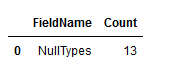
Sample output:

How to convert Panda DataFrame headers to snake case

# Python code demonstrate 
# Make headers snake case
 
import pandas as pd
 
# initialise data of lists.
data = {'First Name':['Tom', 'nick', 'krish', 'jack'], 'Age of Person':[20, 21, 19, 18]}
 
# Create DataFrame
df = pd.DataFrame(data)
 
# Print the output.
print(df)

# Make headers snake case
df.columns = [x.lower() for x in df.columns]
df.columns = df.columns.str.replace("[ ]", "_", regex=True)

# Print the output.
print(df)

How to dynamically pivot a SQL Server table using dynamic T-SQL

A dynamic pivot table means you do not need to define hard coded column names as a dynamic query will fetch the field values from a column and use them as the column names while pivoting the source table.

Sounds complicated?

It is!

Good thing there are some code examples below you can just steal and alter as you need.

The first example will just return as a SELECT, the second example will write the results to a global temp table called ##Result.

A use case for this might be a continuous requirement to pivot a table however the column name requirements keep changing as field values change.

Example 1: Return as SELECT

/*Mock Table*/
IF OBJECT_ID('tempdb.dbo.#Fruits', 'U') IS NOT NULL
	DROP TABLE #Fruits;

CREATE TABLE #Fruits (
	Fruit VARCHAR(255)
	,Quantity INT
	,DateOf DATETIME
	);

INSERT INTO #Fruits (
	Fruit
	,Quantity
	,DateOf
	)
VALUES 
('Apple', 10	,GETDATE())
,('Orange', 10	,GETDATE())
,('Banana', 10, GETDATE())
,('Apple', 11, DATEADD(DAY, - 1, GETDATE()))
,('Orange', 11, DATEADD(DAY, - 1, GETDATE()))
,('Banana', 11, DATEADD(DAY, - 1, GETDATE()))
,('Apple', 12, DATEADD(DAY, - 2, GETDATE()))
,('Orange', 12, DATEADD(DAY, - 2, GETDATE()))
,('Banana', 12, DATEADD(DAY, - 2, GETDATE()))
,('Apple', 13, DATEADD(DAY, - 3, GETDATE()))
,('Orange', 13, DATEADD(DAY, - 3, GETDATE()))
,('Banana', 13, DATEADD(DAY, - 3, GETDATE()));

/*Demo Mock table*/
SELECT *
FROM #Fruits;

/*Logic to dynamically pivot table*/
DECLARE @cols AS NVARCHAR(MAX)
	,@query AS NVARCHAR(MAX);

SELECT @cols = STUFF((
			SELECT DISTINCT QUOTENAME(f.[Fruit]) + ', '
			FROM #Fruits AS f
			FOR XML PATH('')
				,TYPE
			).value('.', 'NVARCHAR(MAX)'), 1, 1, '');

/*Add missing square bracket to start of string*/
SET @cols = '[' + @cols;
/*Remove last comma from string*/
SET @cols = SUBSTRING(@cols, 1, (LEN(@cols) - 1));
SET @query = 'SELECT [DateOf], ' + @cols + ' FROM 
             (
              SELECT *
			  FROM #Fruits
            ) x
            pivot 
            (
                min(Quantity)
                for [Fruit] in (' + @cols + ')
            ) p ORDER BY RIGHT([DateOf], 4) ASC
			,LEFT(RIGHT([DateOf], 7), 2) ASC
			,LEFT([DateOf], 2) ASC';

EXECUTE (@query);

DROP TABLE #Fruits;

Example 2: Write output to a table

IF OBJECT_ID('tempdb.dbo.##Result', 'U') IS NOT NULL
	DROP TABLE ##Result;
/*Mock Table*/
IF OBJECT_ID('tempdb.dbo.#Fruits', 'U') IS NOT NULL
	DROP TABLE #Fruits;

CREATE TABLE #Fruits (
	Fruit VARCHAR(255)
	,Quantity INT
	,DateOf DATETIME
	);

INSERT INTO #Fruits (
	Fruit
	,Quantity
	,DateOf
	)
VALUES 
('Apple', 10	,GETDATE())
,('Orange', 10	,GETDATE())
,('Banana', 10, GETDATE())
,('Apple', 11, DATEADD(DAY, - 1, GETDATE()))
,('Orange', 11, DATEADD(DAY, - 1, GETDATE()))
,('Banana', 11, DATEADD(DAY, - 1, GETDATE()))
,('Apple', 12, DATEADD(DAY, - 2, GETDATE()))
,('Orange', 12, DATEADD(DAY, - 2, GETDATE()))
,('Banana', 12, DATEADD(DAY, - 2, GETDATE()))
,('Apple', 13, DATEADD(DAY, - 3, GETDATE()))
,('Orange', 13, DATEADD(DAY, - 3, GETDATE()))
,('Banana', 13, DATEADD(DAY, - 3, GETDATE()));

/*Demo Mock table*/
SELECT *
FROM #Fruits;

/*Logic to dynamically pivot table*/
DECLARE @cols AS NVARCHAR(MAX)
	,@query AS NVARCHAR(MAX);

SELECT @cols = STUFF((
			SELECT DISTINCT QUOTENAME(f.[Fruit]) + ', '
			FROM #Fruits AS f
			FOR XML PATH('')
				,TYPE
			).value('.', 'NVARCHAR(MAX)'), 1, 1, '');

/*Add missing square bracket to start of string*/
SET @cols = '[' + @cols;
/*Remove last comma from string*/
SET @cols = SUBSTRING(@cols, 1, (LEN(@cols) - 1));
SET @query = 'SELECT [DateOf], ' + @cols + ' INTO ##Result FROM 
             (
              SELECT *
			  FROM #Fruits
            ) x
            pivot 
            (
                min(Quantity)
                for [Fruit] in (' + @cols + ')
            ) p ORDER BY RIGHT([DateOf], 4) ASC
			,LEFT(RIGHT([DateOf], 7), 2) ASC
			,LEFT([DateOf], 2) ASC';

EXECUTE (@query);

SELECT * FROM ##Result;

DROP TABLE ##Result;

DROP TABLE #Fruits;

How to create a Spark SQL table with a SELECT statement

The following is a code snippet that would create a table in a “sales” schema called customer.

If no reference to a schema is given the table will be created in the default Spark location.

CREATE TABLE sales.customer USING DELTA AS (SELECT 'John' AS fn, 'Smith' AS sn, 55 AS age)

How to run a PowerShell script

So you have a PowerShell script and you just want to run it without messing around with permissions, policies, signing it or any other crap. (Yes yes I know all those things are vital for system wide security but you’re in a hurry damn it!)

Right click PowerShell and run as administrator.


When the terminal is open run the following line:


Set-ExecutionPolicy RemoteSigned


When prompted type the letter A and press Enter (if applicable).


Run the below including “&” at start of line with reference to your script, i.e.


& “C:\YourTestDirectory\YourTestFile.ps1”