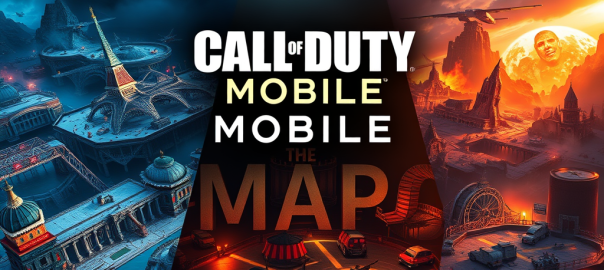
Below is a comprehensive table of COD Mobile multiplayer maps (historical), grouped by the original console/PC game they came from. Map size is given as Small / Medium / Large. Modes supported lists the multiplayer modes the map has historically appeared in (TDM = Team Deathmatch; Dom = Domination; HP = Hardpoint; S&D = Search & Destroy; GF = Gunfight; FFA = Free‑for‑All; BR = Battle Royale; others noted where relevant).
| Map | Original Game | Series | Size | Modes Supported |
|---|---|---|---|---|
| Crossfire | Call of Duty 4: Modern Warfare (2007) | MW | Medium | TDM; Dom; HP; S&D; FFA |
| Crash | Call of Duty 4: Modern Warfare (2007) | MW | Medium | TDM; Dom; HP; S&D; FFA |
| Killhouse | Call of Duty 4: Modern Warfare (2007) | MW | Small | TDM; GF; S&D; FFA |
| Shipment | Call of Duty 4: Modern Warfare (2007) | MW | Small | TDM; GF; S&D; FFA |
| Vacant | Call of Duty 4: Modern Warfare (2007) | MW | Medium | TDM; Dom; S&D; FFA |
| Terminal | Modern Warfare 2 (2009) | MW2 | Medium | TDM; Dom; HP; S&D; FFA |
| Highrise | Modern Warfare 2 (2009) | MW2 | Medium | TDM; Dom; HP; S&D; FFA |
| Scrapyard | Modern Warfare 2 (2009) | MW2 | Medium | TDM; Dom; HP; S&D; FFA |
| Rust | Modern Warfare 2 (2009) | MW2 | Small | TDM; GF; S&D; FFA |
| Dome | Modern Warfare 3 (2011) | MW3 | Small | TDM; Dom; S&D; FFA |
| Hardhat | Modern Warfare 3 (2011) | MW3 | Small | TDM; GF; S&D; FFA |
| Nuketown | Call of Duty: Black Ops (2010) | Black Ops | Small | TDM; Dom; HP; S&D; FFA |
| Firing Range | Call of Duty: Black Ops (2010) | Black Ops | Medium | TDM; Dom; HP; S&D; FFA |
| Summit | Call of Duty: Black Ops (2010) | Black Ops | Medium | TDM; Dom; HP; S&D; FFA |
| Jungle | Call of Duty: Black Ops (2010) | Black Ops | Medium | TDM; Dom; HP; S&D |
| Raid | Call of Duty: Black Ops II (2012) | Black Ops II | Medium | TDM; Dom; HP; S&D; FFA |
| Standoff | Call of Duty: Black Ops II (2012) | Black Ops II | Medium | TDM; Dom; HP; S&D; FFA |
| Hijacked | Call of Duty: Black Ops II (2012) | Black Ops II | Small | TDM; GF; S&D; FFA |
| Slums | Call of Duty: Black Ops II (2012) | Black Ops II | Medium | TDM; Dom; HP; S&D |
| Express | Call of Duty: Black Ops II (2012) | Black Ops II | Medium | TDM; Dom; HP; S&D |
| Takeoff | Call of Duty: Black Ops II (Uprising DLC) | Black Ops II | Medium | TDM; Dom; HP; S&D |
| Meltdown | Call of Duty: Black Ops II (2012) | Black Ops II | Medium | TDM; Dom; HP; S&D |
| Hacienda | Call of Duty: Black Ops 4 (2018) | Black Ops 4 | Medium | TDM; Dom; HP; S&D |
| Pine | Call of Duty: Modern Warfare (2019) | MW (Reboot) | Small | TDM; GF; S&D; FFA |
| King | Call of Duty: Modern Warfare (2019) | MW (Reboot) | Small | TDM; GF; S&D |
| Shoot House | Call of Duty: Modern Warfare (2019) | MW (Reboot) | Small | TDM; Dom; GF; S&D |
| Aniyah Incursion | Call of Duty: Modern Warfare (2019) | MW (Reboot) | Medium | TDM; Dom; HP; S&D |
| Monastery | Call of Duty Online (China) | COD Online | Medium | TDM; Dom; HP; S&D |
| Breach | Call of Duty Online / Various | COD Online | Medium | TDM; Dom; HP; S&D |
| Cage | Original to COD Mobile | COD Mobile | Small | TDM; GF; S&D; FFA |
| Tunisia | Original to COD Mobile | COD Mobile | Large | TDM; Dom; HP; S&D; BR (event) |
| Oasis | Original to COD Mobile | COD Mobile | Medium | TDM; Dom; HP; S&D |
| Reclaim | Original to COD Mobile | COD Mobile | Medium | TDM; Dom; HP; S&D |
| Apocalypse (Mobile) | Original to COD Mobile (mobile variant) | COD Mobile | Large | TDM; Dom; HP; S&D; BR (event) |
| Coastal | Original to COD Mobile | COD Mobile | Medium | TDM; Dom; HP; S&D |
| Shootout | Modern Warfare (2019) / Mobile variant | MW (Reboot) | Small | TDM; GF; S&D |
| Nuketown Russia | Black Ops 4 (variant) | Black Ops 4 | Small | TDM; Dom; HP; S&D |
| Crossfire (Remake variants) | Various remakes (MW series) | MW | Medium | TDM; Dom; HP; S&D |
| Crash (Remake variants) | Various remakes (MW series) | MW | Medium | TDM; Dom; HP; S&D |
| Terminal (Remake variants) | MW2 remakes / ports | MW2 | Medium | TDM; Dom; HP; S&D |
| Shipment 1944 / variants | Various COD titles (remakes) | MW / MW2 | Small | TDM; GF; S&D |
| Rust (variants) | MW2 remakes / ports | MW2 | Small | TDM; GF; S&D |
| Scrapyard (variants) | MW2 remakes / ports | MW2 | Medium | TDM; Dom; HP; S&D |
| Dome (variants) | MW3 remakes / ports | MW3 | Small | TDM; Dom; S&D |
| Hardhat (variants) | MW3 remakes / ports | MW3 | Small | TDM; GF; S&D |
| Vacant (variants) | MW remakes / ports | MW | Medium | TDM; Dom; S&D |
| Express (variants) | BO2 remakes / ports | Black Ops II | Medium | TDM; Dom; HP; S&D |
| Hijacked (variants) | BO2 remakes / ports | Black Ops II | Small | TDM; GF; S&D |
| Raid (variants) | BO2 remakes / ports | Black Ops II | Medium | TDM; Dom; HP; S&D |
| Standoff (variants) | BO2 remakes / ports | Black Ops II | Medium | TDM; Dom; HP; S&D |
| Gang War / event maps | Mobile originals / seasonal | COD Mobile | Varies | TDM; Dom; HP; S&D; limited events |
| Other seasonal / event maps | Various originals and remakes | Mixed | Varies | TDM; Dom; HP; S&D; limited playlists |
Notes and clarifications
- “Modes Supported” lists modes the map has historically appeared in across COD Mobile seasons and events; seasonal playlists and limited-time variants mean a map’s available modes can change over time.
- Size is a practical classification (Small = tight/close quarters; Medium = standard 3‑lane; Large = open or objective/BR‑sized). Some maps have multiple variants that alter size.
- Variants and remakes: COD Mobile often uses remade or tweaked versions of console maps; those are listed under the original map with “variants” where appropriate.
- This table is the full historical view (Option A) you requested; if you want it exported, filtered, or re-sorted (by size, by mode, or by a single original game), tell me which sort or filter and I’ll produce that view next.


 Tidbytez