Category Archives: Spark

Comparing two tables for equality with Spark SQL

The best way of comparing two tables to determine if they are the exact same is to calculate the hash sum of each table and then compare the sum of hash. The benefit of the technique below are that no matter how many fields there are and no matter what data types the fields may be, you can use following query to do the comparison:

SELECT SUM(HASH(*)) FROM t1;
SELECT SUM(HASH(*)) FROM t2;

Of course if the schemas of the two tables are different this will by default produce different hash values.

How to insert a record with Spark SQL

INSERT INTO tables with VALUES option as achieved with other SQL variants is not supported in Spark SQL as of now. For single record inserts the below example provides two options:

--CREATE test table
CREATE TABLE TestSchema.InsertTest USING DELTA AS (SELECT 1 AS row_id, 'value1' AS field_1, 'value2' AS field_2)

--INSERT INTO test table
INSERT INTO TestSchema.InsertTest SELECT t.* FROM (SELECT 2, 'value3', 'value4') t;

--INSERT INTO test table while aliasing field names
INSERT INTO TestSchema.InsertTest SELECT t.* FROM (SELECT 3 AS row_id, 'value5' AS field_1, 'value6' AS field_2) t;

--Confirm insert
SELECT * FROM TestSchema.InsertTest

How to count nulls and hard-coded text that signifies null in a Pandas DataFrame

🧪 Validating Non-Empty Fields in Python

When working with data validation—especially in web forms, APIs, or data pipelines—it’s common to check whether a field is empty or null. But sometimes, a field might appear empty at first glance, yet still contain whitespace, hidden characters, or default values that make it technically non-null.

Let’s explore how to determine whether a field is actually empty or null, and how to handle it properly in Python.

🔍 What Does “Not Empty or Null” Really Mean?

A field is considered not empty or null if:

  • It is not None
  • It is not an empty string ("")
  • It does not consist solely of whitespace (" ")
  • It is not an empty container (like [], {}, or ())

These subtle distinctions are important when validating user input or cleaning data.

🧰 Python Functions for Validation

Here are some Python functions that help determine whether a field is truly non-empty:

def getListOfMissingValues():
    """
    desc: List of common words used to represent null that are often found in files as text
    """
    lst = ['NaN', 'NAN', 'nan', 'null', 'NULL', 'nul', 'NUL', 'none', 'NONE', '', ' ', '	']
    return lst
	
def advanceMissingValues(df):
    """
    desc: Count nulls and hardcoded text that represents nulls
    param p1: DataFrame name
    return: DataFrame of field names and count values
    """
    lstMissingVals = getListOfMissingValues()
    col_list = getListOfFieldNames(df)
    output = pd.DataFrame(col_list)
    output.rename(columns = {0:'FieldName'}, inplace = True)
    output['Count'] = ''
    
    #For each field name count nulls and other null type values
    for col in col_list:
        nullCnt = df[col].isnull().sum(axis=0)
        #For each missing value perform count on column
        missValCnt = 0
        for missVal in lstMissingVals:
            missValCnt = missValCnt + len(df[(df[col]==missVal)])
 
        cntTotal = nullCnt + missValCnt
        output.loc[output['FieldName'] == col, 'Count'] = cntTotal

    return output

#Test Setup
lst = ['NaN', 'NAN', 'nan', 'null', 'NULL', 'nul', 'NUL', 'none', 'NONE', '', ' ', '	' ,None]
mdf = pd.DataFrame(lst)
mdf.rename(columns = {0:'NullTypes'}, inplace = True)
print(mdf)

#Run Test
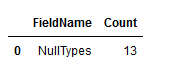
chk = advanceMissingValues(mdf)
chk

Sample output:

How to convert Panda DataFrame headers to snake case

# Python code demonstrate 
# Make headers snake case
 
import pandas as pd
 
# initialise data of lists.
data = {'First Name':['Tom', 'nick', 'krish', 'jack'], 'Age of Person':[20, 21, 19, 18]}
 
# Create DataFrame
df = pd.DataFrame(data)
 
# Print the output.
print(df)

# Make headers snake case
df.columns = [x.lower() for x in df.columns]
df.columns = df.columns.str.replace("[ ]", "_", regex=True)

# Print the output.
print(df)

How to drop a Spark Delta table and associated files using Spark SQL and cmd

🧹 How to Drop a Spark Delta Table and Clean Up Associated Files in Databricks

When working with Delta Lake tables in Databricks, it’s not enough to simply drop the table from the metastore—you also need to ensure that the underlying data files are removed to prevent clutter and maintain a clean data lake. This process is especially important when dealing with external Delta tables, where Spark does not automatically manage file deletion.

The following steps outline a reliable method to fully remove a Delta table and its associated files using Spark SQL and command-line tools.

🔹 Step 1: Identify the Schema and Table

Begin by locating the schema and table you want to delete. Replace placeholder values like schemaName and tableName with the actual names used in your environment. This ensures you’re targeting the correct table throughout the process.

🔹 Step 2: Inspect the Table Metadata

Using Spark SQL within Databricks, run a query to describe the table. This will return detailed metadata, including the location of the table’s data files in DBFS (Databricks File System). If you’re using the default schema, it may be named default, but adjust as needed.

🔹 Step 3: Locate the Storage Path

In the metadata output, scroll down to find the Location field. This value points to the directory where the table’s data files are stored. Copy this path—it will be used later to manually delete the files if necessary.

🔹 Step 4: Drop the Table from the Metastore

Execute a Spark SQL command to drop the table. This removes the table’s metadata from the catalog. If the table is managed, this step may also delete the associated files. However, for external tables, the files will remain and must be deleted manually.

🔹 Step 5: Delete the Data Files from DBFS

Using your preferred method of interacting with DBFS—whether through the command line, a Python script, or a Databricks notebook—delete the directory identified earlier. This ensures that all data files associated with the table are removed from storage.

✅ Why This Matters

Delta tables support ACID transactions and maintain a transaction log. Improper deletion—such as manually removing files without dropping the table—can corrupt the log and lead to inconsistent behavior. By following this structured approach, you ensure both the metadata and physical files are properly cleaned up.

This method is especially useful when:

  • Decommissioning obsolete datasets
  • Resetting environments for testing
  • Automating cleanup in CI/CD pipelines

Let me know if you’d like help turning this into a reusable script or integrating it with your workflow.

#Step 1
#Find and replace schemaName
#Find and replace tableName

#Step 2 
#Find the table 
#Via Databricks run the Spark SQL query below
#default is schema, change as needed
DESC FORMATTED schemaName.tableName;

#Step 3
#From the table returned scroll down to "location" and copy the field value
#Find and replace locationFieldValue

#Step 5
#Via Databricks using Spark SQL drop the table
DROP TABLE tableName

#Step 6
#Find and replace locationFieldValue
#By the means you use to interact with Databricks File System (dbfs), e.g. cmd python virtual environment
#Run command below
dbfs rm -r "locationFieldValue"


How to create a Spark SQL table with a SELECT statement

The following is a code snippet that would create a table in a “sales” schema called customer.

If no reference to a schema is given the table will be created in the default Spark location.

CREATE TABLE sales.customer USING DELTA AS (SELECT 'John' AS fn, 'Smith' AS sn, 55 AS age)