Category Archives: How To

How to capture command prompt output and write it to text file

Say you have a batch script that you run that throws back information you want to keep. Well maybe the best way to do that is to have the output written to a text file. This technique can then be combined with a task scheduler so you have an  automated task that creates a log file.

The below batch script below has two main parts. The first part creates a file to capture the command output. The second part is the command prompt command to run.

Creating the file takes the following 2 parameters:

  • filePath: Where you want the file written, defaulted to your desktop
  • baseName: What the file will be called exclusive of a time stamp, defaulted to Output

The script will then take these parameters to create the parameter fileName, which combines the directory location, with what you want the file to be called along with a time stamp, e.g. User\Desktop\Output20170213111157

The command prompt command goes between the parenthesis (). The results of this command will be written to the file.

@ECHO off
REM SET FILE OUTPUT DIRECTORY
SET "filePath=%USERPROFILE%\Desktop\"
REM SET THE BASE OF THE NAME FOR THE OUTPUT FILE 
SET "baseName=Output"
REM CREATE TIMESTAMP
SET timeStamp=%date:~6,8%%date:~3,2%%date:~0,2%%time:~0,2%%time:~3,2%%time:~6,2%
REM CREATE VARIABLE TO HOLD FILENAME WITH A TIMESTAMP
SET "fileNameStamp=%baseName%%Timestamp%"
SET "fileName=%filePath%%fileNameStamp%"
REM CAPTURE COMMAND OUTPUT TO TEXT FILE
> %fileName%.txt (
REM This is where the commands go!
ECHO Text Captured
)

The following working example captures your computer network information and writes it to the file NetworkInfo(time stamp) on your desktop.

@ECHO off
REM SET FILE OUTPUT DIRECTORY
SET "filePath=%USERPROFILE%\Desktop\"
REM SET THE BASE OF THE NAME FOR THE OUTPUT FILE 
SET "baseName=NetworkInfo"
REM CREATE TIMESTAMP
SET timeStamp=%date:~6,8%%date:~3,2%%date:~0,2%%time:~0,2%%time:~3,2%%time:~6,2%
REM CREATE VARIABLE TO HOLD FILENAME WITH A TIMESTAMP
SET "fileNameStamp=%baseName%%Timestamp%"
SET "fileName=%filePath%%fileNameStamp%"
REM CAPTURE COMMAND OUTPUT TO TEXT FILE
> %fileName%.txt (
REM This is where the commands go!
echo Checking your network information, Please wait...

systeminfo | findstr /c:"Host Name" 
systeminfo | findstr /c:"Domain"

ipconfig /all | find "Physical Address" 

ipconfig | find "IPv4" 
ipconfig | find "Default Gateway"
)

How to connect your android device to a Playstation 3 or 4 controller wirelessly

A list of directly compatible games is at the bottom of this post.

Prerequisites:

Firstly you will need your device rooted. Rooting the device just means you have administrative privileges on the device, but unlike windows it’s not as simple as just changing a setting. Please see this tutorial on checking if an android device is rooted and this tutorial if you need instruction on rooting your device.

Connecting your PS3/4 controller to your android device:

As with all things android you might have guessed you need an app to connect your device to your Playstation controller. In this case you need the sixaxis controller. Unfortunately the app isn’t free but it is cheap!

However before you go handing over your dosh the guys at dancing pixel studios (strange choice of names considering they don’t seem to make any games) were nice enough to create the sixaxis compatibility checker so you can try before you buy.

Step 1.

Install the compatibility checker from the play store here.

Step 2.

Once installed, open the app and click Start. If you get a connection failed your device is not supported.

Sorry dude.

If not, Yay!

Continue!

Step 3.

Connect your controller to your device with a mini usb cable.

Step 4.

Click pair. This will write your android’s Bluetooth address to the controller. (Don’t worry about the pad not working on the playstation anymore, they’re a terrible console anyway. JK, to reconnect your controller to your playstation just connect the controller via the usb cable and it will write the playstation address back onto the controller.)

Step 5.

Once paired click start on the app. The device is now listening for controllers. If the controller is not turned on press the power button in the center. Now when you press buttons on the controller you should see them appearing on screen.

Congratulations, your device is compatible you now have the honour of buying the app here.

Some setup advice:

When you first use the app you’ll be asked to tick the box recognising Sixaxis Controller as a Keyboard & Input Method. Do so. It asks because this is a security feature as such devices could be potential recording key strokes etc.

In general settings I always have the box Auto Start ticked, this means the app launches whenever the device is turned. For the idle timeout option I set the timeout for 300, which means if the controller is not interacted with for five minutes the app turns the controller off saving the battery. On the subject of battery you can use your device to charge the controller which is nice.

Not all games are compatible even more so if you’re using an Android box or stick:

Native compatible of a game means that it was programmed to accept inputs from controllers some great examples being BombSquad, Asphalt 8, Dead Trigger however, sadly, a lot of games do not support native compatibility.

This could be for a number of reasons, like the developer just never bothered to code compatibility into the app or the app might compete with a console version of the game and the developer doesn’t want to cannibalize the market. Man I wished Fifa had controller support. . .

However the sixaxis controller app comes with a great feature to map button presses. This is especially useful to the PUBG mobile fans out there.

How to do this though is another post in itself so I suggest you google around, there’s plenty of great tutorials out there and the gentle souls of the internet have even created touch profiles for games available to download saving you the trouble of doing the mapping yourself.

Sadly though mapping on many Android boxes and sticks don’t seem to work to well if at all. This is down to these devices often shipping without the necessary touch drivers because they don’t have screens. Which makes sense, why ship a device with touch drivers that doesn’t have a screen? For PUBG mobile players who want to use a controller of course!

The following is a list of games that you can play using the android sixaxis controller app.

Remapping of keys maybe necessary, the correct mapping is as follows.

  • Cross: A
  • Circle: B
  • Square: X
  • Triangle: Y

Games:

I’ll be adding to this list over time so if I’ve missed a game you’ve tested and know to work please comment below.

  1. Dead Trigger (free)
  2. Dead Trigger 2 (free)
  3. Evac
  4. Asphalt 8 (free)
  5. Dead Effect (free)
  6. Beach Buggy Blitz (free)
  7. Beach Buggy Racing (free)
  8. Dream League Soccer (free)
  9. BombSquad (free)
  10. Horizon Chase (free)
  11. PewPew (free)
  12. PewPew 2
  13. Skyriders (free)
  14. ShadowGun
  15. SoulCraft (free)
  16. Real Boxing (free)
  17. Skate Party 2 (free)
  18. GT Racing 2
  19. Manuganu 2 (free)
  20. Shooty Skies (free)
  21. Reckless Racing
  22. Rail Racing
  23. Jet Car Stunts 2
  24. Aces of the Luftwaffe (free)
  25. Tank Riders (free)
  26. Raging Thunder 2 (free)
  27. Annelids (free)
  28. Warlings: Armageddon (free)
  29. Table Top Racing (free)
  30. Sine Mora
  31. Pako – Car Chase Simulator (free)
  32. Sword Of Xolan (free)
  33. Nub’s Adventure (free)
  34. Super Dangerous Dungeons (free)
  35. Only One (free)
  36. Turbo Dismount (free)
  37. Particle Arcade Shooter
  38. Luminescence (free)
  39. Leo’s Fortune
  40. Does Not Commute
  41. Pac-Man (free)
  42. Redline Rush (free)
  43. Radiant (free)
  44. Zenonia
  45. Voxel Rush (free)
  46. Winter Fugitives *
  47. Hopeless *
  48. Tiny Thief *
  49. Smash Hit * (free)

Any other suggestions please feel free to add a comment below.

How to increase the performance of your Android TV Stick

So basically all android TV sticks (ATS’s), boxes and any other android device you connect to your TV has been somewhat hacked together to deliver a product the Android OS wasn’t explicitly designed for. (Not that it doesn’t do a great job)

The Android OS was designed for mobile devices but what constitutes a mobile device?

Well one can differentiate a mobile device as a mobile device by two distinguishing characteristics, one it has a built-in display and two it’ll be battery powered.

Android mini computers have neither.

As mentioned above ATS’s use a TV for the display and often ATS’s don’t have the drivers needed to recognised touch screen inputs. No touch screen inputs can have its drawbacks but the focus in this article is on the influence of not having a battery.

Android devices are constantly doing a juggling act between making the device run as fast and be as responsive as possible and not burning through the battery.

This balancing is primarily directed by the CPU governor. The Linux kernel has a number of CPU frequency governors, which can be looked on as rules that set the CPU frequency based on the selected governor and usage patterns. The frequency or clock rate is typically used as an indicator of the processor’s speed, i.e. how quickly it processes tasks. It is measured in the SI unit hertz. The higher the speed the better the performance and the worse the power consumption.

The best thing about the governors is that they have pre-sets, when the “performance” governor is active, the CPU frequency will be set to its maximum value, the “powersave” governor sets the CPU to its lowest frequency, the “ondemand” governor sets the CPU frequency depending on the current usage, etc.

But here’s the important part, because an ATS has no battery and it’s being power by the mains, there’s no need to set the governor to go easy on power consumption. So the governor should be set to performance at all times but by default (the device thinking it’s mobile) it’s probably not.

So how do you change the governor?

Well like everything else with android you use an app of course!

Note: You cannot change your CPU governor unless your phone is rooted and you have a ROM or app that lets you make a change. Also, different kernels (the intermediary software between your phone’s hardware and the operating system) offer different sets of governors.

There are several to choose from:

  • CPU tuner
  • No-frills CPU control
  • SetCPU
  • See here for more

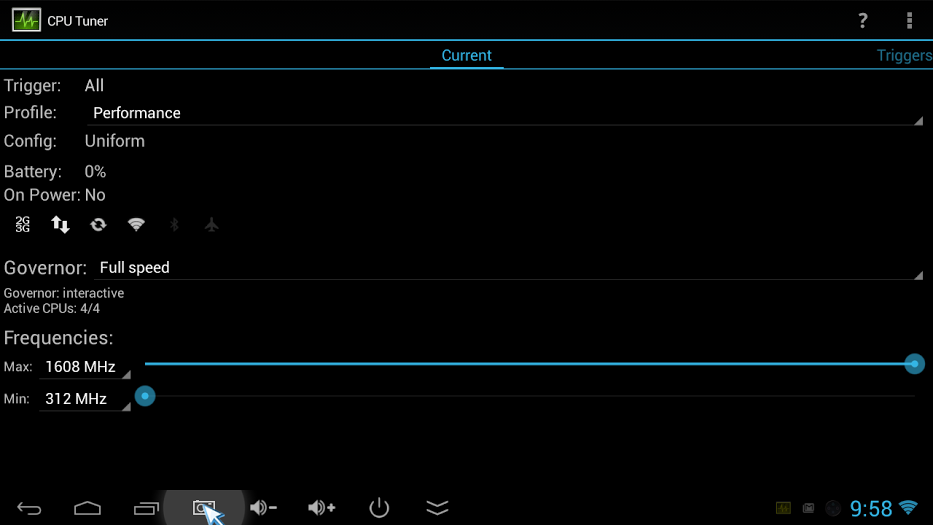
I use CPU tuner as pictured below.

cpuTuner

Simply install CPU Tuner and set profile to “Performance” and Governor to “Full Speed” and you should be getting a little extra juice from your device.

Slán

How to get the hour from a datetime string (T-SQL)

Often data is entered into the database as a string (varchar), when a more appropriate data type should have been applied.

Here’s a snippet of T-SQL for dealing with datetime data, stored as varchar, when what you really need is the hour. 

DECLARE @DateTime AS VARCHAR(25)

-- GET THE CURRENT DATETIME AND CONVERT INTO A STRING
SET @DateTime = (
		SELECT CONVERT(VARCHAR(25), GETDATE(), 120)
		)

--PRINT @DateTime
-- GET HOUR FROM DATETIME AS A STRING
SELECT DATEPART(HOUR, CONVERT(DATETIME, CONVERT(VARCHAR(13), @DateTime, 120) + ':00')) AS ConvertedHour


Why would data be stored as a varchar instead of using the appropriate data type in the first place?

The most common reason might be that XML files have been loaded without any data type conversions being applied, i.e. dates have been entered as strings along with everything else.

Why would you need this code?

Should you be confronted with data in this raw string form you would be unable to apply a clause regarding a specific hour. Ideally there should be some sort of staging table to convert the fields into the appropriate data types but if you simply wanted to apply some clauses to select specific data, which will be outputted to an excel file for example, that additional effort may be unnecessary.

How to copy only files from a folder and respective subfolders using a batch script

Ok so here’s a nifty little batch script that will loop through all the directories in a directory to gather all the subsequent files into a new directory. (Code at bottom of the page)

(For those of you that don’t know what a batch script is here’s a quick definition. A batch file is a text file that contains a sequence of commands for a computer operating system. It’s called a batch file because it batches (bundles or packages) into a single file a set of commands that would otherwise have to be presented to the system interactively from a keyboard one at a time.)

Here’s a diagram explaining how the batch script provided at the bottom of the page works. (Note that the folders aren’t copied just the files.)

diagram of process

So why would you use this?

Lets say you’re dealing with a system that has outputted thousands of folders into a single folder and each folder contains files.

You could be looking at millions of files to be gathered, a process that cannot be done manually.

Or a simpler use case might be you’ve downloaded thousands of movies and each was put into a separate folder. Now you just want the media files in one location.

How to use:

Open the program notepad.

Copy the code below and past it into notepad saving the file with the extension .bat

Place the batch file in the parent folder, i.e. the folder all the other folders are in.

Double click the batch file.

The batch file will create a folder one directory level above where the parent folder is located and copy all the files to this location.

An example of how to use the file is as follows:

If you had the parent folder “My Movies” on your desktop.

Pasting the batch file into this folder, and double clicking on it, would copy every movie into a folder called “Copied from My Movies” on your desktop.

And here’s the code,
Adiós.


@ECHO OFF
TITLE WAIT !
:: ASSIGN THE FILE PATH OF BATCH FILE TO A VARIABLE
SET "sourceDir=%CD%"
:: GET THE NAME OF THE FOLDER WHICH THE BATCH FILE IS IN
FOR %%a IN (.) DO SET currentFolder=%%~na
:: GO UP ONE DIRECTORY
CD ..
:: MAKE A DYNAMIC FOLDER NAME
::SET folderName=Copied From %currentFolder%
SET "folderName=Copied from %currentFolder%"
:: CREATE A FOLDER TO PUT THE COPIED FILES IN
:: IF FOLDER ALREADY EXISTS DELETE IT
IF EXIST "%folderName%" RMDIR "%folderName%" /S /Q
MKDIR "%folderName%"
:: ASSIGN DESTINATION FOLDER TO A VARIABLE
SET "destinationFolder=%CD%\%folderName%"
:: CREATE A LOG FILE IN DESTINATION FOLDER
SET "_report=%destinationFolder%\logxcopy.txt"
:: CREATE ERROR MESSAGE
IF NOT EXIST "%sourceDir%" (ECHO.Could not find %sourceDir% &GoTo:DONE)
:: OVERWRITE PREVIOUS LOG
>"%_report%" (
echo.%date% – %time%
echo.—————————————————
echo.
)
:: COPY FILES
FOR /F "Delims=" %%! IN ('DIR "%sourceDir%\" /b /s /a-d 2^>NUL') DO (
@ECHO.%%! &(
@XCOPY "%%!" "%destinationFolder%\" /i /y /h /f /c >>"%_report%",2>&1)
)
:DONE
TITLE,Done…….
ECHO.&PAUSE>NUL

view raw

batch copy file

hosted with ❤ by GitHub

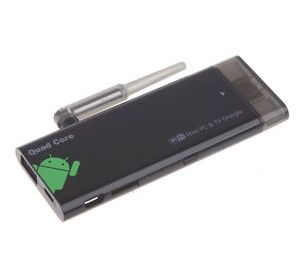
A picture of a cx919 android tv stick

How to root a CX919 Android 4.4.2 Quad core with a RK31 rockchip

(This Post was last updated 13/02/2015)

Ok so here’s a quick tutorial on how to root this particular type of Android TV Stick (ATS). Specifically this model: See Link. If you’ve ever flashed a custom rom onto an android device before, forget everything about that, it’s nothing like that, it’s much simpler.

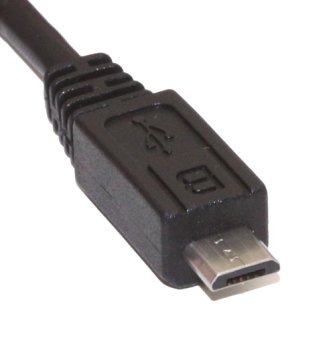
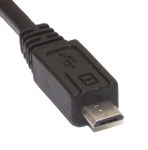
NOTE: you will need a windows PC to root the device and before starting make sure you have a good usb micro b cable you know works! USB Micro-B PlugIf you’ve found your way to this page you may have already tried the manual approach which uses the TPSparkyRoot batch script and that hasn’t worked! I’ve been there, you won’t be able to get it working, you were right to continue google searching your way across the net for a method that works, and here it is. . .
But first the obligatory caveat:

I take no responsibility for the welfare of your device. If by following these instructions you should brick your device, that’s your problem buddy. This tutorial will likely work for other devices too though. So if you’ve tried every other tutorial on the net to get your damned device rooted to no avail you might want to follow along. But again I’m not responsible if your ATS explodes.

Back up your device prior to implementing the instructions and you “should” be fine.

And now the tutorial:

STEP 1: Download software

Start by installing the following software:

Moborobo

Kingo

(Use the direct download link to skip downloading the download.com software)

(The reason you need moborobo is that the software is smart enough to determine what driver the PC needs to be able to communicate with the ATS. Chances are, if you tried an alternative method to root the device, the previous methods you tried to root the device failed because you couldn’t find the right driver.)

STEP 2: Prepare the ATS for communication with the PC

In the ATS go to System settings > Storage and click the 3 vertically stacked dots at the top right of the screen.

Picture showing the icon to clickClick on the window “USB computer connection” and tick the Mass Storage box.

Next within the systems settings, go to the developer options. (If the developer options are not there it is because they have not been enabled. To enable developer options go to the system settings and click on About Device. Next scroll to “Build Number” and tap it 7 times. After tapping 7 times you will see an alert saying “You are now a developer”/”Developer mode has been enabled”.

After navigating to developer options scroll down and tick the usb degugging option.

STEP 3: Connect the PC to the ATS

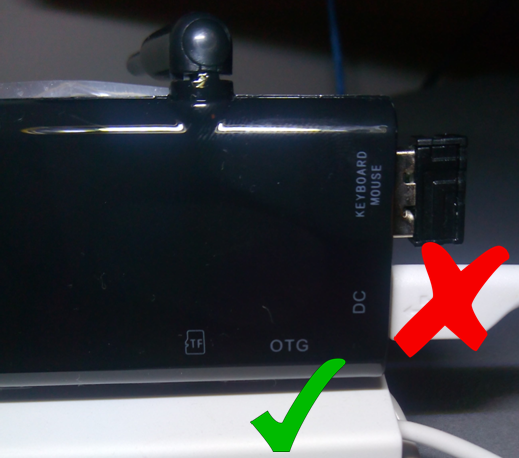
With the ATS connected to your TV via HDMI and powered by the DC usb port, connect the usb micro b cable to the available port.

Make sure you do not use the DC port to connect to the PC otherwise nothing will happen.
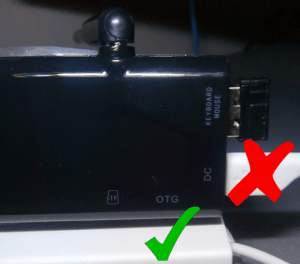
A picture showing which usb port to useNext connect the ATS to your PC via the USB.

Within system settings on the ATS click on “USB ” and tick “Connect to PC”.

STEP 4: Install the correct driver on the PC

Open the Moborobo software on your PC and wait for it to load completely. Moborobo should now create a connection to the ATS and install some apps on it. Once you see your TV screen switch to the Moborobo app you know the PC successfully connected to the device.

(You don’t need these apps once this process is run. The whole point of using moborobo was simply to install the correct driver on your PC. If the device installs the correct drivers on the PC itself you may not need moborobo to connect to the ATS, in which case continue to the next step.)

STEP 5: Rooting the device

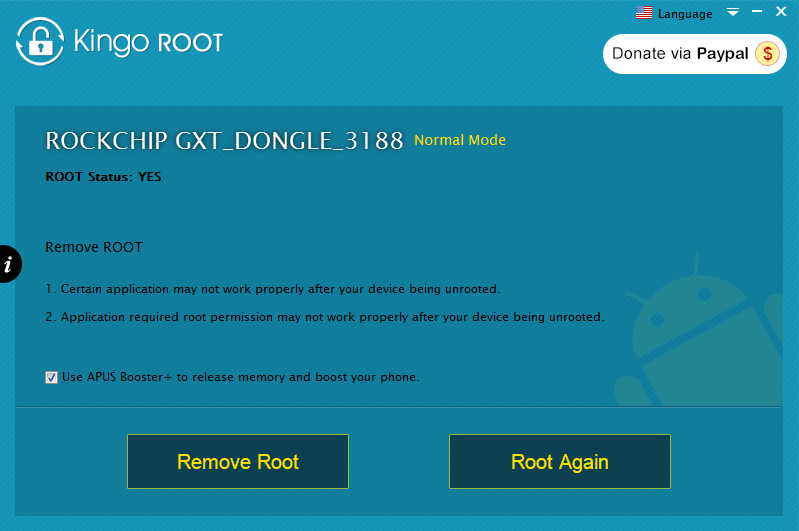
Open Kingo on your PC. It will load for a few seconds.

When a screen appears asking if you want to root it has successfully connected to the device.

Uncheck the install APUS boost+. This is an optimization app not necessary for rooting the device.

Click root.

(Kingo may mistakenly think the device is already rooted in which case click on root again)
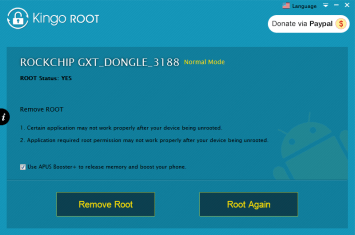
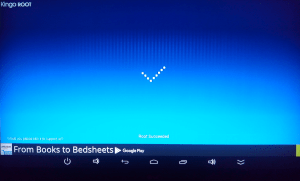
Kingo on desktopAllow Kingo to run.

COMPLETION:

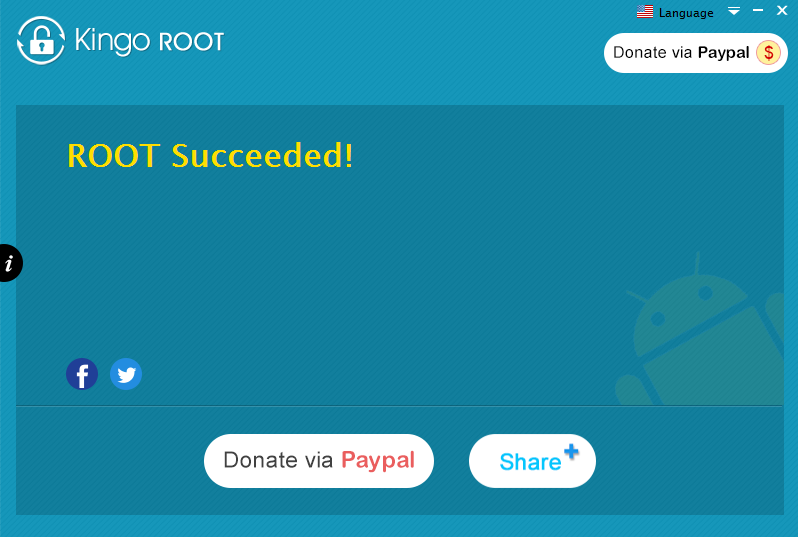
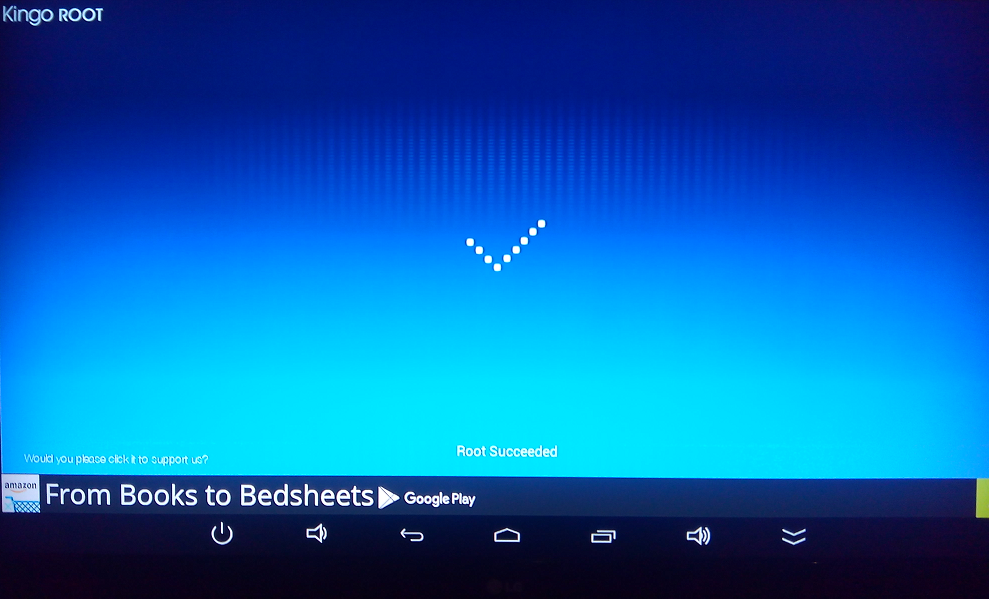
Once you see the screens below on your PC and ATS the root was successful.
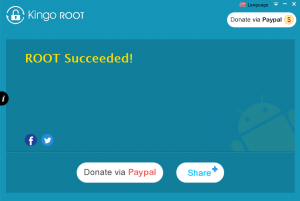
successPCsuccessATSWithin system settings on the ATS click on “USB ” and tick “Connect to PC”.

TIDYING UP:

You can now uninstall the software on your PC.

And uninstall the following Apps on your device.

  • MoboMarket
  • Mr.Clean
  • Kingo Root

Kingo will install its own SuperUser App which will need to remain but this simply acts as a checker for other apps looking to access system resources which you can either give permission to or deny.

FINAL WORDS:

Hopefully that all worked out for you.

If you used this tutorial successfully please comment below and share.

UPDATE 13/02/2015: Kingo superuser can sometimes grow to take up massive amounts of the device’s storage space. In my case over 600mb!!! Uninstalling the app from the google play store will reduce the app in size without actually uninstalling the app. (The app cannot actually be removed within settings, only disabled) In my case the app shrank to just over 5mb, much better!

Quick Caveat: There have be some online accusations that Kingo superuser steals user data. I cannot confirm this, but I’d imagine if it was a serious concern google would have removed the app from the store by now.
Android with a rocket launcher

How to setup an Android TV Stick

In my last posting Buying advice for Android TV Sticks I wrote about some of the main things to consider when buying an ATS. Quick recap, go quad-core, get a model with an external antenna, SD cards will give you more storage, you’ll need some sort of keyboard/mouse and there are several other android devices you could use to make your TV smart with which you should consider before buying.

This posting offers advice regarding, viewing Flash media, setting up your web browser properly and getting the best out of the user interface.

Firstly you need Adobe Flash Player to live.

The flashFlash player is incredibly resource hungry even for laptops but the quad-core ATS models can just about handle it. But rather than continue to optimise and refine the Android flash player the nice guys over at Adobe just decided to discontinue support for it. And unfortunately HTML5 hasn’t taken over the net in the way that we’ve been told it would so we’re still very reliant on flash for streaming video.

So you’ll need to download the last version of flash from the adobe archive if you want to watch media, like TV shows or sport broadcasts, via your browser. The last version can be found by scrolling down to the heading “Flash Player for Android 4.0 archives”. Just click on the file when downloaded and the install will run.

There are a few web browsers to choose from for Android but probably the most familiar browser Chrome doesn’t support flash so I’d recommend Firefox which brings me to another important matter.

Browsersepic battle between firefox and chrome

I don’t want to get into a “which browser is best” war but I would say of all the browsers I’ve tried namely Chrome, Dolphin, Lightning, UC and Firefox, IN MY OPINION Firefox is the most versatile though not the fastest. (My second favourite is UC browser because I always found it performs really well on underpowered devices.)

Regardless of which you use there will be an option in the settings/preferences to switch to viewing sites as a Desktop by default, as opposed to viewing them as a mobile device. This is a very important option as Android browsers will by default request to view a website as a mobile device.

Why is that?

If a site is modern it will either be a dynamic site, meaning the webpage can be reshaped to fit the devices display, or it may have a different website to be displayed to mobile devices altogether, a mobile site. Considering you’ll probably be viewing the site on a big HD TV a website optimised for a 4 inch display leaves a lot of wasted space on the screen. So make the most of that screen by setting the browser to view sites as a Desktop.

LaunchersAndroid with a rocket launcherTypically a user would interact with Android devices by touching and dragging their greasy fingers across the display. The graphical user interface (or GUI, pronounced “gooey”) therefore has been designed to optimise navigation by this means of interaction.

But because an ATS has no screen of its own to touch a typical android GUI is not optimal for couch surfing. (I don’t mean couch surfing in the hobo/college student sleeping on your sofa sense.) For this reason most ATS’s will come with their own custom launcher.

What’s a launcher? An application launcher is a computer program that helps a user to locate and start other computer programs. So it’s like the desktop environment on a windows computer except Android allows the environment to be changed easily and the looks, feel and performance of a device can benefit from doing so.

I’ve tried a few but the only browser I’d recommend is TVLauncher. (Though I say that having never paid for a launcher or an app . . . ever . . . BUT if I wanted to pay for things I’d be part of the Apple cult.)

So what makes TVLauncher good? Well the HINT is in the name. It was designed to be a launcher for Androids connected to TV’s. An ATS is not a mobile phone so the home screen won’t be packed with the icons you’d typically place on your home screen because you use them all day. I’m going to guess your home screen has the following icons:

  • Dialler
  • Sms
  • Camera
  • Alarm
  • Volume
  • Maps
  • Watsapp
  • Viber
  • As well as toggle widgets for wifi, Bluetooth and GPS.

You don’t need quick access to a dozen different apps on an ATS so with TVLauncher’s home screen you get 6 large tiles to use. You can import your own images for apps if you wish, like speed dial for Firefox and Chrome. And trust me you won’t need more than 6 if you’re using the ATS as a cheap but ultra cool media centre.

My set up is as follows:

For Music: Apollo

For Video: MX player

For Video Streaming: Youtube

For Web Browsing: Firefox

For File Navigation: ES File Explorer

For More Awesome Apps: Google Play

OK OK some of you might like paying for things like Netflix and Spotify, clutter up your home screen see if I care. . .

So that’s all for this post. If anyone reading this thinks they know of a better launcher feel free to comment below.