Category Archives: Gaming

How to Connect and Remap Your VOYEE Wireless Switch Controller for Xbox-Style Gameplay on Windows

If you’ve ever plugged a Switch-style controller into your PC and found that the A and B buttons feel reversed, you’re not imagining things. The VOYEE Wireless Switch Controller—while designed for Nintendo Switch—also works on Windows in XInput mode, which mimics an Xbox controller. But the physical button layout still follows Nintendo’s convention, leading to confusion in games where B confirms and A cancels.

Luckily, VOYEE includes a built-in button-swap feature to fix this. Here’s how to connect your controller and remap the buttons for a true Xbox-style experience.

🔗 Step 1: Connect Your VOYEE Controller to Windows via Bluetooth

Before remapping, you’ll need to pair your controller with your PC. VOYEE makes this easy with a quick button combo.

✅ How to Pair:

  1. Enter Pairing Mode
    • Press and hold the X button and the Home button together for 3–4 seconds.
    • The LED lights will begin flashing, indicating the controller is ready to pair.
  2. Connect in Windows Settings
    • Go to Settings > Devices > Bluetooth & other devices.
    • Click Add Bluetooth or other device > Bluetooth.
    • Select the device labeled “Xbox Controller” or similar from the list.

Once connected, the controller should operate in XInput mode, which is compatible with most PC games and emulators.

🔄 Step 2: Remap A/B and X/Y Buttons to Match Xbox Layout

Now that your controller is connected, it’s time to fix the reversed button behavior. VOYEE controllers support a hardware-based button-swap combo that toggles between Nintendo and Xbox-style mappings.

🔧 Why This Matters:

  • Nintendo layout: A = Confirm, B = Cancel
  • Xbox layout: B = Confirm, A = Cancel
  • On PC, this mismatch can make menus and gameplay feel unintuitive.

🧪 How to Perform the Swap:

  1. Locate the Buttons
    • Capture/Share Button: Usually near the Home button, marked with a camera icon.
    • R3: Press the right analog stick down until it clicks.
  2. Execute the Combo
    • Press and hold Capture + R3 together for 1–2 seconds.
    • You should feel a single vibration, confirming the swap.
    • If nothing happens, try holding for up to 3 seconds, or repeat to toggle between layouts.
  3. Test the Result
    • Open Windows Game Controller Settings (search “Set up USB game controllers” in the Start menu).
    • Or launch a game and test the buttons:
      • A should now confirm
      • B should cancel

If the buttons still feel reversed, repeat the combo—it may cycle between Nintendo and Xbox modes.

🧠 Final Thoughts

The VOYEE Wireless Switch Controller is a great budget-friendly option for PC gaming, but its Nintendo-style layout can trip up players used to Xbox controls. Thankfully, with a simple Capture + R3 combo, you can remap the buttons and enjoy a seamless experience across your favorite games.

Still having trouble or using a different VOYEE model? Drop a comment—I’ll help you troubleshoot or find the right combo for your setup.

Happy gaming! 🎮

Pro Evolution Soccer 6: A Timeless Classic

Pro Evolution Soccer 6 (PES 6), released by Konami in late 2006, remains one of the most celebrated football simulations ever made. Praised for its fluid passing, intelligent AI, and satisfying set-pieces, PES 6 struck a perfect balance between realism and arcade-style fun. Its controls were intuitive yet deep, rewarding both quick reflexes and tactical foresight.

What truly set PES 6 apart was its enduring fan community. Even nearly two decades on, unofficial patches add up-to-date squads, new kits, and stadiums. Modders have created complete overhauls—from modern leagues to women’s football—keeping the engine alive long after official support ended. For many players, firing up PES 6 feels like revisiting a golden era of gaming.

Below is a look at some players who were in their teens or early twenties in PES 6 and are still active at top clubs in 2025. They represent the bridge between that classic era and today’s game.

PlayerAge in PES 6 (2006)Current Age (2025)Position (PES 6 Era)PES 6 Team (2006)Current Club (2025)EA FC 26 Rating
Lionel Messi1938Attacking Midfielder / Right WingerBarcelonaInter Miami (USA)86
Cristiano Ronaldo2140Left Winger / ForwardManchester UnitedAl Nassr (Saudi Arabia)85
Karim Benzema1937StrikerOlympique LyonnaisAl Ittihad (Saudi Pro League)85
Luka Modrić2039Central MidfielderDinamo ZagrebReal Madrid (Spain)85
Edin Džeko2039StrikerFK TepliceFiorentina (Italy)84
Ángel Di María1837Winger / Attacking MidfielderRosario CentralRosario Central (Argentina)82
Sergio Ramos2039Centre-Back / Right-BackSevillaMonterrey (Liga MX)81
Raúl Albiol2039Centre-Back / Defensive MidfielderReal MadridVillarreal CF (Spain)80
Santi Cazorla2140Central Midfielder / AMVillarreal CFReal Oviedo (Spain)75
Javier Hernández1837StrikerGuadalajara (Chivas)Guadalajara (Chivas)74
Remko Pasveer2242GoalkeeperDe GraafschapAjax (Netherlands)74
Roque Santa Cruz2443StrikerBayern MunichLibertad (Paraguay)69

If we pick an all-star XI from our PES 6 veterans and average their EA FC 26 ratings, we land on an 82 overall:

– GK Remko Pasveer (74) – RB Sergio Ramos (81) – CB Raúl Albiol (80) – LB Santi Cazorla (75) – CM Luka Modrić (85) – CM Ángel Di María (82) – RW Lionel Messi (86) – LW Javier Hernández (74) – CF Karim Benzema (85) – CF Cristiano Ronaldo (85) – CF Edin Džeko (84)

Compare that to the current top team in EA FC 26 (e.g. Manchester City), whose starting XI averages around 86. Our veterans side sits about four points adrift of today’s elite—but remain competitive enough to beat most squads in a head-to-head.

Nearly twenty years after its release, the fact that PES 6’s rising stars still command top-flight ratings shows the enduring magic of both the game and its legends: the longevity of the game is reflected by the players.

Missed out on anyone, comment below.

Building a Scalable 2D Game Scene Architecture: From Back to Front

Creating a clean, scalable scene architecture for a 2D game is more than just organizing visuals—it’s about building a system that supports gameplay, UI, effects, and camera logic in a way that’s intuitive and future-proof. In this post, we’ll walk through a layered architecture that separates concerns, supports depth-based gameplay, and keeps your UI crisp and your effects polished.

Whether you’re building a vertical shooter, a platformer, or a retro arcade game, this structure gives you the flexibility to scale without chaos.

🧱 Scene Graph Overview

At the core is root_scene, which contains all visual and logical layers. These layers are organized from background to foreground, with clear roles and transformation rules.

root_scene
├── game_group                            # Camera-controlled gameplay container
│   ├── hidden_group                     # Off-screen/inactive entities (object pooling)
│   ├── background_group                 # Default background layer + depth container
│   │   ├── background_bottom_group      # Farthest background visuals (sky, base)
│   │   ├── background_mid_group         # Parallax mid-layers, distant FX
│   │   ├── background_top_group         # Closest background visuals
│   ├── objects_group                    # Default gameplay layer + depth container
│   │   ├── objects_depth_bottom_group   # Farthest gameplay entities
│   │   ├── objects_depth_mid_group      # Primary gameplay layer (player, pickups)
│   │   ├── objects_depth_top_group      # Foreground gameplay entities
│   ├── foreground_group                 # Foreground visuals + depth container
│   │   ├── foreground_bottom_group      # Farthest foreground elements
│   │   ├── foreground_mid_group         # Mid-range foreground visuals
│   │   ├── foreground_top_group         # Closest foreground overlays
│   ├── visual_fx_group                  # Explosions, particles, transient visuals
│
├── hud_group                            # Score, gauges, indicators (screen-anchored)
├── menu_group                           # Title screen, credits (non-blocking UI)
├── modal_group                          # Pause, game over, dialogs (blocking overlays)
├── debug_group                          # Dev-only overlays, performance HUD
├── screen_fx_group                      # CRT shader, bloom, vignette (post-processing)
  

🧠 Layer Roles & Camera Behavior

Each layer has a defined purpose and relationship with the camera. Gameplay and visual layers move with the camera, while UI and post-processing layers remain fixed or apply globally. Note that background and foreground groups can also be used in menu layers along with menu group.

LayerPurposeTransforms with Camera
game_groupMaster container for gameplay layers✅ Yes
hidden_groupObject pooling, inactive/off-screen entities✅ Yes
background_groupDefault background layer✅ Yes
background_bottom_groupFarthest background visuals (sky, base)✅ Yes
background_mid_groupParallax mid-layers, distant FX✅ Yes
background_top_groupClosest background visuals✅ Yes
objects_groupDefault gameplay layer✅ Yes
objects_depth_bottom_groupFarthest gameplay entities✅ Yes
objects_depth_mid_groupCore gameplay layer (player, enemies, pickups)✅ Yes
objects_depth_top_groupForeground gameplay entities✅ Yes
foreground_groupDefault foreground layer✅ Yes
foreground_bottom_groupFarthest foreground visuals✅ Yes
foreground_mid_groupMid-range foreground visuals✅ Yes
foreground_top_groupClosest foreground overlays✅ Yes
visual_fx_groupExplosions, particles, screen shake✅ Yes
hud_groupScore, gauges, indicators❌ No
menu_groupTitle screen, credits❌ No
modal_groupPause, game over, dialogs❌ No
debug_groupDev overlays, performance HUD❌ No
screen_fx_groupPost-processing shaders (CRT, bloom, vignette)❌ No (global)

🧰 API Naming Conventions

To keep things clean and predictable, each layer has dedicated adders and getters. This ensures encapsulation and avoids direct manipulation of scene graph internals.

🔧 Adders

python

add_to_hidden_group(obj)
add_to_background_group(obj)
add_to_background_bottom_group(obj)
add_to_background_mid_group(obj)
add_to_background_top_group(obj)

add_to_objects_group(obj)
add_to_objects_depth_bottom_group(obj)
add_to_objects_depth_mid_group(obj)
add_to_objects_depth_top_group(obj)

add_to_foreground_group(obj)
add_to_foreground_bottom_group(obj)
add_to_foreground_mid_group(obj)
add_to_foreground_top_group(obj)

add_to_visual_fx_group(obj)
add_to_hud_group(obj)
add_to_menu_group(obj)
add_to_modal_group(obj)
add_to_debug_group(obj)
add_to_screen_fx_group(obj)
  

🔍 Getters

python

get_hidden_group()
get_background_group()
get_background_bottom_group()
get_background_mid_group()
get_background_top_group()

get_objects_group()
get_objects_depth_bottom_group()
get_objects_depth_mid_group()
get_objects_depth_top_group()

get_foreground_group()
get_foreground_bottom_group()
get_foreground_mid_group()
get_foreground_top_group()

get_visual_fx_group()
get_hud_group()
get_menu_group()
get_modal_group()
get_debug_group()
get_screen_fx_group()
  

📏 Ownership & Layering Rules

To maintain clarity and prevent misuse, each type of entity has a designated home:

  • Gameplay entitiesobjects_group or one of its depth layers
  • Background visualsbackground_group or its depth layers
  • Foreground visualsforeground_group or its depth layers
  • HUD elementshud_group
  • Menusmenu_group
  • Blocking overlaysmodal_group
  • Debug toolsdebug_group only
  • Visual effectsvisual_fx_group
  • Post-processing shadersscreen_fx_group
  • Camera transformations → applied only to game_group and its children

🚫 Layering Constraints

To avoid rendering chaos and maintain performance:

  • ❌ No toFront() calls in gameplay layers
  • ✅ UI systems may adjust local order within their own group
  • ✅ Depth layers maintain internal z-ordering

✅ Benefits of This Architecture

  • Clear separation of concerns: Each layer has a distinct visual and logical role
  • Scalable and maintainable: Easy to audit, extend, and debug
  • Camera-friendly: game_group isolates gameplay transformations from UI
  • Depth flexibility: objects_group, background_group, and foreground_group support layered interactions
  • UI integrity: HUD and modals remain crisp and unaffected by zoom/shake
  • Post-processing polish: screen_fx_group applies final visual effects globally

🧪 Final Thoughts

This architecture isn’t just a technical blueprint—it’s a philosophy of clarity. By separating gameplay, background, foreground, UI, and effects into well-defined layers, you empower your team to build faster, debug smarter, and scale confidently.

If you’re working on a game and want help adapting this structure to your engine or genre, I’d love to collaborate. Let’s build something beautiful.

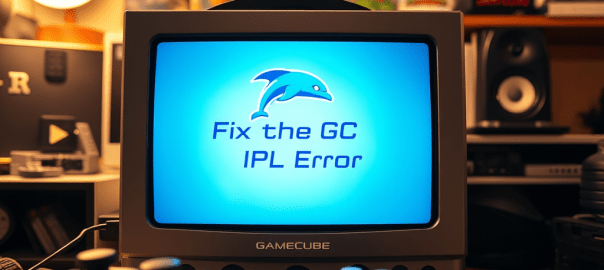
How to Fix the GC IPL Error in Dolphin When Using RetroBat

If you’ve ever tried launching a GameCube game through Dolphin and been greeted with the dreaded “GC IPL file could not be found” error, you’re not alone. This issue can be frustrating, especially when everything else seems to be set up correctly. But don’t worry—there’s a simple fix, and we’ll walk you through it.

🧩 What Causes the GC IPL Error?

The error typically stems from a missing or incorrect BIOS file (also known as the IPL file) required for the GameCube boot animation. While the game itself may be perfectly fine, Dolphin attempts to load the BIOS sequence before launching the game—and if it can’t find the right file, it throws an error.

✅ Fixing the Error in Dolphin (Standalone)

If you’re running Dolphin directly (not through RetroBat), you can bypass the BIOS boot sequence entirely by tweaking a simple setting:

  1. Locate your dolphin.ini configuration file.
  2. Open it in a text editor.
  3. Find the line that says SkipIPL.
  4. Set it to True.

ini

[Core]
SkipIPL = True

This tells Dolphin to skip the BIOS animation and jump straight into the game—no IPL file needed.

🔄 Fixing the Error in Dolphin via RetroBat

If you’re using RetroBat as your frontend, the fix is slightly different. RetroBat tends to overwrite Dolphin’s configuration files each time you launch a game, so editing dolphin.ini manually won’t stick.

Instead, you need to configure RetroBat itself to skip the BIOS:

  1. Launch RetroBat and press Start to open the Main Menu.
  2. Navigate to: Game Settings > Per System Advanced Configuration
  3. Select the console you’re working with (e.g., GameCube).
  4. Go to: Emulation > Skip Bios
  5. Set it to Yes.

This ensures that RetroBat tells Dolphin to skip the IPL sequence every time, avoiding the error altogether.

🎮 Final Thoughts

The GC IPL error might seem like a showstopper, but it’s really just a BIOS boot hiccup. Whether you’re using Dolphin standalone or through RetroBat, skipping the IPL sequence is a quick and effective workaround. Now you can get back to what matters—playing your favorite GameCube classics without interruption.

Got other emulation quirks you’re trying to solve? Drop them in the comments or reach out—I’m always up for a good retro tech fix.

Fixing Emulators in RetroBat: Quick Install Guide

Sometimes, quite often actually 🙄, things get corrupted in RetroBat. I’m not knocking it, it’s an absolutelly fantastic emulation frontend and thinkering is just part of the retro games emulation experience. But, yeah, with thinkering. unfortunately things get broke. This includes the emulators themselves.

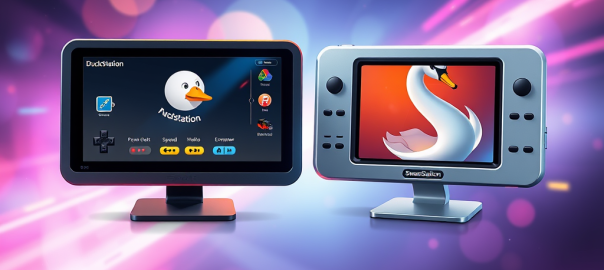
A quick and dirty way of performing a fresh install of an emulator in RetroBat is to simply delete the specific emulator folder. For example to remove Duckstation, navigate to RetroBat\emulators and then delete Duckstation. To reinstall it then simply open RetroBat enter RETROBAT emulator list and then reinstall.

Side Note:

Instead of Duckstation you can also use Swanstation in Retroarch.

A description of the two is below:

🦆 DuckStation

  • Type: Standalone emulator
  • Focus: High compatibility, speed, and long-term maintainability
  • Platform: Available on Windows, Linux, Android, and macOS
  • Features:
    • Modern UI
    • Save states, widescreen hacks, texture filtering
    • Supports achievements (RetroAchievements)
  • Development: Actively maintained by its original developer
  • Best For: Users who want a full-featured, standalone PS1 emulator with a modern interface

🦢 SwanStation

  • Type: Libretro core (used within RetroArch)
  • Origin: Fork of DuckStation, created due to licensing and distribution disagreements
  • Focus: Same as DuckStation—playability and performance—but within the RetroArch ecosystem
  • Features:
    • Nearly identical emulation to DuckStation
    • Integrated into RetroArch’s unified interface
  • Limitations:
    • May lag behind DuckStation in updates
    • Slightly less customizable outside of RetroArch
  • Best For: Users who prefer RetroArch’s all-in-one emulator interface

Indiana Jones and the Great Circle Review: A Nostalgic Adventure

Indiana Jones and the Great Circle aims to capture the essence of the legendary archaeologist’s adventures, but for fans of the character, it may feel too familiar. While the game succeeds in making its characters feel at home in a navigable Indiana Jones universe, it falls short in providing a consistently engaging gaming experience. In a nutshell, it’s a better movie than game and would have benefited from there being less of it. Still a big recommendation for fans of the franchise.

Exceptional Voice Acting: A Cast That Breathes Life into Adventure

One of the strongest aspects of Indiana Jones and the Great Circle is undoubtedly its voice acting. Troy Baker’s portrayal of Indiana Jones is nothing short of exceptional, a masterful embodiment of the character’s rugged charm, quick wit, and underlying vulnerability. He doesn’t just mimic Harrison Ford; he captures the spirit of Indy, delivering lines with a perfect blend of confidence and world-weariness. Baker’s performance is a key factor in making this game feel like a genuine extension of the Indiana Jones universe.

Beyond Indy, the supporting cast shines as well. Alessandra Mastronardi brings a spirited and independent energy to Gina, reminiscent of Marion Ravenwood, while also imbuing the character with a unique sense of determination and resilience making her a compelling partner for Indy.

Marios Gavrilis delivers a chilling and understated performance as the antagonist, Voss. He avoids cartoonish villainy, instead portraying Voss as a cold, calculating, and genuinely menacing presence. Gavrilis’s subtle vocal inflections and measured delivery create an atmosphere of unease, making Voss a truly memorable and unsettling adversary.

Enrico Colantoni brings warmth and depth to the role of Father Antonio Morelli. Colantoni’s nuanced performance creates a believable and touching mentor-mentee relationship but leaves the audience in a constant state of distrust as to what role he truly plays in the globetrotting adventure.

However, the inclusion of Tony Todd as the character Locus raises questions. While Todd’s distinctive and commanding voice is undeniably captivating, the character feels somewhat extraneous to the core narrative after awhile. Locus’s presence often seems more like a calculated move to include a recognizable actor than a genuinely integrated element that enhances the story. The character’s motivations and contributions sometimes feel vague and underdeveloped, leaving the impression that Locus exists primarily to capitalize on Tony Todd’s star power rather than serve a truly vital narrative purpose. So I can’t help feeling like the character of Locus let Tony Todd down but he, as all great actors do, elevated the character as much as he could.

While the characters themselves might tread familiar archetypes, the quality of the voice acting elevates them beyond simple imitations. This talented cast brings nuance and personality to each role, making them engaging and memorable additions to the Indiana Jones lore. The voice performances alone provide a compelling reason for fans to immerse themselves in this adventure.

The Padded Narrative

One of the most striking issues with Indiana Jones and the Great Circle is its reliance on padding, creating a sense that the game could have been a much tighter and more compelling experience. Certain environments within the game feel underutilized. You might enter a seemingly significant area, perhaps a grand library with tantalizing clues scattered about, but the interaction ends up being minimal, leaving you feeling like a potentially rich puzzle or investigative sequence was cut short. You can almost see where more engaging content was intended, marked by detailed set dressing that never quite serves its intended purpose.

Furthermore, the game often seems aware of its own padding. In a later level, Indy and Gina are forced to spend an inordinate amount of time traveling up and down a river system in a long-tail boat. Indy expresses his jaded frustration with the situation in a conversation with Gina, almost as if directly acknowledging the player’s own boredom, suggesting that they’ll be stuck on this boat “for a while,” with Indy himself even commenting that Gina might as well get used to it. It’s a moment that, while humorous, underscores a core problem: too much time spent traveling with no substantial engagement. These long stretches of boat travel become tedious, lacking in environmental distractions or events to break up the monotony.

Collectathon, Gameplay Mechanics and Story Execution

There seemed to be some debate online as to how to define Indiana Jones and the Great Circle. I would suggest it borrows elements from the likes of Medal of Honor: Frontline and Half-Life 2. Medal of Honor offered a tight, focused, linear first-person shooter experience. Half-Life 2, on the other hand, captivated players with its compelling narrative, innovative physics engine, and challenging environments.

Indiana Jones and the Great Circle attempts to strike a balance somewhere between the two, but the results are mixed.

The game’s reliance on collecting artifacts and items can lead to a frustrating experience, especially when tasks feel more like a chore than a rewarding adventure. This collectathon nature may not appeal to fans who prefer the streamlined, objective-driven gameplay of other action-adventure games. The inclusion of out-of-place gameplay elements disrupts immersion and makes fans of the iconic archaeologist question the game’s authenticity. This problem is compounded by there isn’t a real distinction made to the player between core elements of the story, side missions and mindless collecting. The game massively succeeds in getting the player to want to experience more of Indy’s world. But will taking pictures of cats unlock a new exciting mystery or did I just waste an hour of my life looking for cats to take pictures of. Hint, it’s the latter. The introduction of gameplay elements that don’t fit Indy’s character is a major issue. The game’s world, while visually stunning, often lacks the depth and interactivity that would make exploration, you know Indy’s whole thing, feel meaningful.

Conclusion

While Indiana Jones and the Great Circle effectively captures the essence of its titular hero, it falls short in providing a balanced experience. The game’s faithful representation of characters is overshadowed by frustrating gameplay mechanics and a narrative that overstays its welcome. Fans of classic Indiana Jones adventures will find enjoyment in the nostalgia, but this game doesn’t quite reach the heights of its predecessors.

Suggestions for Improvement:

  1. Tighten the narrative: Focus on essential locations and plot points to create a more engaging storyline.
  2. Revise gameplay mechanics: Remove out-of-place elements and incorporate more immersive experiences.
  3. Enhance player interaction: Encourage players to explore and engage with the environment rather than simply collecting items.
  4. Develop more original characters: Move away from iconic archetypes and create unique characters that feel authentic to the Indiana Jones universe.

By addressing these areas, a potential sequel or follow-up could refine the experience, delivering a game that truly captures the spirit of Indiana Jones and provides an adventure worthy of the legendary archaeologist.

How to fix no audio issues with RetroArch on Windows 10 or 11

To troubleshoot a sound issue with RetroArch, follow these steps:

  1. Check that DirectX 9 is installed on the PC. DirectX 9 is not part of Windows 11 by default and if you are running retroarch via an external drive, i.e. usb key, on a new machine it may not have the necessary runtime installed. It can be downloaded here: LINK Note: when the installer is run it will ask what folder to use. This folder is just a temp folder, essentially it is asking where the contents should be extracted. Once the process is finised navigate to the folder you chose and run the DXSETUP.exe file. Once this file has run you can delete the temp folder.
  2. Check if the RetroArch program is muted by pressing random keys on your computer. If it’s muted, go to Settings > Audio and turn off Mute.
  3. If the sound issue persists, try setting the default audio driver to Wasapi and unchecking WASAPI Exclusive Mode and WASAPI Float Format.
  4. If the volume mixer is the culprit, check if it’s listed on the volume mixer and check if RetroArch was set to low volume or muted. If it’s not listed, try downloading a new copy of RetroArch from their website and extracting it into a new directory.
  5. Restart after trying the solutions above.

Organizing ROM Files: How to Safely Move and Sort by Region

Typically there is a pattern to rom file names indicating what region the files belong to. For example it might explicitly state “(USA)” in the file name. However this alone cannot be taken as confirmation that “USA” means the game is from the USA region, USA could simply be part of the game title, e.g. “Daytona USA” etc. Japanese roms often end with the letter “j” but again this could just be part of the name of the game.

So how can one go about cleaning a rom folder without destroying these roms in the process?

You can still use these string elements to move files from one folder to another. The code below will not delete the files it will just move them en masse. If you have found a game was wrongly moved you can always return it.

Note: Always backup files and folders before you manipulate them programmatically.

The code below will need to be updated to reference your specific rom folder and where you want the files to move as well as the character string you are targeting i.e. *j.zip

@echo off

REM Examples file types:
REM Move Japanese files target is *j.zip
REM Move USA files target is *u.zip
REM Move USA files target is *(USA).zip
set target="*j.zip"

set source_folder="C:\roms\"
set destination_folder="C:\roms\_j_roms"

if not exist %destination_folder% (
    md %destination_folder%
)

move %source_folder%%target% %destination_folder%

echo Files with the extension %target% have been moved to %destination_folder%

How to get PICO-8 games to run on Retroid Pocket using Retroarch

One of the best ways to play PICO-8 games on a Retroid Pocket is via the Retroarch core retro8.

However you may run into the problem of only PICO-8 cart images being displayed rather than Retroarch launching the actual game.

You can solve this problem by doing the following:

Retroarch Settings > User Interface > File Browser > Use Built-In Image Viewer and set it on “No”. This way the image viewer will not get in the way, misinterpreting a PICO-8 cart as just a png file.

Happy Gaming!

How to add Android as a separate platform in Daijisho

Copy the text below and save it as Android.json

{
    "databaseVersion": 8,
    "platform": {
        "name": "Android",
        "uniqueId": "android",
        "shortname": "android",
        "description": null,
        "acceptedFilenameRegex": "^.*$",
        "scraperSourceList": [
            "RAW:Android"
        ],
        "boxArtAspectRatioId": 0,
        "useCustomBoxArtAspectRatio": false,
        "customBoxArtAspectRatio": null,
        "screenAspectRatioId": 0,
        "useCustomScreenAspectRatio": false,
        "customScreenAspectRatio": null,
        "retroAchievementsAlias": null,
        "extra": ""
    },
    "playerList": [
        {
            "name": "android - activity component player",
            "description": "Android activity component player",
            "acceptedFilenameRegex": "^$",
            "amStartArguments": "-n {android.activity}\n",
            "killPackageProcesses": false,
            "killPackageProcessesWarning": true,
            "extra": ""
        }
    ]
}

Open Daijishou > Settings > (Under All settings) Library > Import Platform > Select the Android.json file.

Now go to the Android Platform > Path > Sync

Note: It is not an official platform and you can flag whether an app is a game or not if you go to daijisho apps section and then long press on an app and mark it as a game/not a game. It will show up in this android platform after syncing. By default the emulators themselves will likely be wrongly flagged as games.