All posts by Tidbytez 1

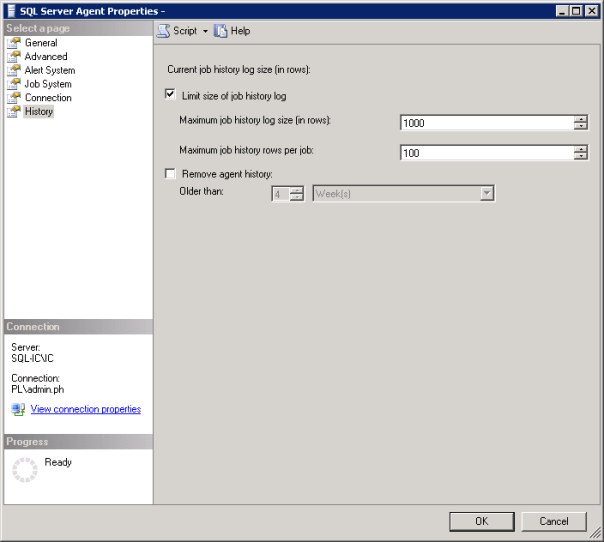
Picture showing SQL Server Agent Properties Window

How to setup how much Agent Job History is retained

I was asked to do a historic analysis of SQL Server jobs to determine their statistics, such as the number of runs, average run duration, successes/failures etc. As part of the daily checks I do on a server I’d only check the job runs for the past 24 hours. So I was surprised when I started the analysis and saw that averages for the same job across servers varied significantly.

When I looked at the msdb.dbo.sysjobhistory table of the server with the lowest averages I noted that there were only 999 rows and the history only went back a day or two.

So I had effectively no history on that server. When I looked at another the sysjobhistory table had almost 10 million entries, roughly 4 Gb of data! (The joys of taking over someone else’s environment)

This got me looking at the history settings for the SQL Agent. To open the SQL Server Agent Properties while in SQL Server Object Explorer right click on SQL Server Agent and then click on properties.
Picture showing SQL Server Agent Properties Window

For the first server the history settings were set to the default of 1000 lines for the log as a whole and 100 lines for the individual jobs. If you have a job that runs 4 steps that will use 5 lines, one line for the job and one line for each of the steps that are run. When I looked at the history settings on the second, server as you would expect, no settings had been applied.

Some sensible thresholds needed to be applied across the environment. I’m not going to dictate to you what your retention policy should be regarding job run history but I will say it can be as much as business decision as a server maintenance one so ask around if people need a record that something has run.

You may be in the position that you can be specific enough to enter row values but most organisations will have jobs that run weekly or monthly. In that case you may be better off using the “Older than” option and setting a retention period rather than using rows.

Always with logging, if you have the space, you’re better off having too much than having too little and missing data you need.  The size of each row in the sysjobhistory table is at most 4.5KB so keeping 10k rows is only around 45 Mb. If you don’t have 45 Mb to spare on your server then job history retention is the least of your worries. The worst thing that is likely to happen in storing more rows than you need is that it takes a bit longer to bring up the job history viewer. But here’s a link to some queries to help with that.

The moral of the story is just because it’s in the MSDB doesn’t mean Microsoft are taking care of it. Check your settings and make sure you’re retaining an appropriate amount of history now.
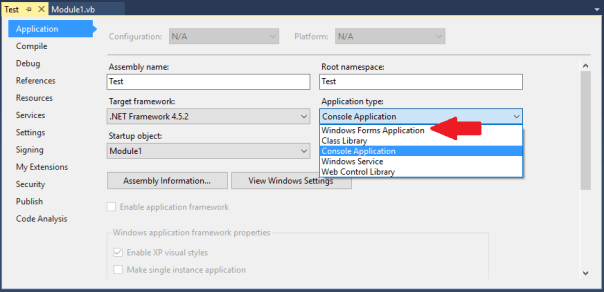
Picture showing the Application screen highlighting the Application type change from Console Application to Windows Forms Application

How to create a console application in Visual Studio that won’t open a command window when it runs

If you’ve written a small console application, say something that doesn’t require a UI e.g. a  batch script that you want to make into an exe, you’ve probably noticed that an unnecessary/unwanted command window pops up.

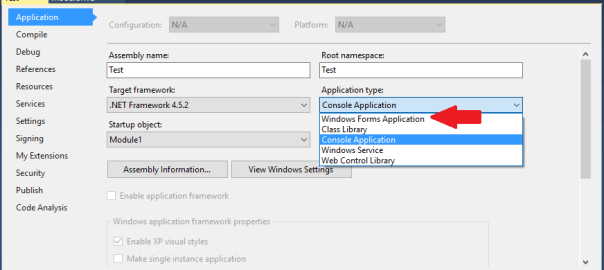
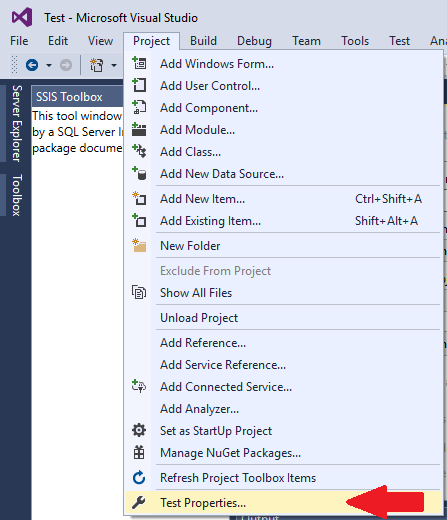
To stop the command window from opening you can simply make a change in the project properties by setting the Application Type from Console Application to Windows Forms Application.

This can be done from within the project, click on Projects at the top of the screen and then click on Properties as show below.

Picture showing Project options highlighting Properties

Then change the application type from Console Application to Windows Forms Application as shown below.

Picture showing the Application screen highlighting the Application type change from Console Application to Windows Forms Application

Icon of a folder or file with a clock on it

How to get the date of creation and size of current temporary objects from tempdb

The query below will return the temporary objects that currently exist in the tempdb of an instance.

It’s a good query if you’re experiencing issues with the tempdb and want to see what objects are taking up space or if temp tables are surviving longer than you might expect them to.

Recently I found that because queries were running directly from Tableau and the connection was being held open temp tables were not being removed. All the temp tables existing at the same time was taking up several GBs of space needlessly.

-- Get current temporary objects date of creation and size 
SELECT DISTINCT obj.name AS ObjectName
	,obj.type_desc AS ObjectType
	,obj.object_id AS ObjectId
	,obj.principal_id AS PrincipalId
	,obj.schema_id AS SchemaId
	,obj.parent_object_id AS ParentId
	,stat.row_count AS RowCountStat
	,stat.used_page_count * 8 AS UsedSizeKB
	,stat.reserved_page_count * 8 AS RevervedSizeKB
	,obj.create_date AS CreatedDate
	,obj.modify_date AS ModifiedDate
FROM tempdb.sys.partitions AS part WITH (NOLOCK)
INNER JOIN tempdb.sys.dm_db_partition_stats AS stat WITH (NOLOCK) ON part.partition_id = stat.partition_id
	AND part.partition_number = stat.partition_number
INNER JOIN tempdb.sys.tables AS tbl WITH (NOLOCK) ON stat.object_id = tbl.object_id
LEFT JOIN tempdb.sys.objects AS obj WITH (NOLOCK) ON tbl.name = obj.name
ORDER BY CreatedDate ASC;

How to identify databases with Guest user enabled

As best practice it is recommended to disable guest user in every user database, i.e. not master, msdb and tempdb, to improve the security of SQL Server. Guest user permits access to a database for any logins that are not mapped to a specific database user. The guest user cannot be dropped but it can be disabled by revoking the CONNECT permission.

Use the script below to identify which databases have guest user enabled. 

USE master;
GO

DECLARE @database_name SYSNAME
	,@sqlcmd NVARCHAR(4000)

DECLARE databases_cursor CURSOR
FOR
SELECT NAME
FROM sys.databases
WHERE STATE IN (0)
	AND database_id > 4
ORDER BY NAME

CREATE TABLE #guest_users_enabled (
	database_name SYSNAME
	,user_name SYSNAME
	,permission_name NVARCHAR(128)
	,state_desc NVARCHAR(6)
	)

OPEN databases_cursor;

FETCH NEXT
FROM databases_cursor
INTO @database_name;

WHILE @@FETCH_STATUS = 0
BEGIN
	SET @sqlcmd = N'use ' + @database_name + ';

        insert into #guest_users_enabled

        SELECT ''' + @database_name + ''' as database_name, name,

        permission_name, state_desc

        FROM sys.database_principals dpr

        INNER JOIN sys.database_permissions dpe

        ON dpr.principal_id = dpe.grantee_principal_id

        WHERE name = ''guest'' AND permission_name = ''CONNECT'''

	EXEC sp_executesql @sqlcmd

	FETCH NEXT
	FROM databases_cursor
	INTO @database_name;
END

SELECT database_name
	,user_name
	,permission_name
	,state_desc
FROM #guest_users_enabled
ORDER BY database_name ASC

DROP TABLE #guest_users_enabled

CLOSE databases_cursor;

DEALLOCATE databases_cursor;
GO
Use the script below, changing the placeholder database with the database identified in the script above, to revoke permission for the guest user to connect to that database.
USE [database name];

GO

REVOKE CONNECT FROM GUEST;

GO

How to resize TempDB in SQL Server

SQL Server Tempdb is used to store temporary objects. By default the initial size of the tempdb is too small for a production database engaged in any significant enterprise activities, therefore it should be sized accordingly on setup.

Failure to do so will have a negative performance impact when the database is first put into operation as it will need to grow to a more fitting size. Worse still, every time SQL Server is restarted the  tempdb will be recreated with its initial size. So SQL Server has to initiate autogrowth steps to grow the database file again and performance will be impacted negatively while it grows.

To compare the initial tempdb size to the current size run the script below.

USE master;
GO

SELECT mf.database_id
	,mf.NAME
	,mf.size * 8 / 1024 AS Initial_Size
	,df.size * 8 / 1024 AS Current_Size
FROM sys.master_files mf
/*adding info about current file size*/
INNER JOIN tempdb.sys.database_files df ON mf.NAME = df.NAME
/*filtering for tempdb only*/
WHERE mf.database_id = 2;
GO
You can set the tempdb initial size to the displayed current size if you think it will need to grow to this size again or take it as a simple guide and set the initial size less than its current size and allow it to grow as it needs.
To change the tempdb size run the script below replacing all the values in the placeholders with your specific values, use the example script further down as a guide. The files tempdev and templog are typically what the tempdb files are called in a default installation. (You can run the first script again to confirm success)

USE master;
GO

ALTER DATABASE TempDB MODIFY FILE (
	NAME = [logical file name of the tempdb data file]
	,SIZE = [value] MB
	);
GO

USE master;
GO

ALTER DATABASE TempDB MODIFY FILE (
	NAME = [tempdev]
	,SIZE = 4 MB
	);
GO


ALTER DATABASE TempDB MODIFY FILE (
	NAME = [templog]
	,SIZE = 3 MB
	);
GO

How to drop a user from a SQL Server database when you encounter the error message “The database principal owns a schema in the database, and cannot be dropped”

principalowner

So if you have encountered the error above “The database principal owns a schema in the database, and cannot be dropped” you will not be able to drop the user until ownership of the effected schema has been transferred to another user/role. In order to drop the user, you have to find the schema that is assigned first. You can do this by running the script below replacing myUser with the user name in question. 

SELECT name 
FROM  sys.schemas 
WHERE principal_id = USER_ID(myUser)
Then, use the schema found from the above query in place of the SchemaName below. This transfers ownership to dbo. You may need to alter authorization for multiple schema. Just run the statement for each returned schema replacing SchemaName. You can then drop your user.
ALTER AUTHORIZATION ON SCHEMA::SchemaName TO dbo;
 
GO

DROP USER myUser;

How to identify the location of the SQL Server Error Log file

So you want to find out where the SQL Server Error Log file is located for a specific SQL Server instance?

The Error Log is a great place to start tracking down reasons why SQL Server might be experiencing problems.

The queries below (first one works on SQL Server 2008, second one works on 2016) use the extended stored procedure XP_READERRORLOG, which is typically used to read error logs directly, to return the location of the SQL Server Error Log files. The returned value is then cleaned up so only the directory location is provided. You can then copy and paste the result into your file explorer. 

SQL Server 2008

USE Master;
GO

DECLARE @dir AS VARCHAR(MAX)

-- Command will create the temporary table in tempdb
CREATE TABLE [dbo].[#TmpErrorLog] (
	[LogDate] DATETIME NULL
	,[ProcessInfo] VARCHAR(20) NULL
	,[Text] VARCHAR(MAX) NULL
	);

-- Command will insert the errorlog data into temporary table
INSERT INTO #TmpErrorLog (
	[LogDate]
	,[ProcessInfo]
	,[Text]
	)
EXEC [master].[dbo].xp_readerrorlog 0
	,1
	,N'Logging SQL Server messages in file'
	,NULL
	,NULL
	,N'asc';

-- retrieves the data from temporary table and writes it to a variable to remove everything but directory location
SET @dir = (
		SELECT REPLACE(REPLACE(REPLACE([Text], 'Logging SQL Server messages in file ', ''), '''', ''), 'ERRORLOG', '')
		FROM #TmpErrorLog
		)
SET @dir = LEFT(@dir, LEN(@dir) - 1)

SELECT @dir AS ErrorFileLocation

DROP TABLE #TmpErrorLog

SQL Server 2016

USE Master;
GO

DECLARE @dir AS VARCHAR(MAX)

-- Command will create the temporary table in tempdb
CREATE TABLE [dbo].[#TmpErrorLog] (
	[LogDate] DATETIME NULL
	,[ProcessInfo] VARCHAR(20) NULL
	,[Text] VARCHAR(MAX) NULL
	);

-- Command will insert the errorlog data into temporary table
INSERT INTO #TmpErrorLog (
	[LogDate]
	,[ProcessInfo]
	,[Text]
	)
EXEC [master].[dbo].xp_readerrorlog 0
	,1
	,N'Logging SQL Server messages in file';


-- retrieves the data from temporary table and writes it to a variable to remove everything but directory location
SET @dir = (
		SELECT REPLACE(REPLACE(REPLACE([Text], 'Logging SQL Server messages in file ', ''), '''', ''), 'ERRORLOG', '')
		FROM #TmpErrorLog
		)
SET @dir = LEFT(@dir, LEN(@dir) - 1)

SELECT @dir AS ErrorFileLocation

DROP TABLE #TmpErrorLog


Five Database icons arranged in a star with the largest one in the center

How to identify all user objects in the SQL Server Master database

What is the SQL Server Master Database used for?

The master database is used by SQL Server to contain all of the system level information:

  • Logins
  • Linked servers
  • Endpoints
  • Configuration settings
  • Information about the other databases on this instance and the location of their files

If the master database is not present, SQL Server cannot start.

This is way you should always take regular backups of the master database.
as if SQL Server suffers a failure, those changes will be lost and you’ll be in a lot of trouble.

So the master database is needed for SQL Server to work. Logic and objects needed to enable your application should not be tangled up in there so you should always avoid creating objects in the master database. Use a user database instead.

In saying that everyone has made the mistake of not specifying the database they want to USE in a script and by default objects get written to the Master database. Or you might have inherited the responsibility for an application which did not conform to best practices and it uses objects created in Master.

To gain visibility of these objects just run the script below.

SELECT o.object_id AS ObjectId
	,o.NAME AS ObjectName
	,o.type_desc AS ObjectType
	,o.create_date AS CreateDate
	,o.modify_date AS ModifyDate
	,SUM(st.row_count) AS RowCnt
	,CAST(SUM(st.used_page_count) / 128.0 AS DECIMAL(36, 1)) AS DataSize_MB
FROM master.sys.objects o
LEFT JOIN master.sys.dm_db_partition_stats st ON st.object_id = o.object_id
	AND st.index_id < 2
GROUP BY o.object_id
	,o.NAME
	,o.type_desc
	,o.create_date
	,o.modify_date
	,o.is_ms_shipped
HAVING o.is_ms_shipped = 0
	AND o.NAME <> 'sp_ssis_startup'
	AND o.type_desc NOT LIKE '%CONSTRAINT%'
ORDER BY CAST(SUM(st.used_page_count) / 128.0 AS DECIMAL(36, 1)) DESC
	,RowCnt DESC
An icon depicting a calendar and clock

How to create a datetime stamp within a batch script in the format YYYY-MM-DD

Below is a batch script that populates the variable Timestamp with a datetime value in the format YYYY-MM-DD_HH:MM:SS.

This technique can then be used when creating files etc.

To try out the example below copy the text and paste it into a text editor like notepad. Save the file as timestamp with the extension .bat and then double click on the filestamp.bat file.

This code example will display the current datetime in windows command shell. It will also create a blank file called Test along with the current datetime in the format yyyymmddhhmmss in the same directory the batch script is run from.

@ECHO off
CLS
ECHO Date format = %date%

REM Breaking down the format 
FOR /f "tokens=2 delims==" %%G in ('wmic os get localdatetime /value') do set datetime=%%G
ECHO dd = %datetime:~6,2%
ECHO mth = %datetime:~4,2% 
ECHO yyyy = %datetime:~0,4%
ECHO/
ECHO Time format = %time%
ECHO hh = %time:~0,2%
ECHO mm = %time:~3,2%
ECHO ss = %time:~6,2%
ECHO/

REM Variable format 1
SET Timestamp=%date:~6,8%-%date:~3,2%-%date:~0,2%_%time:~0,2%:%time:~3,2%:%time:~6,2%
ECHO New Format 1: %Timestamp%
ECHO/
REM Variable Format 2
SET Timestamp=%date:~6,8%%date:~3,2%%date:~0,2%%time:~0,2%%time:~3,2%%time:~6,2%
ECHO New Format 2: %Timestamp%
ECHO/
REM Building a timestamp from variables
SET "dd=%datetime:~6,2%"
SET "mth=%datetime:~4,2%"
SET "yyyy=%datetime:~0,4%"
SET "Date=%yyyy%%mth%%dd%"
ECHO Built Date from variables: %Date%
ECHO/

REM Write Timestamp into file name
REM BREAK>Test%Timestamp%.txt 
PAUSE


How to get tableau data to refresh automatically within the internet browser

This tutorial describes how to embed a Tableau view, i.e. a published sheet or dashboard etc., into your web page and set the view to refresh every 30 seconds.

Step 1. Open note pad and save the code below into it calling the file template.html

Step 2. Copy the URL

  • Publish the Tableau view and copy the URL from the share button

Or

  • Copy the URL if you have already published the report

Note: If a hash symbol (#) and number, or a “:iid=<n>” appear at the end of the URL, do not include those characters. For example, in the following URL, you would not copy the #3 characters:

http://server-name.com/views/AutoRefreshExample/AutoRefreshExample#3

Step 3. Replace the following in the template file with your URL and change the title to something more appropriate than Auto Refresh Example.

http://server-name.com/views/AutoRefreshExample/AutoRefreshExample

Note: You can change the rate of refresh by changing the content=”30″ value to however many seconds you need. Also you probably don’t want purple as your background color unless you’re Prince so go ahead and change that too. background-color: #452775

<!--Template-->
<!DOCTYPE html PUBLIC "-//W3C//DTDXHTML 1.0 Transitional//EN" <html lang="en-US" xml:lang="en-US"> 
<head> 
<title>Auto Refresh Example</title> 
<meta http-equiv="refresh" content="30">
</head> 
<style>
body {background-color: #452775}
</style>
<body> 
 src="http://server-name.com/views/AutoRefreshExample/AutoRefreshExample?:embed=yes&:refresh=yes" 
width="100%" 
height="100%"
align="middle"
frameborder="0"  
marginwidth="0" 
marginheight="0"
scrolling="no"
> 


Your browser does not support iframes.


</body> 
</html>