Category Archives: Android

How do you tell if your Android device is rooted?

So here’s a quick and simple explanation of what a rooted device is.

By default the android OS blocks you and apps from doing the things that could potentially break (brick) the device or pose security concerns. But there are instances were an app legitimately needs access to some of the devices locked out functionality.

For example the sixaxis controller app lets you connect your device to a PS3/4 controller but requires root access to be able to manipulate the device’s bluetooth signal. This is a legitimate reason to require access to bluetooth but a more unscrupulous app might want access to transmit your phone’s data across a short range.

A rooted android device just means you have administrative privileges on the device, so you get to choose what you or an app can use/do, but unlike windows it’s not as simple as just changing a setting.

So how do you tell if an android device is rooted?

It’s simple, as with all things android you just use an app!

Install Root Checker from the play store and you’re good to go.

For a tutorial on how to root your device click here.

How to increase the performance of your Android TV Stick

So basically all android TV sticks (ATS’s), boxes and any other android device you connect to your TV has been somewhat hacked together to deliver a product the Android OS wasn’t explicitly designed for. (Not that it doesn’t do a great job)

The Android OS was designed for mobile devices but what constitutes a mobile device?

Well one can differentiate a mobile device as a mobile device by two distinguishing characteristics, one it has a built-in display and two it’ll be battery powered.

Android mini computers have neither.

As mentioned above ATS’s use a TV for the display and often ATS’s don’t have the drivers needed to recognised touch screen inputs. No touch screen inputs can have its drawbacks but the focus in this article is on the influence of not having a battery.

Android devices are constantly doing a juggling act between making the device run as fast and be as responsive as possible and not burning through the battery.

This balancing is primarily directed by the CPU governor. The Linux kernel has a number of CPU frequency governors, which can be looked on as rules that set the CPU frequency based on the selected governor and usage patterns. The frequency or clock rate is typically used as an indicator of the processor’s speed, i.e. how quickly it processes tasks. It is measured in the SI unit hertz. The higher the speed the better the performance and the worse the power consumption.

The best thing about the governors is that they have pre-sets, when the “performance” governor is active, the CPU frequency will be set to its maximum value, the “powersave” governor sets the CPU to its lowest frequency, the “ondemand” governor sets the CPU frequency depending on the current usage, etc.

But here’s the important part, because an ATS has no battery and it’s being power by the mains, there’s no need to set the governor to go easy on power consumption. So the governor should be set to performance at all times but by default (the device thinking it’s mobile) it’s probably not.

So how do you change the governor?

Well like everything else with android you use an app of course!

Note: You cannot change your CPU governor unless your phone is rooted and you have a ROM or app that lets you make a change. Also, different kernels (the intermediary software between your phone’s hardware and the operating system) offer different sets of governors.

There are several to choose from:

  • CPU tuner
  • No-frills CPU control
  • SetCPU
  • See here for more

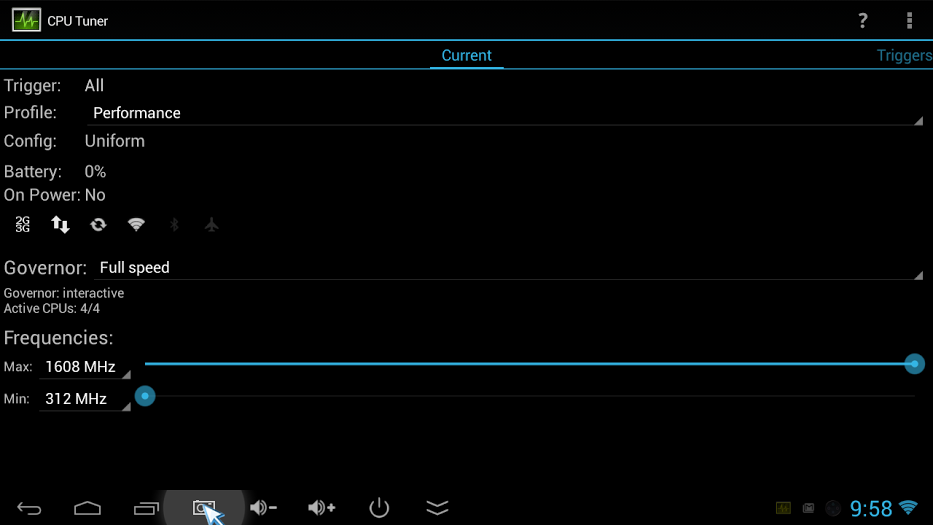
I use CPU tuner as pictured below.

cpuTuner

Simply install CPU Tuner and set profile to “Performance” and Governor to “Full Speed” and you should be getting a little extra juice from your device.

Slán

A picture of a cx919 android tv stick

How to root a CX919 Android 4.4.2 Quad core with a RK31 rockchip

(This Post was last updated 13/02/2015)

Ok so here’s a quick tutorial on how to root this particular type of Android TV Stick (ATS). Specifically this model: See Link. If you’ve ever flashed a custom rom onto an android device before, forget everything about that, it’s nothing like that, it’s much simpler.

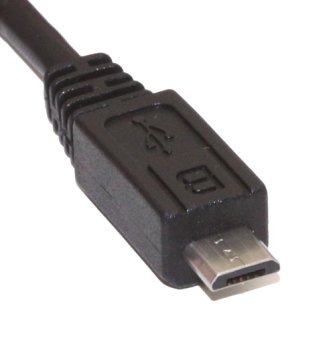
NOTE: you will need a windows PC to root the device and before starting make sure you have a good usb micro b cable you know works! USB Micro-B PlugIf you’ve found your way to this page you may have already tried the manual approach which uses the TPSparkyRoot batch script and that hasn’t worked! I’ve been there, you won’t be able to get it working, you were right to continue google searching your way across the net for a method that works, and here it is. . .

But first the obligatory caveat:

I take no responsibility for the welfare of your device. If by following these instructions you should brick your device, that’s your problem buddy. This tutorial will likely work for other devices too though. So if you’ve tried every other tutorial on the net to get your damned device rooted to no avail you might want to follow along. But again I’m not responsible if your ATS explodes.

Back up your device prior to implementing the instructions and you “should” be fine.

And now the tutorial:

STEP 1: Download software

Start by installing the following software:

Moborobo

Kingo

(Use the direct download link to skip downloading the download.com software)

(The reason you need moborobo is that the software is smart enough to determine what driver the PC needs to be able to communicate with the ATS. Chances are, if you tried an alternative method to root the device, the previous methods you tried to root the device failed because you couldn’t find the right driver.)

STEP 2: Prepare the ATS for communication with the PC

In the ATS go to System settings > Storage and click the 3 vertically stacked dots at the top right of the screen.

Picture showing the icon to clickClick on the window “USB computer connection” and tick the Mass Storage box.

Next within the systems settings, go to the developer options. (If the developer options are not there it is because they have not been enabled. To enable developer options go to the system settings and click on About Device. Next scroll to “Build Number” and tap it 7 times. After tapping 7 times you will see an alert saying “You are now a developer”/”Developer mode has been enabled”.

After navigating to developer options scroll down and tick the usb degugging option.

STEP 3: Connect the PC to the ATS

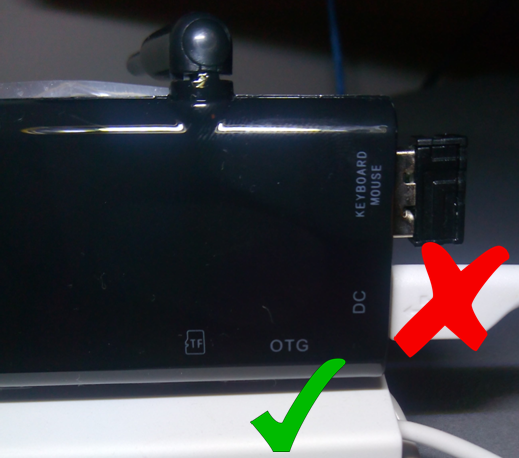
With the ATS connected to your TV via HDMI and powered by the DC usb port, connect the usb micro b cable to the available port.

Make sure you do not use the DC port to connect to the PC otherwise nothing will happen.

A picture showing which usb port to useNext connect the ATS to your PC via the USB.

Within system settings on the ATS click on “USB ” and tick “Connect to PC”.

STEP 4: Install the correct driver on the PC

Open the Moborobo software on your PC and wait for it to load completely. Moborobo should now create a connection to the ATS and install some apps on it. Once you see your TV screen switch to the Moborobo app you know the PC successfully connected to the device.

(You don’t need these apps once this process is run. The whole point of using moborobo was simply to install the correct driver on your PC. If the device installs the correct drivers on the PC itself you may not need moborobo to connect to the ATS, in which case continue to the next step.)

STEP 5: Rooting the device

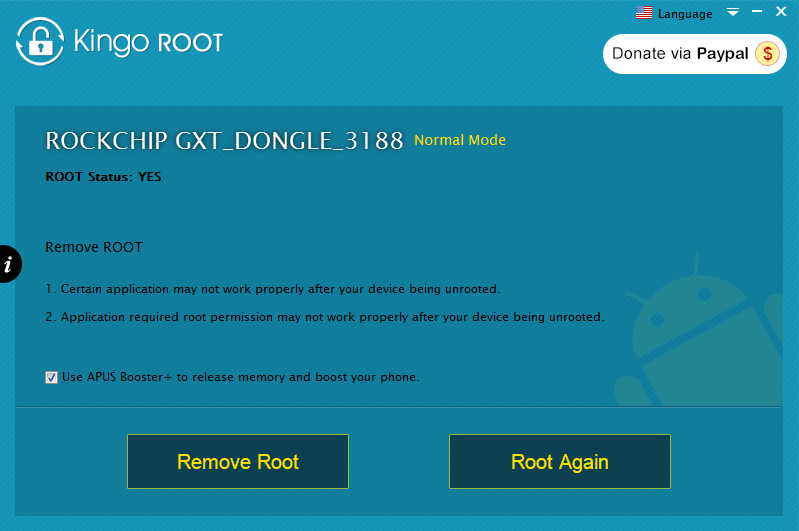
Open Kingo on your PC. It will load for a few seconds.

When a screen appears asking if you want to root it has successfully connected to the device.

Uncheck the install APUS boost+. This is an optimization app not necessary for rooting the device.

Click root.

(Kingo may mistakenly think the device is already rooted in which case click on root again)

Kingo on desktopAllow Kingo to run.

COMPLETION:

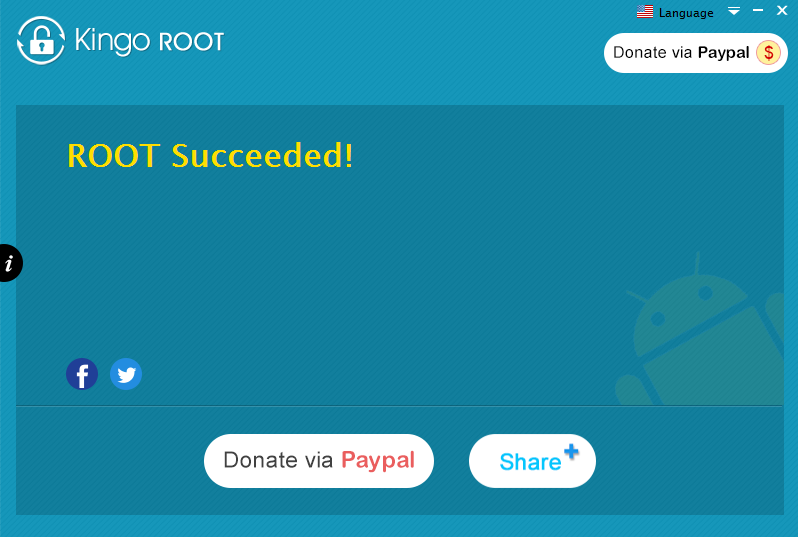
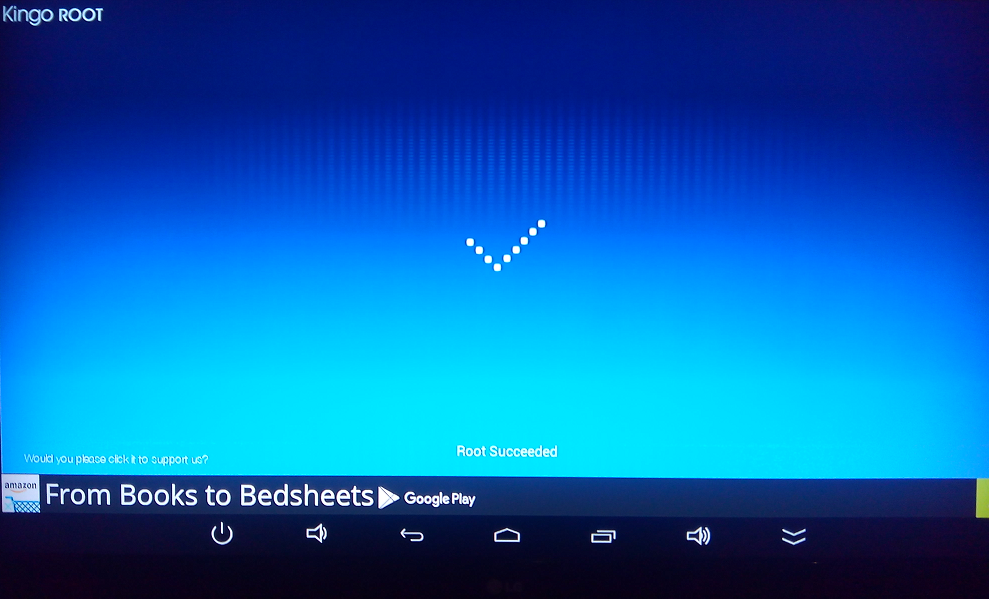
Once you see the screens below on your PC and ATS the root was successful.

successPCsuccessATSWithin system settings on the ATS click on “USB ” and tick “Connect to PC”.

TIDYING UP:

You can now uninstall the software on your PC.

And uninstall the following Apps on your device.

  • MoboMarket
  • Mr.Clean
  • Kingo Root

Kingo will install its own SuperUser App which will need to remain but this simply acts as a checker for other apps looking to access system resources which you can either give permission to or deny.

FINAL WORDS:

Hopefully that all worked out for you.

If you used this tutorial successfully please comment below and share.

UPDATE 13/02/2015: Kingo superuser can sometimes grow to take up massive amounts of the device’s storage space. In my case over 600mb!!! Uninstalling the app from the google play store will reduce the app in size without actually uninstalling the app. (The app cannot actually be removed within settings, only disabled) In my case the app shrank to just over 5mb, much better!

Quick Caveat: There have be some online accusations that Kingo superuser steals user data. I cannot confirm this, but I’d imagine if it was a serious concern google would have removed the app from the store by now.

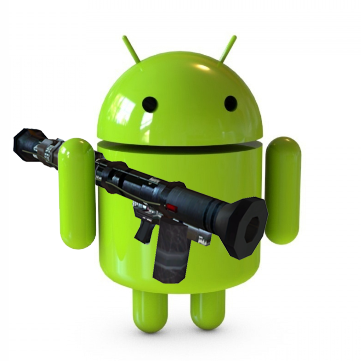
Android with a rocket launcher

How to setup an Android TV Stick

In my last posting Buying advice for Android TV Sticks I wrote about some of the main things to consider when buying an ATS. Quick recap, go quad-core, get a model with an external antenna, SD cards will give you more storage, you’ll need some sort of keyboard/mouse and there are several other android devices you could use to make your TV smart with which you should consider before buying.

This posting offers advice regarding, viewing Flash media, setting up your web browser properly and getting the best out of the user interface.

Firstly you need Adobe Flash Player to live.

The flashFlash player is incredibly resource hungry even for laptops but the quad-core ATS models can just about handle it. But rather than continue to optimise and refine the Android flash player the nice guys over at Adobe just decided to discontinue support for it. And unfortunately HTML5 hasn’t taken over the net in the way that we’ve been told it would so we’re still very reliant on flash for streaming video.

So you’ll need to download the last version of flash from the adobe archive if you want to watch media, like TV shows or sport broadcasts, via your browser. The last version can be found by scrolling down to the heading “Flash Player for Android 4.0 archives”. Just click on the file when downloaded and the install will run.

There are a few web browsers to choose from for Android but probably the most familiar browser Chrome doesn’t support flash so I’d recommend Firefox which brings me to another important matter.

Browsersepic battle between firefox and chrome

I don’t want to get into a “which browser is best” war but I would say of all the browsers I’ve tried namely Chrome, Dolphin, Lightning, UC and Firefox, IN MY OPINION Firefox is the most versatile though not the fastest. (My second favourite is UC browser because I always found it performs really well on underpowered devices.)

Regardless of which you use there will be an option in the settings/preferences to switch to viewing sites as a Desktop by default, as opposed to viewing them as a mobile device. This is a very important option as Android browsers will by default request to view a website as a mobile device.

Why is that?

If a site is modern it will either be a dynamic site, meaning the webpage can be reshaped to fit the devices display, or it may have a different website to be displayed to mobile devices altogether, a mobile site. Considering you’ll probably be viewing the site on a big HD TV a website optimised for a 4 inch display leaves a lot of wasted space on the screen. So make the most of that screen by setting the browser to view sites as a Desktop.

LaunchersAndroid with a rocket launcherTypically a user would interact with Android devices by touching and dragging their greasy fingers across the display. The graphical user interface (or GUI, pronounced “gooey”) therefore has been designed to optimise navigation by this means of interaction.

But because an ATS has no screen of its own to touch a typical android GUI is not optimal for couch surfing. (I don’t mean couch surfing in the hobo/college student sleeping on your sofa sense.) For this reason most ATS’s will come with their own custom launcher.

What’s a launcher? An application launcher is a computer program that helps a user to locate and start other computer programs. So it’s like the desktop environment on a windows computer except Android allows the environment to be changed easily and the looks, feel and performance of a device can benefit from doing so.

I’ve tried a few but the only browser I’d recommend is TVLauncher. (Though I say that having never paid for a launcher or an app . . . ever . . . BUT if I wanted to pay for things I’d be part of the Apple cult.)

So what makes TVLauncher good? Well the HINT is in the name. It was designed to be a launcher for Androids connected to TV’s. An ATS is not a mobile phone so the home screen won’t be packed with the icons you’d typically place on your home screen because you use them all day. I’m going to guess your home screen has the following icons:

  • Dialler
  • Sms
  • Camera
  • Alarm
  • Volume
  • Maps
  • Watsapp
  • Viber
  • As well as toggle widgets for wifi, Bluetooth and GPS.

You don’t need quick access to a dozen different apps on an ATS so with TVLauncher’s home screen you get 6 large tiles to use. You can import your own images for apps if you wish, like speed dial for Firefox and Chrome. And trust me you won’t need more than 6 if you’re using the ATS as a cheap but ultra cool media centre.

My set up is as follows:

For Music: Apollo

For Video: MX player

For Video Streaming: Youtube

For Web Browsing: Firefox

For File Navigation: ES File Explorer

For More Awesome Apps: Google Play

OK OK some of you might like paying for things like Netflix and Spotify, clutter up your home screen see if I care. . .

So that’s all for this post. If anyone reading this thinks they know of a better launcher feel free to comment below.


Android Shopping

Buying advice for Android TV Sticks

My previous posting, “Android TV Sticks, the time is now” was dedicated to heralding a potential new era of super cheap, multi-purpose home computing driven by Android TV Sticks (ATS’s).

In this posting I’d like to offer some advice when buying an ATS. Let’s start with the straight forward stuff and finish up with the options that need to be weighed up by each buyer separately.

Firstly don’t be a cheapo.

Pay the extra $10-$20 dollars and get a quad-core model instead of the dual-core. It offers a lot more bang for your buck.

Purchase an ATS that has an external antenna.

Why?

Because there have been a lot of models in the past that suffer from Wifi problems. Not that the stick won’t pick up any signals it’s just the range will be very limited. The problems stem from electronic interference from within the stick casing. The folks at Rikomagic, for example, noticed that you can dramatically improve WiFi performance on the MK802 IV just by moving the antenna around inside the case. Some sites recommend making a hole and letting the antenna hang outside the case altogether but you can avoid all that hassle if you just buy a stick which has an external antenna.

Compensate for limited internal storage with an external SD card.

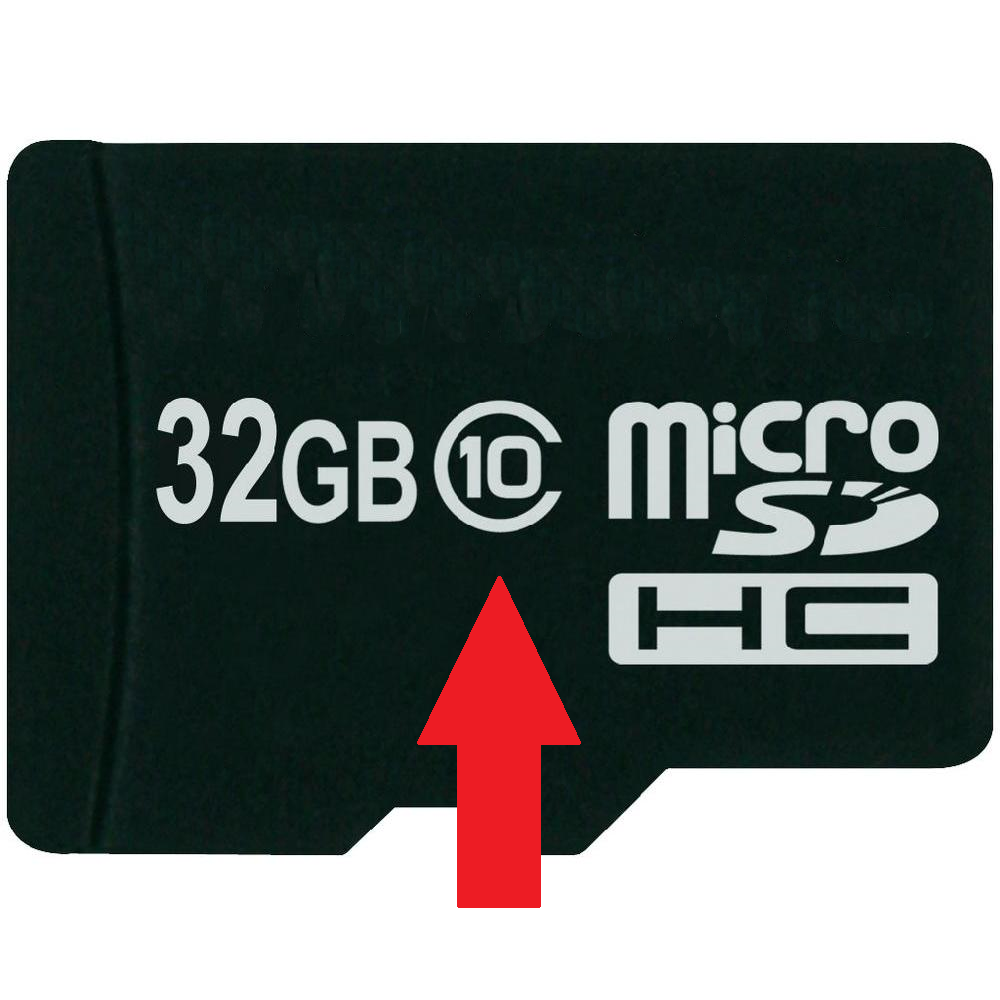
Don’t worry about the internal storage of an ATS. Most ATS’s have a microSD card slot that can support cards up to 32GB in capacity. Considering that you can pick up a card that size for under $25 these days, it doesn’t cost much to quadruple your storage.

Keep in mind not all SD cards are created equally. They are separated into classes mainly representing speed of data transfer, class 10 being the best. I wouldn’t go lower than an 8, but if you are running games from the external card go for the 10.
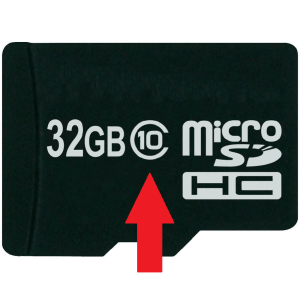
Class 10 SD cardI particularly appreciate the SD slot as I’m not a fan of storing everything on “the cloud”. There are companies that have a finger in device production and data storage that are pushing the use of “the cloud” by not providing SD slots. They do this because they can make money off of providing storage of your data while using your data. Kinda like how banks make money by holding onto your money. Everyone loves banks right. Right? If you don’t know which companies I’m talking about, just Google it.

man yells at cloud(Goddamn data vampires)

We can’t control all electronics with our minds yet.

You’ll need some means of interacting with the device and there are a number of options. For some this will be a hidden cost of buying an ATS but most geeks will have some of these things, if not all of these things, lying around the house.

Low tech way first. A usb wired mouse and keyboard will be able to plug directly into the ATS. Left click of a mouse emulates a screen touch while right click conveniently emulates the back button. It’s actually very pleasant navigating around like that. Regarding keyboards, anything that requires the typing of text will bring up the on-screen keyboard. You could theoretically use the mouse pointer to type things out, in the same way the human race could theoretically count every grain of sand, but typing on a physical keyboard connected to the ATS will work nicely.

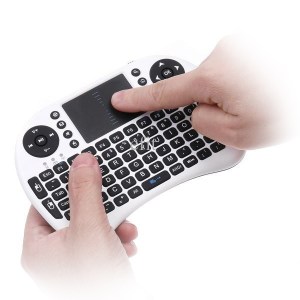
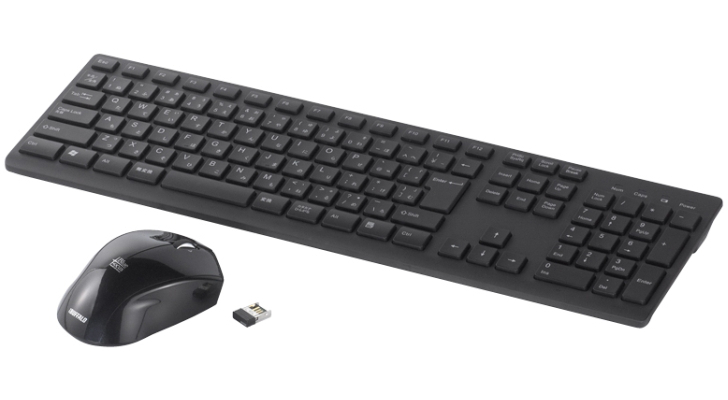
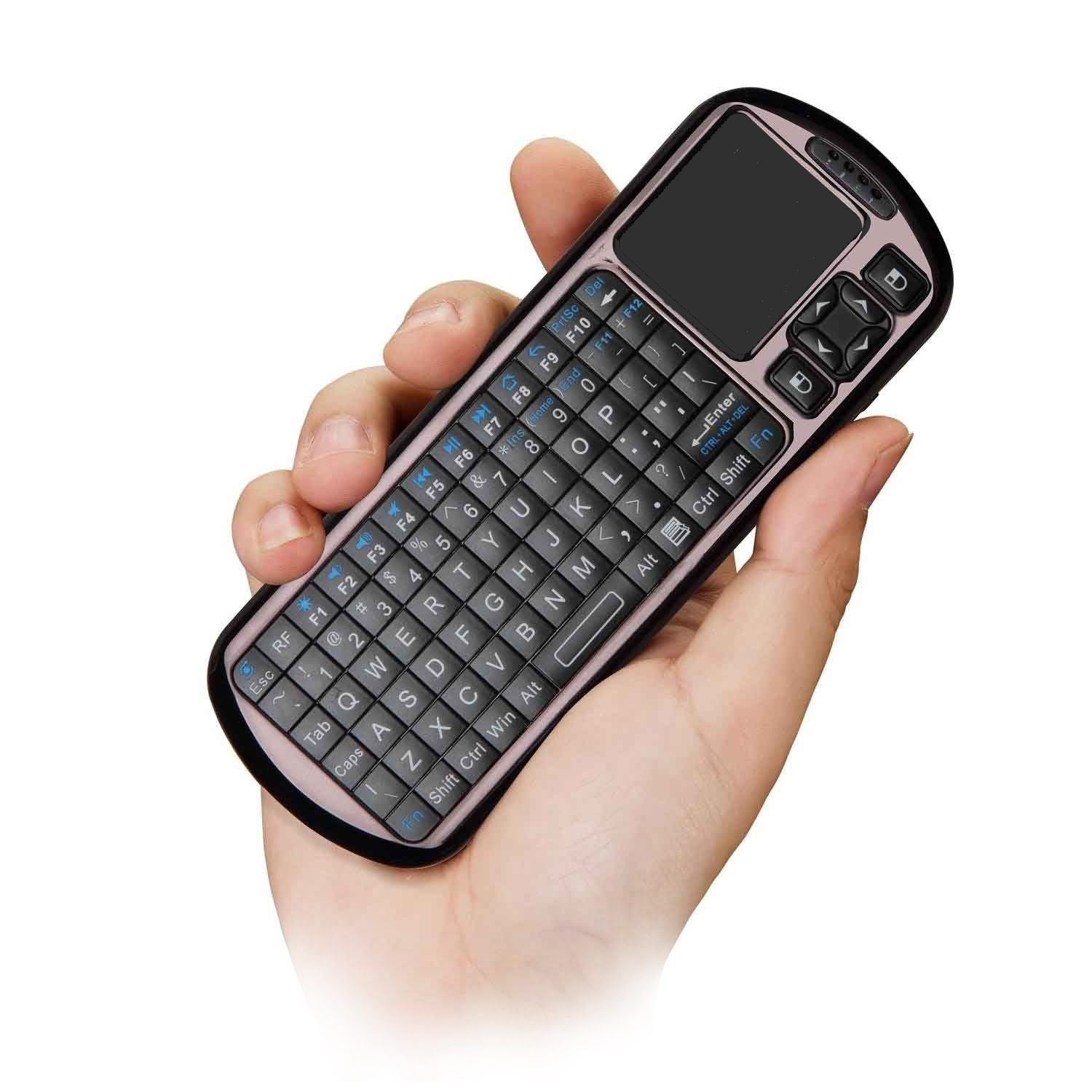
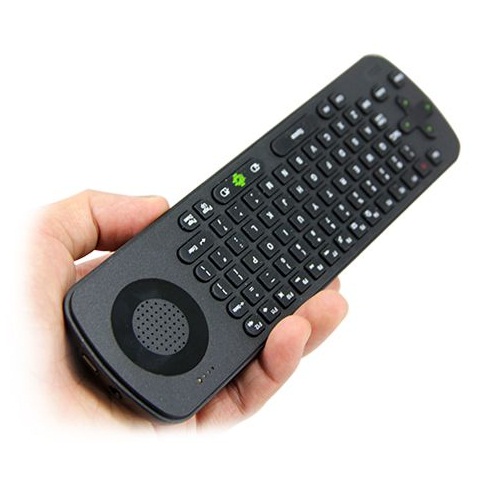
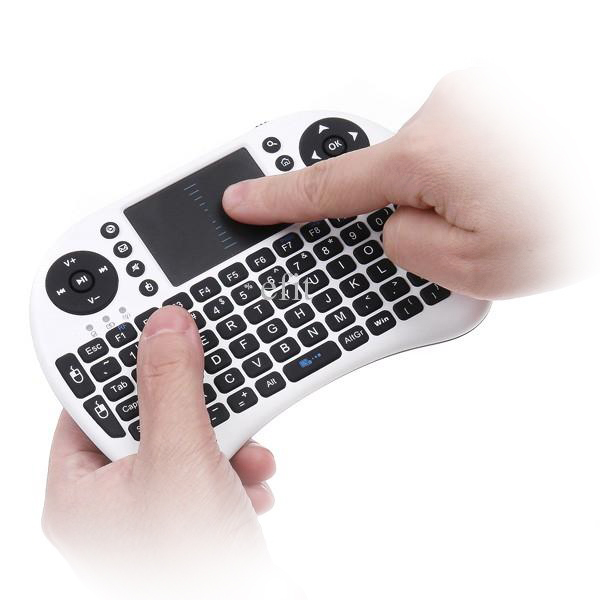
The more high tech solutions would be to use a wireless keyboard and mouse but there are further options still. Do you choose a typical keyboard or a keyboard/mouse combo or even an air mouse which usually looks like a traditional remote control but it works gyroscopically like a Wii Remote. Below are a few photos of your choices.
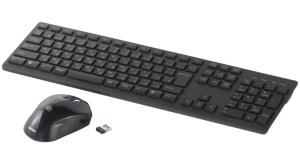
Traditionally shaped keyboard and mouseKeyboard/Mouse comboRemote air mouseKeyboard/mouse combo air mouseThese peripherals will either be connectible via bluetooth or by means of a teeny-tiny usb dongle if it works via radio frequency.

Finally the most hi-tech solution would be to use another android device to control the stick, namely your phone and/or tablet. Most sticks come with an app pre-installed which allows the stick to be controlled locally, i.e. over the wifi network or via bluetooth, by any android device that has the necessary controller app installed.

Overfed flash drive or malnourished router?

There are Android Mini PC’s which are larger than ATS’s, they typically look like a small router, but have pretty much the same hardware as an ATS (which begs the question what the hell are they doing with all the extra space?).
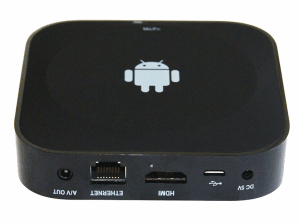
Android Mini PC

These larger devices usually have a built in camera and microphone. That’s really the key selling feature as there are no mic ports on most ATS’s and driver support for external webcams is pretty non-existent.

There are some apps that allow for connecting an external usb camera to an ATS though but compatibility is not assured. A good one is the free app Dashcam (good in the sense that it’s free).

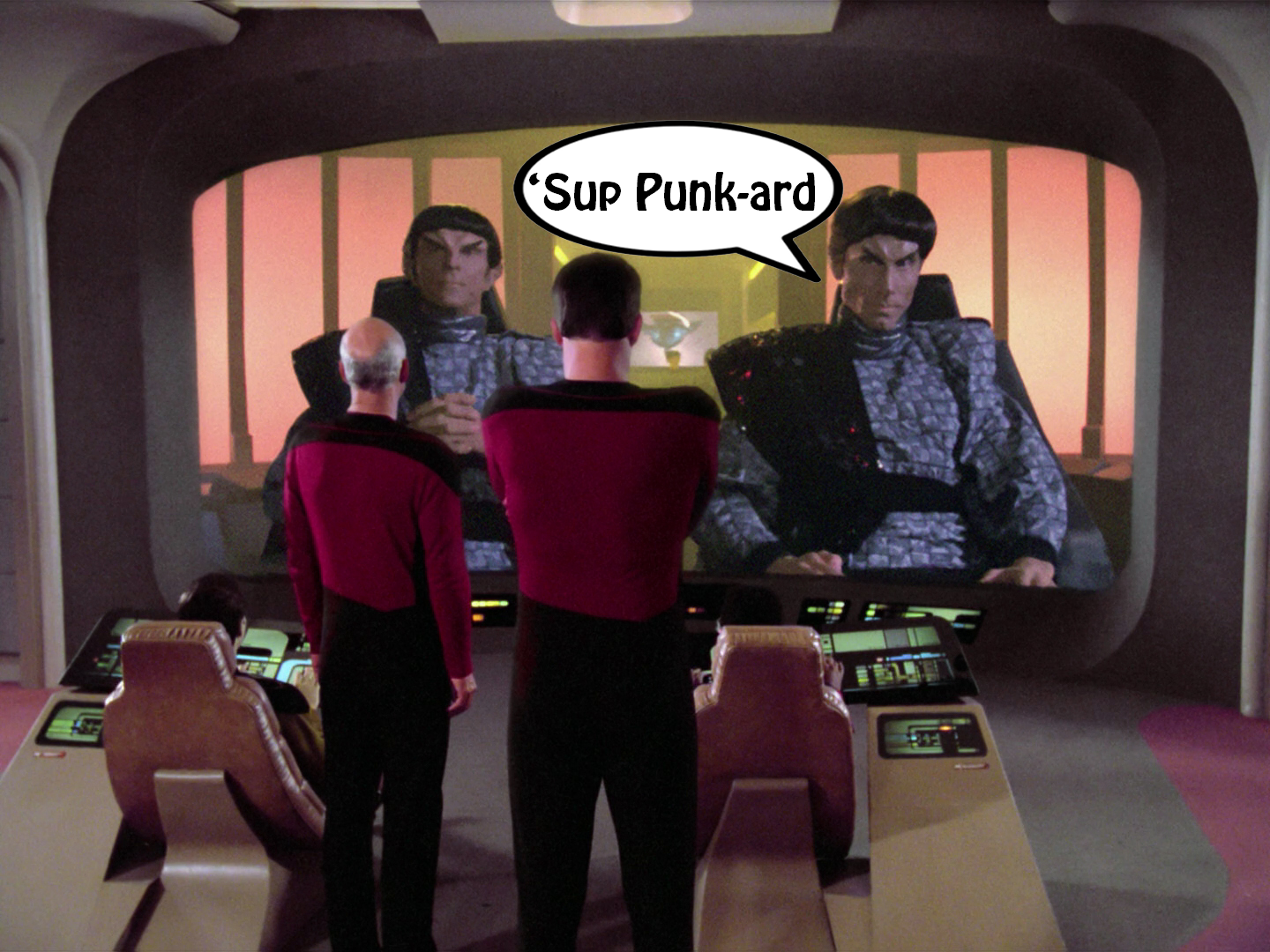
These larger Mini PC’s, let’s call them Android TV Boxes or ATB’s for short, open up a whole range of webcamming opportunities . . . take that whatever way you want . . . as people will be able to skype back and forth turning the TV into something like the viewscreen on star trek.

Star Trek the next generation viewscreen

In fact some of these Mini PCs take the form of chunky webcams with sweet android goodness inside. Let’s call this species an Android TV Webcam or ATW for short.Android TV webcamThe camera on all these devices still won’t be that great (despite what manufactures promise. . . I’ve been fooled before) but that will only improve in time.
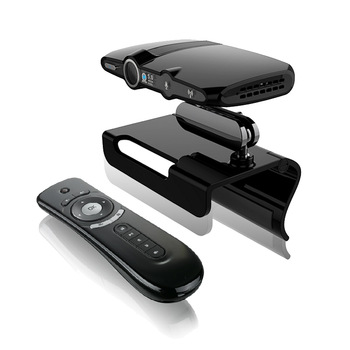
The built in microphones are not only usefully for the likes of Skype, Viber and Google Talk they also come in useful for talking to the device stating search terms for the browser or using Google Now.

(Things really are getting like star trek. When I can bark the commands “Tea. Earl grey. Hot.” at a 3D printer and get a delicious beverage it will officially be the future. )

One very important thing to note, for android 4.2 at least, is that Google Now doesn’t work with Bluetooth devices! How stupid is that‽‽‽ (Interrobangs, I’m bringing them back!)

It’s something to do with Bluetooth being third party yada yada yada, but whatever the reason this is a major short coming considering that Bluetooth headset users are probably the most likely to make use of Google Now.

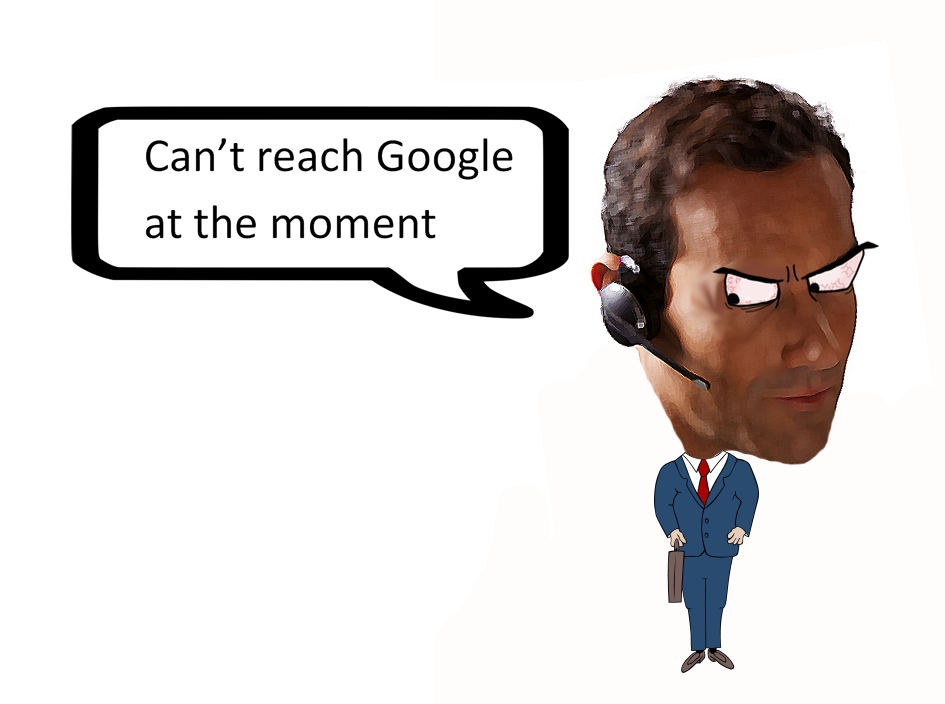
(Given that all headset users are pretentious egotistical sociopaths who assume we all want to know their business.)
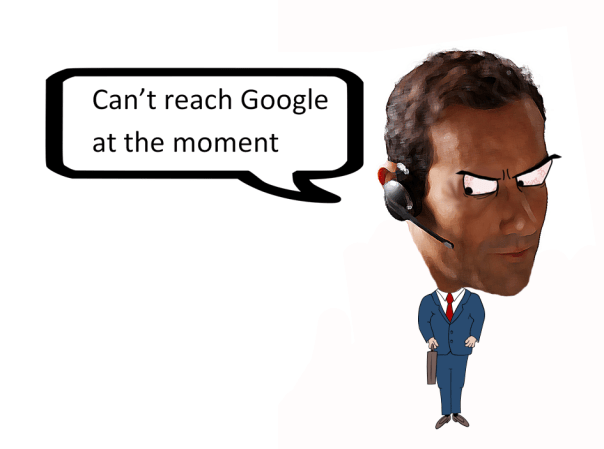
Cartoon of man using headset

So why buy an ATS over an ATB or ATW?

For me it boiled down to value. An ATS offers you the best performance in computing at the lowest price, which is all I was really interested in. Right now webcam and microphones are features I probably wouldn’t use much, if at all, so I wasn’t going to pay extra for that. Aside from money the only other thing I considered was the presence the device would have in the room. An ATS is discreet as it is designed to be plugged in directly at the back of the TV. The added benefit is that they’re a small robust little rectangle allowing them to be put into a bag, or even a pocket, and taken anywhere.

ATB’s and ATW’s on the other hand are designed to be placed somewhere they can capture the room with the built in camera. Again considering I wouldn’t be using the extra features either one would just be cluttering the room needlessly.

But that’s just me. If you’re using an ATB or ATW and have something you’d like to share about it please feel free to comment below.
Android TV Sticks, the time is now!

So what am I talking about?

Potentially the future of how we surf the web while sat on the couch.

Android TV Sticks (aka Android Mini PCs, aka Android TV Dongles) are about the size and shape of an overfed USB flash drive but they don’t just store files.

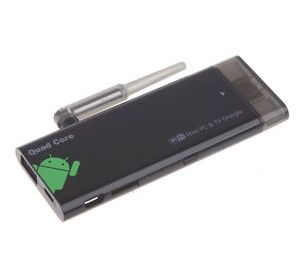
Android TV Stick example

They’re actually tiny computers in themselves that run an Android operating system, generally version 4.2, and accept input from USB, SD cards and Bluetooth devices like mice, keyboards and gamepads. Plug the stick into your TV via the HDMI port and you can run Android apps on the big screen.

To clarify they’re essentially powerful phones/tablets without the display (which is the expensive bit) making them really cheap, around $70. The thumb sized MK802, was first brought to market in May 2012 but I held back as the hardware was pretty underwhelming for the work the device would have to do.

But that’s changed with the very recently released quad-core processor models (think 4 brains instead of 1) capable of outputting Full HD display smoothly and powering through graphically intensive games.

(To give you an idea of performance I recently downloaded and installed a 1 GB game while watching an episode of Breaking Bad stored on a flash drive with no issues.)

So why is that cool?

Well think about the apps out there on Google play, you have Facebook & Twitter, Netflix, VLC & MX Player, Spotify, Apollo & Double Twist, Youtube, Chrome & Firefox, Quickoffice NOT TO MENTION ALL THE GAMES THAT ARE FREE TO PLAY!!!

This magical little box turns your TV into a web browser, media player and games console (and if you like looking at spread sheets and word docs on a screen while sat across the room, you can use it for the traditional boring PC stuff too).

You’re effectively making your TV smart (really smart) without spending the extra few thousand clams. And think about this, your big flat screen full HD TV is a capital purchase, that bad boy is going to be bolted to your living room wall for a few years at least. But computers stop being at the forefront of technology within a couple of weeks. Spend a small fortune on a Smart TV and by the end of the year it’ll probably start to seem pretty stupid.

But, so far, Android TV Sticks have proven to be so cheap you can get the next model in six months time which will probably have doubled in brain power. I’m already looking forward to getting my hands on one of the next octa-core models.

So why haven’t you heard of these awesome little contraptions before?

Currently there is lack of big player interest from the likes of Google, Samsung, LG etc. (If anything these relatively new and mysterious devices work against the product portfolios of the big boys).

Production is cornered mainly by little known or unnamed Chinese manufacturers, shrouded in oriental mystery . . . for legal reasons . . . using the Chinese rockchip processor. Some of the devices don’t even ship with any branding. Possibly a legal thing (the eyes of g-oo-gle are ever watchful) or perhaps the manufactures just want to pass the savings of sparse branding onto the customer. Some company names you may have heard batted about though (if you hang out with tech nerds) are Rikomagic and Tronsmart which would be considered reputable (by said nerds).

Another possible reason you might not have heard of these “things” is nobody seems to know what to call them! So here’s my attempt at making a name stick (WORD PLAY!), Android TV Sticks, shall be henceforth known as A.T.S’s.

A.T.S. sounds kinda like TV jargon don’t ya think? Like VHS, DVD or AV cable.

Let’s take it for a spin:

  • I got a new 4.4 ATS.
  • The video playback on this new ATS model is awesome.
  • I’ve put my old ATS in the microwave to see if it explodes.

Yep ATS sounds right.

So you may have heard of the Google Chromecast, so what’s the difference?

Although visually similar, Chromecast and Android sticks have little in common. The Chromecast is simply a receiver. It enables you to transmit/mirror your Chrome tab from your computer or broadcast certain apps from your Android or iOS device to your TV.

That’s all.

The Chromecasts currently retail at around $35 and the ATS’s start at around $70 but if you’re thinking the ATS’s are expensive by comparison you’re forgetting you’re getting an entirely separate computer you can use independently.  It would be like comparing the price of a set of tyres to the price of car. In the same way tyres don’t get you from A to B without the rest of the vehicle the chromecast displays nothing unless you have a device to transmit to it.

Conclusion

I think ATS’s make a pretty compelling argument for themselves. If you have a few clams to spare and you know how to set up an android phone you should give one a try.