Tag Archives: retrobat

Fixing Emulators in RetroBat: Quick Install Guide

Sometimes, quite often actually 🙄, things get corrupted in RetroBat. I’m not knocking it, it’s an absolutelly fantastic emulation frontend and thinkering is just part of the retro games emulation experience. But, yeah, with thinkering. unfortunately things get broke. This includes the emulators themselves.

A quick and dirty way of performing a fresh install of an emulator in RetroBat is to simply delete the specific emulator folder. For example to remove Duckstation, navigate to RetroBat\emulators and then delete Duckstation. To reinstall it then simply open RetroBat enter RETROBAT emulator list and then reinstall.

Side Note:

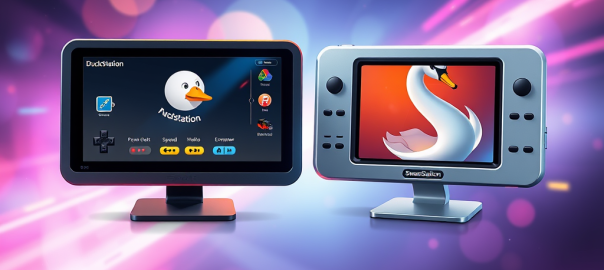
Instead of Duckstation you can also use Swanstation in Retroarch.

A description of the two is below:

🦆 DuckStation

  • Type: Standalone emulator
  • Focus: High compatibility, speed, and long-term maintainability
  • Platform: Available on Windows, Linux, Android, and macOS
  • Features:
    • Modern UI
    • Save states, widescreen hacks, texture filtering
    • Supports achievements (RetroAchievements)
  • Development: Actively maintained by its original developer
  • Best For: Users who want a full-featured, standalone PS1 emulator with a modern interface

🦢 SwanStation

  • Type: Libretro core (used within RetroArch)
  • Origin: Fork of DuckStation, created due to licensing and distribution disagreements
  • Focus: Same as DuckStation—playability and performance—but within the RetroArch ecosystem
  • Features:
    • Nearly identical emulation to DuckStation
    • Integrated into RetroArch’s unified interface
  • Limitations:
    • May lag behind DuckStation in updates
    • Slightly less customizable outside of RetroArch
  • Best For: Users who prefer RetroArch’s all-in-one emulator interface
How to fix Dolphin GameCube controller button mappings and keep them from being overwritten by RetroBat or Emulation Station

RetroBat and Emulation Station do a great job of mapping controller buttons straight out of the box but sometimes these settings do not map correctly onto specific emulators.

Dolphin’s GameCube is one such emulator that seems to get the buttons jumbled.

If you have ever tried to fix the button mappings via Dolphin directly you might have been frustrated that your manual settings have not stuck as next time you run a game you are back to the same wrong button layout.

This is because RetroBat or Emulation Stations front-end settings take precedence over the individual emulator settings, i.e. the expectation is you will set the emulator settings via these front-ends not in the emulators individually. Mostly this works great however some of the more detailed settings cannot be set via the front-ends and the front-ends overwrite the emulators with incorrect default settings.

To solve the GameCube button mapping problem do the following:

Open Dolphin directly, there are various means to achieve this one being via the RetroBat settings.

Click on the Controller icon.

For each port (controller you have connected) click on the “Configure” icon.

In the “Device” drop down select your controller.

In the GameCube Controller options set the buttons as follows:

For a PlayStation controller:

A : Cross

B : Square

X : Circle

Y : Triangle

Z : R1

Start: Start (Options)

For a XBox controller:

A : A

B : X

X : B

Y : Y

Z : Right Bumper

Start: Start

Now save the settings as a profile.

Reopen RetroBat/Emulation Station and press Start on your controller.

From the Main Menu:

Game Settings > Per System Advanced Configuration > GameCube > Autoconfigure Controllers = “OFF”

This should resolve the problem going forward.