Category Archives: uncategorised

How to fix a noisy GPU fan

If you have an old GPU and you have noticed it is creating more noise now than when it was first installed, it may be because the bearing is no longer sufficiently lubricated.

A new fan off EBay, or new to you, might not be a sound investment. This is true assuming you can even find a replacement. Luckily most GPU fans can be serviced.

To Lubricate the Fan Bearing:

Remove the GPU from your computer.

Spin the fan manually. If it is not mostly silent, then there is a problem with the bearing. More than likely, there is just insufficient lubricant.

Carefully peel back the sticker on the top of the fan to expose the bearing. If access to the bearing is not provided on the top of the fan, then remove the fan from the GPU housing. Peel back the sticker on the back of the fan. If you see a yellowish mark on the inside of the sticker where the bearing is, this confirms the lubricant has leaked somewhat. If access to the bearing is not provided at the bottom of the fan either then very carefully try to remove the blade.

Once the bearing is exposed apply a small drop of light machine oil or sewing machine oil to the bearing. Singer oil is a good choice.

Rotate the fan manually to work the oil into the bearing.

Replace the sticker or use a small piece of tape to cover the bearing.

Before reinstalling the GPU, you might consider also applying fresh thermal paste to the GPU processor. This will help keep temperatures down, giving the fan less work to do.

How to fix Azure Error Message: “The current transaction cannot be committed and cannot support operations that write to the log file. Roll back the transaction. Cannot find the object because it does not exist or you do not have permissions.”

There can be a number of reasons for this error but below steps through a potential scenario and fix for the error as referenced in the post title.

(TL;DR it’s probably down to permissions. Code example below.)

If you are running a Data Factory pipeline that calls a Store Procedure the process may fail throwing the error “The current transaction cannot be committed and cannot support operations that write to the log file. Roll back the transaction. Cannot find the object because it does not exist or you do not have permissions.”

The first part of that error is boilerplate stuff i.e. the query cannot do what it has to do so it is rolling back.

The second part of the error is what needs to be addressed. Either the object does not exist or the credentials the process is using does not have the required permission to do what the query has specified.

If you can confirm the object exits i.e. the table, then it can only be a matter of credential permissions.

The question becomes what are you trying to do with the object?

SELECT, DELETE, TRUNCATE all require that the credentials i.e. the user, has the permissions to carry out those statements.

If your query needs to TRUNCATE a table and the credentials used by Data Factory do not have permission to perform a TRUNCATE on a table then Azure will throw the aforementioned error.

In order to resolve that problem specifically, i.e. for a user to TRUNCATE a table, the user needs ALTER permissions. Below is an example of how to apply ALTER permissions on the object TestTable in the schema dbo to the user TestUser. Just update the schema, object and user to fit your needs.

GRANT ALTER ON OBJECT::dbo.TestTable TO TestUser;
GO 

The above conforms to applying the principle of least privilege as the ability to alter objects only applies to that object specifically. In closing if the object exists look at what the query does to object and ensure the user has the required permissions to do it.

An icon of a jetpack

How to fix Jetpack for WordPress.com not pushing posts to Facebook or Twitter

If you have set up the connections for Facebook, Twitter, etc. through Jetpack but your posts are not being pushed to those platforms try the following.

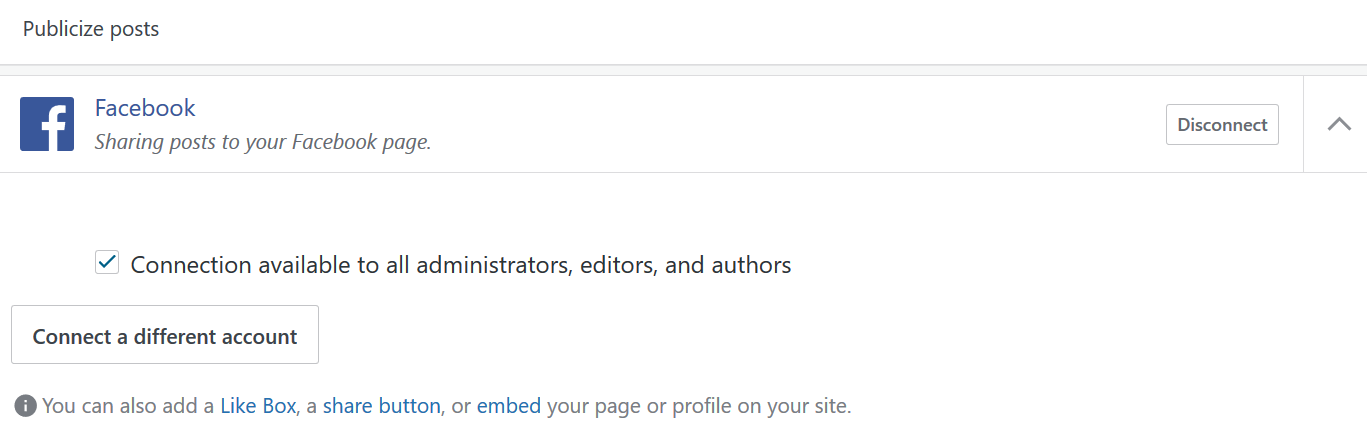
Make sure you have given permission to editors and authors of your site to use the established Jetpack connections. To do that go back to the Jetpack connection settings.

In the “Publicize posts” section click the drop down arrow to the far right.

Click the check box allowing the social media platform to be used by more than just the administrators. (Obviously this will allow your authors to publish to the specified social media platform so only do this if you trust your authors having this access.)

Once this is done your next published post should also be pushed across your connected social media platforms.

NOTE:

If the post was already published “Updating” the post will not share the post across the social media platforms. You will need to save the post as a “Draft” and “Publish” it again. This should then push the post to the social media platforms.