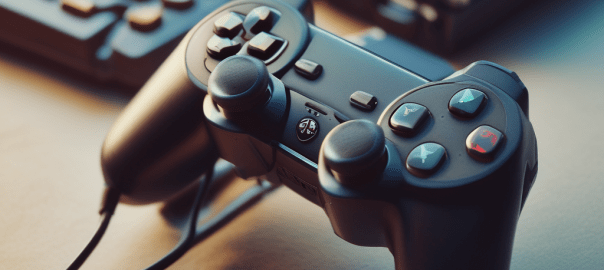
RetroBat and Emulation Station do a great job of mapping controller buttons straight out of the box but sometimes these settings do not map correctly onto specific emulators.
Dolphin’s GameCube is one such emulator that seems to get the buttons jumbled.
If you have ever tried to fix the button mappings via Dolphin directly you might have been frustrated that your manual settings have not stuck as next time you run a game you are back to the same wrong button layout.
This is because RetroBat or Emulation Stations front-end settings take precedence over the individual emulator settings, i.e. the expectation is you will set the emulator settings via these front-ends not in the emulators individually. Mostly this works great however some of the more detailed settings cannot be set via the front-ends and the front-ends overwrite the emulators with incorrect default settings.
To solve the GameCube button mapping problem do the following:
Open Dolphin directly, there are various means to achieve this one being via the RetroBat settings.
Click on the Controller icon.
For each port (controller you have connected) click on the “Configure” icon.
In the “Device” drop down select your controller.
In the GameCube Controller options set the buttons as follows:
For a PlayStation controller:
A : Cross
B : Square
X : Circle
Y : Triangle
Z : R1
Start: Start (Options)
For a XBox controller:
A : A
B : X
X : B
Y : Y
Z : Right Bumper
Start: Start
Now save the settings as a profile.
Reopen RetroBat/Emulation Station and press Start on your controller.
From the Main Menu:
Game Settings > Per System Advanced Configuration > GameCube > Autoconfigure Controllers = “OFF”
This should resolve the problem going forward.
 Tidbytez