Category Archives: Hardware

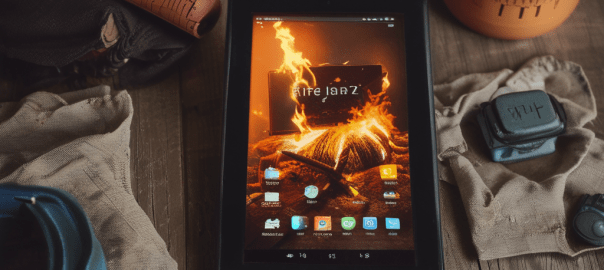
Fire Toolbox Vs the Amazon HD 8 Tablet (2022)

Amazon’s Fire tablets may not provide a complete Android experience, but they can still satisfy most user’s basic needs. They are priced very affordably, but this comes at the cost of locked bootloaders, no Google Play certification, and a heavily customized skin (Amazon’s Fire OS) that is often based on older Android versions and is, let’s face it, horrible to use. However, the aftermarket development community has managed to overcome most of these limitations with the Fire Toolbox.

See link below:

https://www.xda-developers.com/amazon-fire-toolbox-helps-install-google-apps-change-launchers-and-more-on-amazon-fire-tablets/

However the typical means of de-amazonification is not fully functional on the HD 8 Tablet.

Some important features still work like:

Remove lock screen ads

Block OTA updates

Debloating Apps

However setting a third-party launcher app as the default launcher has become buggy. The most popular choice, Apex, will likely not work. The launcher Lawnchair seems to work without and problems though. It’s a very basic launcher but totally serviceable.

Most importantly thought, as of now July 2023, the feature to install the Google Play store and Google Services does not work.

This means apps like YouTube, even if you side load them, will not work. Perhaps a suitable workaround for this, if you are concerned about your data privacy, is to install Firefox open YouTube as a webpage and then go to settings and choose “Install”. This will create a shortcut on your Home Screen that looks and functions like an app.

To install apps without the Play store you can install alternatives like the F-Droid store, Aurora store (only use a disposable Gmail account) or use APKMirrror. (Use all suggested alternatives at your own risk)

All of the above is less than ideal though so if you were thinking about picking up a cheap Fire Tablet on Prime day with the expectation it can be totally de-amazoned with a few clicks of a mouse, maybe give it a miss and pay a few extra bucks for something else instead.

How to fix an audio echo problem with bluetooth headphones on Windows 10

I recently got shipped a new bluetooth headset for work. The headset in question was the MPOW HC5 headset. They are very comfortable and have good audio quality but when they first arrived there was a problem. The audio had a persistent echo.

The echo was isolated to the headset as there was no echo when the audio was coming through the laptop speakers.

The echo was also isolated to Windows 10 as there was no echo when the headset was plugged into an Android device.

At first I thought the problem was caused by the Windows 10 audio enhancements settings. These settings include an option for echo. However in this instance this was not the cause of the problem.

To rule out Windows 10 audio enhancements as the cause of the problem do the following:

Control Panel > Hardware and Sound > Sound > Left click on Speakers (or another output device of your choosing) > Properties > Enhancements > Check “Disable all sound effects”.

In this particular case the echo problem for my headset was that playback was happening twice for the same device albeit slightly out of sync thus creating an echo. The problem was identifiable as when I traversed to the option path below I could see that the headset was registered with the OS twice under two slightly different names.

Options path:

Control Panel > Hardware and Sound > Sound > Playback

I tested playback for both device names, by right clicking the device and clicking test, and found that one of the devices had a audio glitch. When this instance of the device was disabled the headphones worked without any echo.

If you found this post helpful please like/share/subscribe.

How to fix winhiip writing to hard drive problem

If you are trying to format a hard drive to be used by a PlayStation 2 you’ve probably already come across excellent content like the video below and the necessary tools to do the job.


However you might, like me, run into the problem of winhiip not being able to right to the drive which will prevent it from formatting the drive correctly.

To resolve this problem you will need to manipulate the drive in Windows “Disk Management”.

Open Disk Management (to open type disk management in Windows search and hit enter)

Find the reference to disk you want to fix and if it has not already been formatted follow these steps:

  • Initialize the disk. (If not already initialized)
  • Right click the Unallocated Space on the disk and click New Simple Volume.
  • Proceed through the New Volume Wizard, setting the Volume size to the maximum disk space and formatting the drive under the NTFS file system. (Only a quick format is needed)
  • Wait for the drive to finish formatting, then right click the healthy partition you just made and click Delete Volume.
  • Open WinHIIP and click Select Drive, then select your drive. Press OK to all errors that pop up upon loading the drive.

At this point you should be able to write to the drive with no problems.