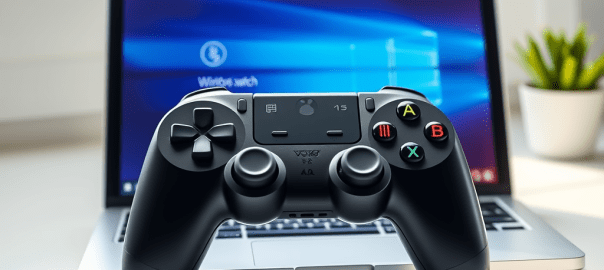
If you’ve ever plugged a Switch-style controller into your PC and found that the A and B buttons feel reversed, you’re not imagining things. The VOYEE Wireless Switch Controller—while designed for Nintendo Switch—also works on Windows in XInput mode, which mimics an Xbox controller. But the physical button layout still follows Nintendo’s convention, leading to confusion in games where B confirms and A cancels.
Luckily, VOYEE includes a built-in button-swap feature to fix this. Here’s how to connect your controller and remap the buttons for a true Xbox-style experience.
🔗 Step 1: Connect Your VOYEE Controller to Windows via Bluetooth
Before remapping, you’ll need to pair your controller with your PC. VOYEE makes this easy with a quick button combo.
✅ How to Pair:
- Enter Pairing Mode
- Press and hold the X button and the Home button together for 3–4 seconds.
- The LED lights will begin flashing, indicating the controller is ready to pair.
- Connect in Windows Settings
- Go to Settings > Devices > Bluetooth & other devices.
- Click Add Bluetooth or other device > Bluetooth.
- Select the device labeled “Xbox Controller” or similar from the list.
Once connected, the controller should operate in XInput mode, which is compatible with most PC games and emulators.
🔄 Step 2: Remap A/B and X/Y Buttons to Match Xbox Layout
Now that your controller is connected, it’s time to fix the reversed button behavior. VOYEE controllers support a hardware-based button-swap combo that toggles between Nintendo and Xbox-style mappings.
🔧 Why This Matters:
- Nintendo layout: A = Confirm, B = Cancel
- Xbox layout: B = Confirm, A = Cancel
- On PC, this mismatch can make menus and gameplay feel unintuitive.
🧪 How to Perform the Swap:
- Locate the Buttons
- Capture/Share Button: Usually near the Home button, marked with a camera icon.
- R3: Press the right analog stick down until it clicks.
- Execute the Combo
- Press and hold Capture + R3 together for 1–2 seconds.
- You should feel a single vibration, confirming the swap.
- If nothing happens, try holding for up to 3 seconds, or repeat to toggle between layouts.
- Test the Result
- Open Windows Game Controller Settings (search “Set up USB game controllers” in the Start menu).
- Or launch a game and test the buttons:
- A should now confirm
- B should cancel
If the buttons still feel reversed, repeat the combo—it may cycle between Nintendo and Xbox modes.
🧠 Final Thoughts
The VOYEE Wireless Switch Controller is a great budget-friendly option for PC gaming, but its Nintendo-style layout can trip up players used to Xbox controls. Thankfully, with a simple Capture + R3 combo, you can remap the buttons and enjoy a seamless experience across your favorite games.
Still having trouble or using a different VOYEE model? Drop a comment—I’ll help you troubleshoot or find the right combo for your setup.
Happy gaming! 🎮
 Tidbytez